Updating data from the front end with Tabulizer File Uploader
Updating data from the front end with Tabulizer File Uploader
Let the person maintaining your spreadsheet replace it from a page on the site. You keep control of the destination, the data source and the Joomla administrator.
What it is for
A price list, a timetable or a set of monthly figures is displayed through a Tabulizer data source. Someone else prepares the file, but updating the table still means asking you to replace that file on the server.
Tabulizer File Uploader gives that person a front-end upload form. They sign in to the site, choose the new file and upload it. You decide who may upload, where the file goes, which formats are allowed and how large it may be.
The working arrangement is to create the data source once, point it at a file, then replace that file under the same name whenever its contents change. The articles and modules displaying the data source continue to use it.
Step 1 - install the package for your Joomla version
Choose the Tabulizer File Uploader package matching your site's Joomla major version. There are separate packages for Joomla 3, 4, 5 and 6; the current Joomla 3 edition targets 3.9/3.10, and the Joomla 4 edition requires 4.4 or later.
| Joomla version | Where to install |
|---|---|
| Joomla 3 | Extensions › Manage › Install |
| Joomla 4, 5 and 6 | System › Install › Extensions |
Use Upload Package File to install the ZIP. The package installs both the component and the module. The module starts unpublished, ready for you to choose its position and pages.
Then open Components › Tabulizer File Uploader and click Options. The screenshots below show the modern Joomla interface; Joomla 3 presents the same uploader settings in its own administrator layout.
Step 2 - decide who may upload
A signed-in site account is required. Ordinary users are denied initially, and there are two ways to authorise them:
| Method | What to configure |
|---|---|
| Allow a Joomla user group | In Options › Permissions, select the intended group and set Upload data files to Allowed. Save, then check the calculated permission for that group. |
| Allow individual accounts | In Options › Upload settings, enter their numeric IDs in Additional permitted user IDs, separated by commas, for example 42, 57. |
Find the account's ID in Users › Manage, in the user list's ID column. Use the ID, not the display name. Save the component options after changing either method.
For one person, an existing Registered account plus an individual ID grant is often enough. For a team, a dedicated group makes it easier to maintain access. Only allow the whole Registered group if every registered site user should be able to upload.
Step 3 - choose the destination and limits
Open the Upload settings tab. The default destination is Tabulizer's usual data folder:
templates/tabulizer/dataThis path is relative to the Joomla installation root. If Joomla lives in a subfolder, the path starts inside that installation. A leading slash is still site-relative; it does not mean the root of the server's filesystem.
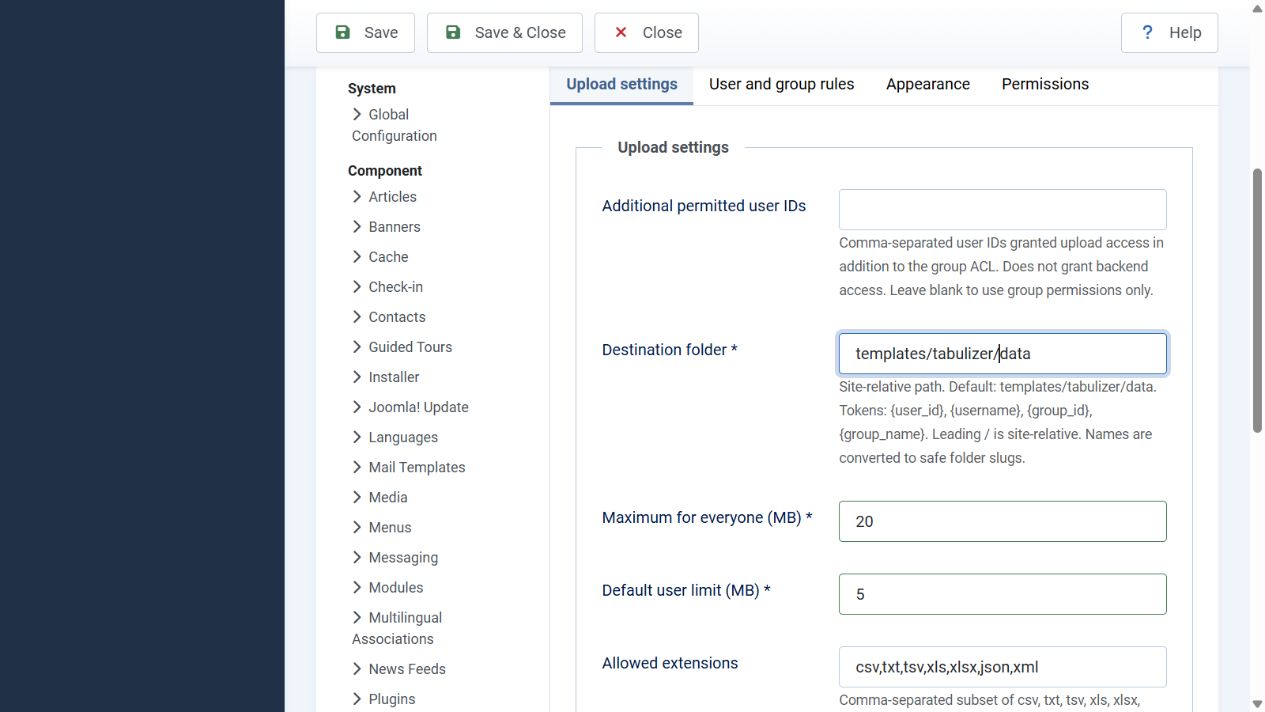
| Setting | What it does |
|---|---|
| Destination folder | Where uploads are saved. Missing permitted folders are created during an upload if the server allows it. Enter a site-relative data folder, not a URL or absolute server path. |
| Maximum for everyone (MB) | The ceiling for all uploads, including users with individual rules. Initially 20. |
| Default user limit (MB) | The usual limit unless a matching user or group rule changes it. Initially 5. |
| Replace existing files | Enabled by default. A file with the same name in the same destination is replaced. Disable this to reject collisions instead. |
A rule cannot exceed the global ceiling or the extension's fixed 100 MB ceiling. PHP and the web server may impose smaller limits; raising the component's setting does not raise those server limits.
Step 4 - select file types
Allowed extensions initially contains csv,txt,tsv,xls,xlsx,json,xml. Remove formats you do not need. For a CSV-only workflow, enter csv.
The uploader checks the detected MIME type and file content too. Renaming another format to .csv does not make it acceptable. JSON and XML must be valid, and spreadsheet files have their own format checks.
Additional MIME restriction is optional. Leave it empty for the built-in checks, or enter a comma-separated list of detected MIME types to narrow them further. Normal CSV files can be detected as text/plain, so an unnecessarily narrow list can reject valid files.
monthly-sales.csv. The filename stem supports letters, numbers, spaces, hyphens and underscores. Rename sales.2026.csv to sales-2026.csv, and save CSV/text as UTF-8.Different folders or limits for different people
In Options › User and group rules, click Add rule. Identify a person by User ID or Exact username, or leave both blank and select a group. Set a destination, a size limit, or both.
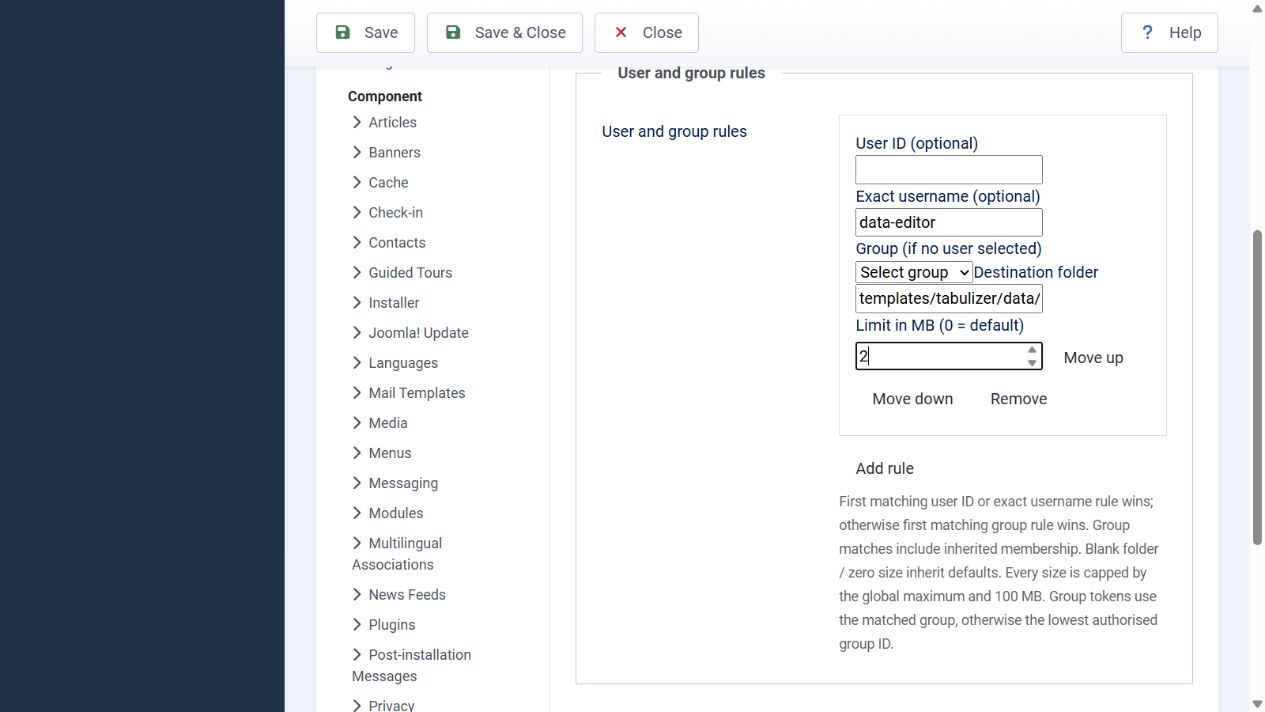
For example, give the username data-editor a 2 MB limit and this destination:
templates/tabulizer/data/{user_id}-{username}For user 42, the result is templates/tabulizer/data/42-data-editor. The uploader substitutes the person uploading and converts names to safe folder names.
| Token | Example value |
|---|---|
{user_id} |
42 |
{username} |
data-editor |
{group_id} |
2, the matching group's numeric ID |
{group_name} |
Registered, converted to a safe folder name |
A group destination could be site-data-{group_id}/sources. Group matches include inherited membership. Group tokens use the group matched by a group rule; without one, they use the user's lowest authorised group ID. If exact group selection matters, make it explicit in a group rule.
The first matching user-ID or exact-username rule wins. If none matches, the first matching group rule wins; otherwise the defaults apply. Use Move up and Move down to change the order. A blank folder inherits the default folder, and a limit of 0 inherits the default user limit. Save the options.
Step 5 - give users a page to upload from
For a dedicated upload page, create a menu item:
- Open Menus, choose the appropriate menu and add a new item.
- Give it a title, such as Update data.
- In Menu Item Type, select Tabulizer File Uploader and its upload-form layout.
- Choose the menu item's access level and publish it.
Set the menu item's access level to one the intended users can view, commonly Registered. Menu visibility and upload authorisation are separate: a person may be able to see the link but still lack permission to upload.
For a quick check, use Open upload page on the uploader component's dashboard. Its direct front-end route is:
index.php?option=com_tabulizeruploader/administrator does not prove that the upload page is signed in. Use the site's front-end login form when testing.Or place the companion module on existing pages
The Tabulizer File Uploader site module displays the same form in a template position. It uses the component's permission, folder and limit settings; there is no second policy to configure.
| Joomla version | Where to manage the module |
|---|---|
| Joomla 3 | Extensions › Modules, with the site client selected |
| Joomla 4, 5 and 6 | Content › Site Modules, or the Site Modules link on the System dashboard |
- Find the installed Tabulizer File Uploader module and open it.
- Choose a Position provided by your active site template.
- Set Status to Published.
- Under Menu Assignment, select the pages where it belongs. No pages displays nothing.
- Choose an appropriate Access level, leave module caching disabled and save.
Step 6 - connect the file to your data source
Choose a filename you intend to keep, such as monthly-sales.csv, and upload its first copy. Then open Components › Tabulizer › Data Sources and create or edit the file-based source that should read it.
Set the source's file path to the actual destination and filename. With the default folder:
templates/tabulizer/data/monthly-sales.csvWith the individual rule from our example:
templates/tabulizer/data/42-data-editor/monthly-sales.csvChoose the source's parsing settings and ruleset as usual, and display the data source in an article or module. Later uploads must use that same folder and filename to update it. Uploading a differently named file does not redirect the data source to the new file.
What the person updating the data does
- Sign in to the front end with an authorised Joomla account.
- Open the upload page, or a page displaying the uploader module.
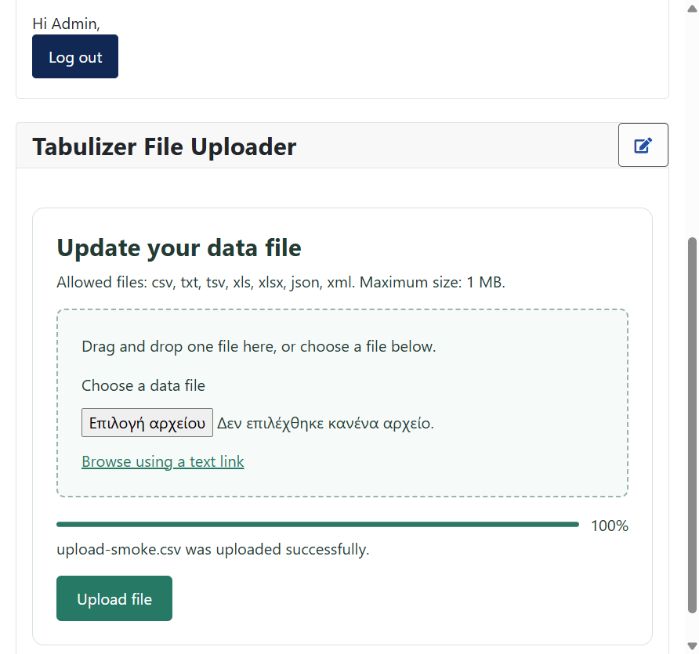
- Drag one file onto the drop area, use Choose a data file, or click Browse using a text link.
- Click Upload file and wait for its success message.
- Open the page displaying the data and check the result.
The bar measures transfer progress. At 100%, the server may still be validating and saving; the success message confirms that processing has finished. Upload one file at a time.
Appearance, notifications and refresh
| Where | Setting | What to do with it |
|---|---|---|
| Appearance | Upload heading and Submit button text | Use wording suited to the task, such as “Update the monthly figures”. Blank values use translated defaults; custom text may also be a Joomla language-override constant. |
| Appearance | Progress and button colour and Progress bar height (pixels) | Choose a colour matching your site and a height between 4 and 40 pixels. The colour also applies to the upload button. |
| Upload settings | Notify these email addresses | Optionally enter recipients separated by commas, semicolons or new lines. Notifications for successful uploads use Joomla's configured mailer. Leaving it blank sends none. |
| Upload settings | Refresh Tabulizer data-source caches | Leave enabled to clear derived data-source caches after successful uploads when Tabulizer is active, including caches used by merged or chained sources. Source definitions are preserved. |
English and German language files are included, and Joomla language overrides can customise the extension's text.
Checking upload history
Open Components › Tabulizer File Uploader to see Upload history. Search by filename or username; results are paginated in groups of 25.
Each record shows the date, user, file, destination, byte count, detected MIME type, replacement flag, upload status and notification result. Dates are recorded in UTC. Hover over the filename cell to see its SHA-256 checksum. The destination is useful for checking exactly how a folder rule resolved.
Replaced: Yes confirms that a previous file existed at that destination. Status: Success with Notification: Failed means the file was saved but the notification failed. A mail failure does not undo the file upload.
Rejected files are not listed as successful uploads. A pending record can indicate interrupted processing and needs an administrator to check the destination before retrying.
Common questions
I am logged in as an administrator, but the upload page asks me to sign in.
Sign in on the front end too. Joomla keeps the administrator and site sessions separate. Then check that the account has the component's Upload data files permission or an individual ID grant.
The menu link is visible, but the user cannot upload.
Menu access and upload permission are separate. Check Options › Permissions and Additional permitted user IDs. A destination rule does not grant access.
The module does not appear.
Check its Published status, template position, Access level and Menu Assignment. A module assigned to No pages is installed but invisible. Also make sure you selected the File Uploader module, not the Data Source module.
The upload succeeded, but the table has not changed.
Compare the history destination with the data source's path, including the resolved user folder and filename. Check whether the file was replaced, then check the data-source refresh setting and Joomla or CDN page caching.
Why is my CSV or Excel file refused?
Check the filename, allowed extensions, size and additional MIME restriction. Use a single-extension filename and UTF-8 text. Macro-enabled Excel formats are not supported; JSON/XML must be valid, and renaming a file does not convert it.
A file with this name already exists.
Enable Replace existing files if updates should replace it. Otherwise upload under a new name, then change the data source's path if it should read that new file.
The form has expired or the upload cannot be confirmed.
Reload the upload page and check your connection. If a transfer may have completed, check Upload history before retrying. Repeated expiry can mean a cache is serving an old form.
The destination is refused or cannot be written.
Use a site-relative data folder inside the Joomla root. Core code directories and paths through symlinks are refused. Ask the administrator to check folder permissions and PHP/web-server upload limits.
What happens if I uninstall the uploader?
Uploaded files and the audit table are deliberately retained. Removing the uploader does not remove the source files your tables may still use.
Set it up once, update it from the site
Choose the accounts, destination and filename, connect the file to your data source, and share the upload-page link with the person maintaining the data.
Back to the Knowledge Base