Data Sources
Turn Excel, CSV, Google Sheets, JSON or a Database into a Web Table
Your data already lives somewhere: a spreadsheet on your desk, a Google Sheet your team edits, a database, a partner's API. Point Tabulizer at it and publish it as a styled, searchable table, with no copying and pasting every time it changes.
What's inside: Excel (xls, xlsx, ods), CSV/text, Google Spreadsheet, JSON file or API, XML, HTML page, RSS feed, MySQL and external databases (PDO, SQL Server), Joomla article, Google Calendar ICS, data source merger, cache, data file manager.
How Tabulizer Works
You design the look once and save it as a ruleset. Tabulizer applies that ruleset to your data every time the page is shown, so a new row in your spreadsheet appears on the site without anyone touching the article.
Sources You Can Connect
Excel and CSV Files
Upload xls, xlsx, ods or CSV files, or read them from a URL. Choose the separator, enclosure and character encoding for CSV.
Google Spreadsheets
Your team keeps editing the sheet; the website table follows. Read it through Google's CSV or HTML export.
JSON Files and APIs
Give the URL, the path to the rows and the columns you want. Good for stock levels, rates or any service that returns JSON.
Databases
Run a query on your site's own database, or connect to an external one through mysqli, any installed PDO driver or SQL Server.
Web Pages, XML and RSS
Pull a table out of an HTML page, read an XML file, or list the latest items of an RSS feed.
Google Calendar (ICS)
Read events from any ICS feed, filter by date range and keywords, and show them as a calendar or timeline.
Set Up a Data Source in the Back End
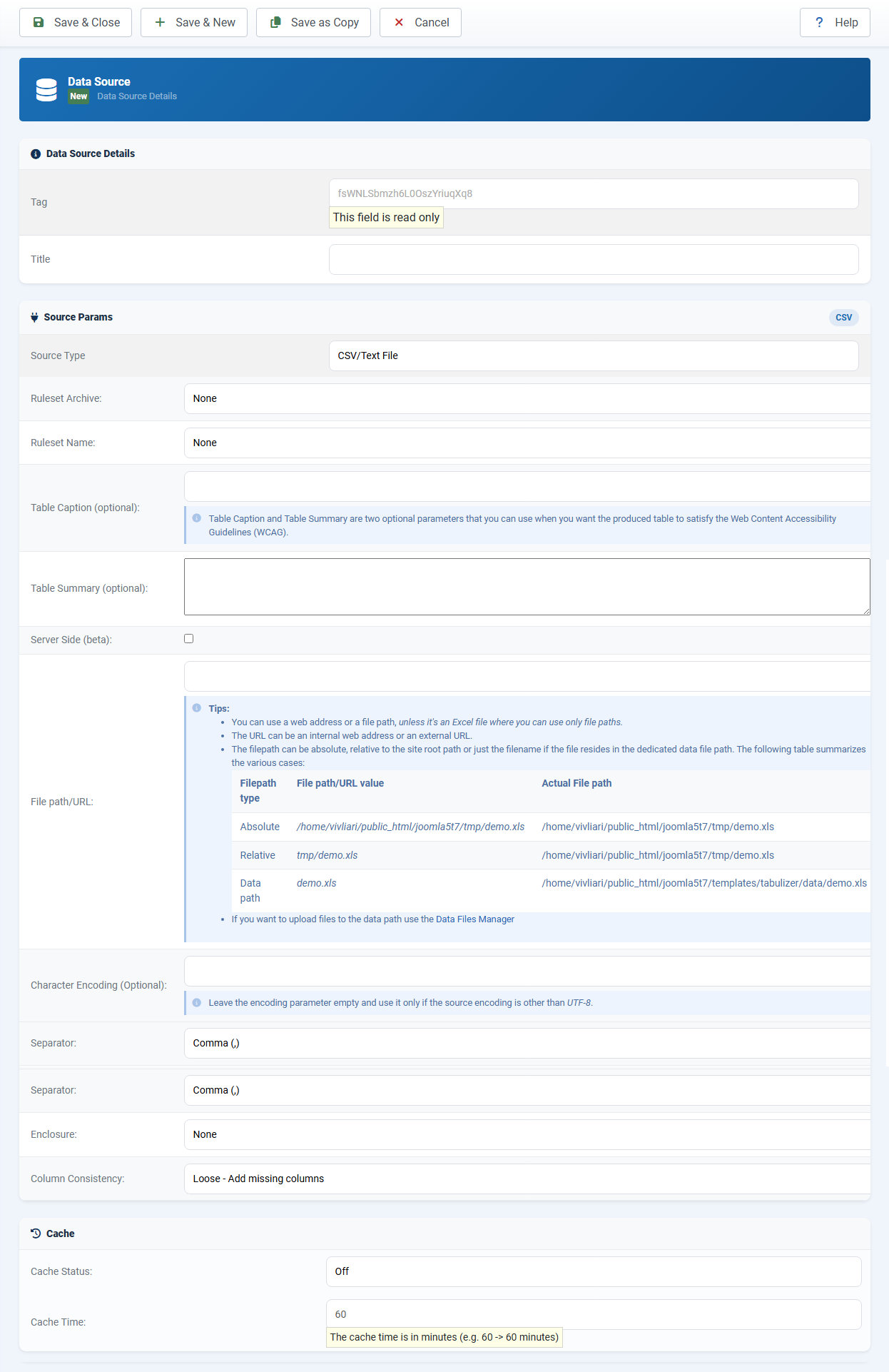
Each data source has a tag, a source type, the ruleset that designs it, and cache settings. Optional caption and summary fields help your table meet WCAG.
Tools That Save You Time
Data Source Merger
Combine several sources into one table, stacked (vertical) or side by side (horizontal). For example, one price list from three supplier files.
Data Files Manager
Upload files, including ZIP archives that are unpacked for you. See which data sources use each file.
Grid View Editor
Fix a typo or add a row in a spreadsheet-style grid, right in the back end, with copy and paste and keyboard navigation.
Cache
Set a cache time in minutes so remote files and slow queries are read once, then served quickly. Clear it with one click.
Share Your Data
Publish a data source as JSON or HTML so another website or app can read it. See sharing data sources.
Tables from Joomla Articles
Keep a table in an article your editors already maintain and show it elsewhere on the site, restyled by a ruleset.
Good Fit For
Price lists kept in Excel, product feeds from a supplier API, team rosters in Google Sheets, reports from an ERP or CRM database, event listings from a shared Google Calendar, and news pulled from RSS feeds.
Questions
Does the table update when I change the file?
Yes. Tabulizer reads the source again when the cache expires, or right away if the cache is off or you clear it.
Is there a file size limit?
Uploads of CSV and Excel files are limited to 16 MB. For bigger data, use a database query with server-side processing.
Can I use one data source on several pages?
Yes. Insert the same tag wherever you need it. See static vs dynamic.