Calculator Wizard
What the Calculator Wizard does
This wizard builds an interactive calculator: the visitor types some numbers, presses Calculate, and gets an answer worked out from a formula you write. Quotes, mortgage repayments, savings estimates, dosage calculations, shipping costs — anything you can express as an arithmetic expression.
Two things make it more capable than a simple form:
- the formula can read from a table of your own figures — price lists, rates, coefficients — using spreadsheet-style cell references;
- the result can be put behind an email gate, turning the calculator into a lead magnet.
As with the other wizards, the output is a Tabulizer ruleset you import into your own site.

Step 1 — Data source
First decide whether your calculator needs a table of figures behind it.
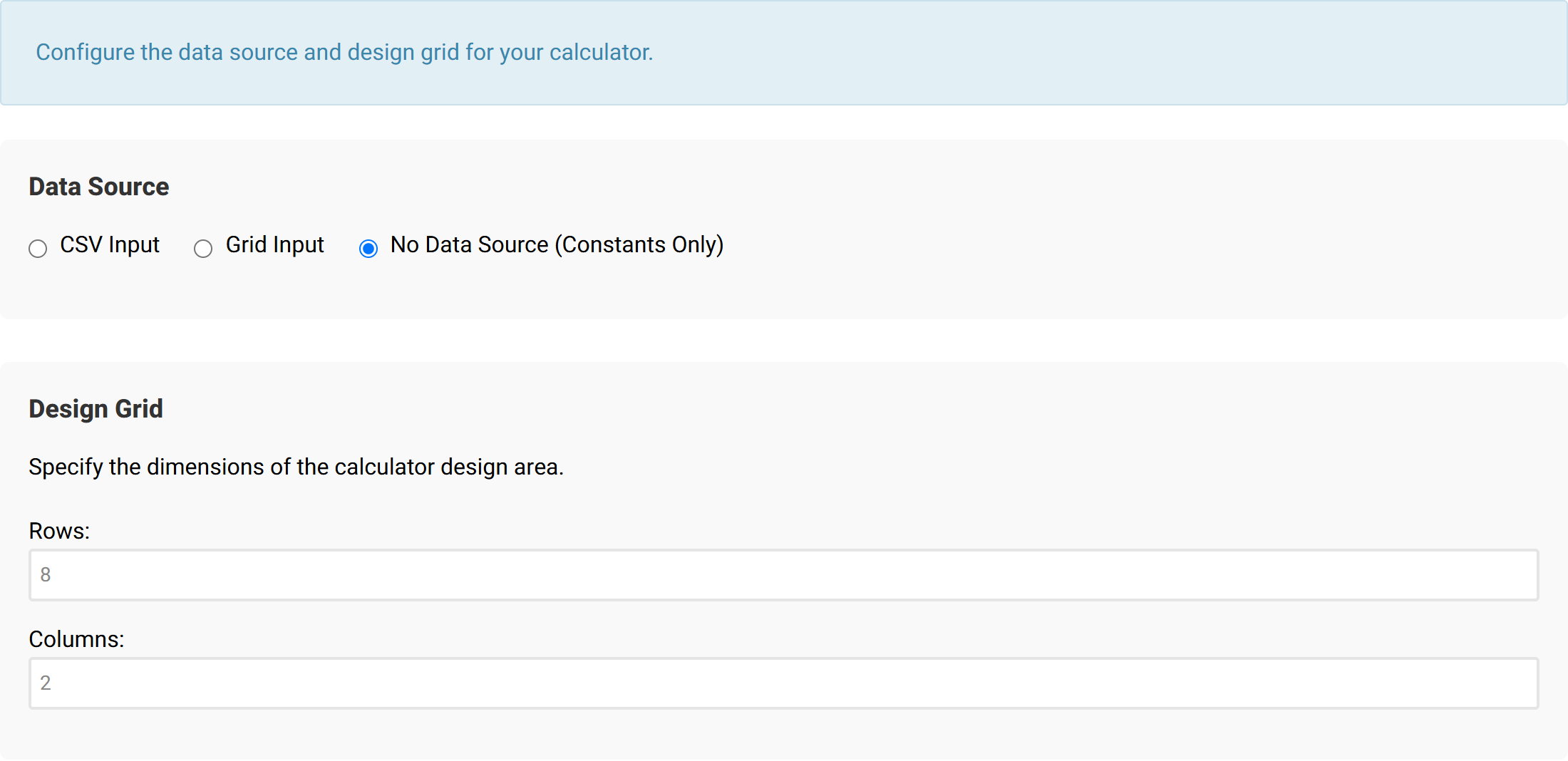
| Data source | Use it when |
|---|---|
| CSV Input | You already have the figures — a rate card, a price list — and want to paste them in. |
| Grid Input | You would rather type the figures into a grid here. Create Grid builds it for you. |
| No Data Source | The formula only needs what the visitor types, plus constants you write into it. |
The Design Grid rows and columns at the bottom are something different: they set the layout you will arrange the calculator's fields on in Step 2. Four rows by two columns suits most calculators.
The worked example
This tutorial builds a delivery quote calculator from a small rate card:
Service,Rate
Standard,45
Priority,70
Same day,120
Paste that into the CSV area and press Parse CSV. The Data Preview appears, and this is the part worth studying:
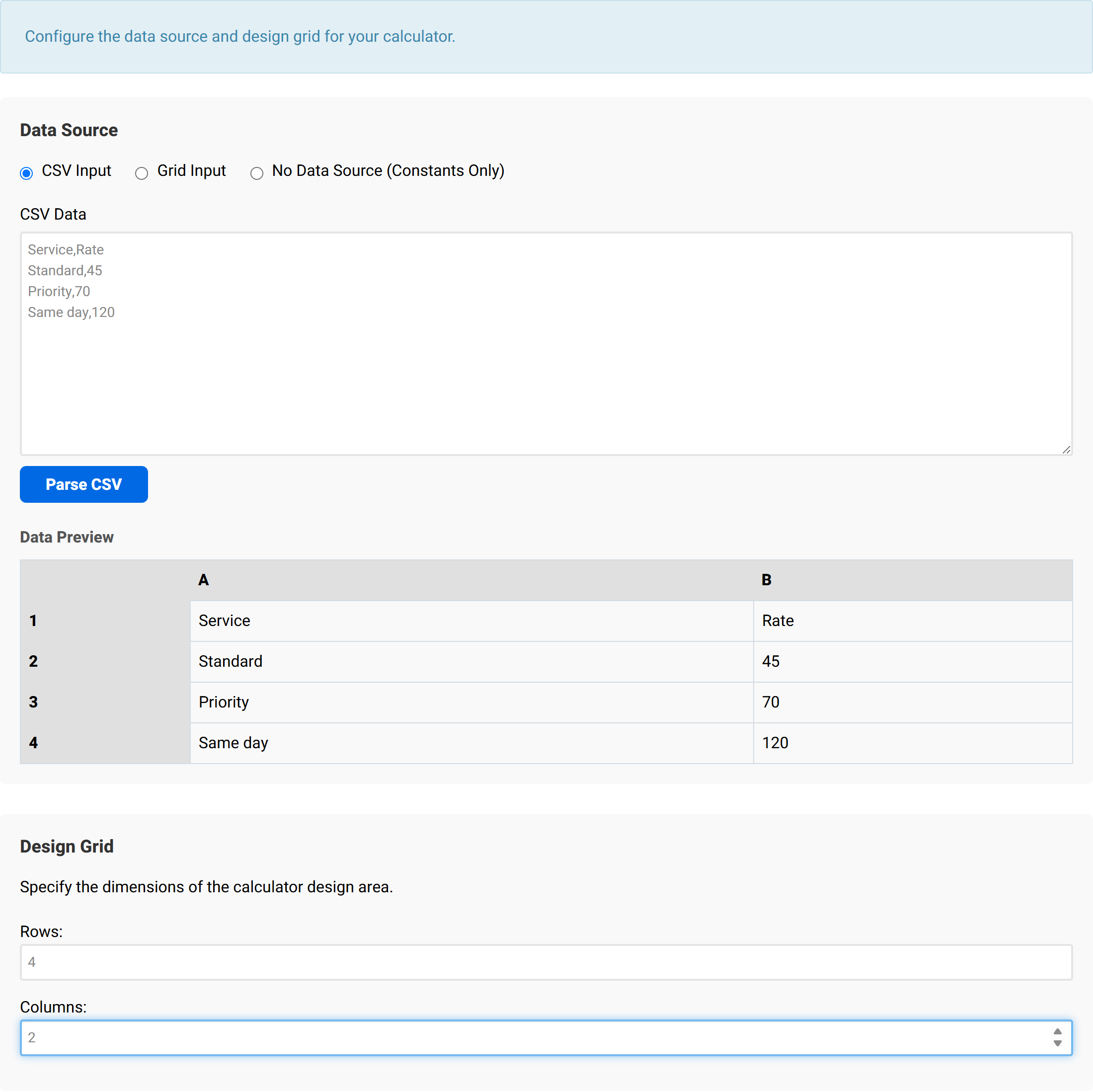
The preview gives every value an address. Columns are lettered and rows are numbered, exactly like a spreadsheet, so in the example above A1 is “Service”, B1 is “Rate”, and B2 is 45 — the standard rate. Those addresses are what your formula will use. Note that the header row is row 1, so your first figure is usually on row 2.
Step 2 — Design and formula
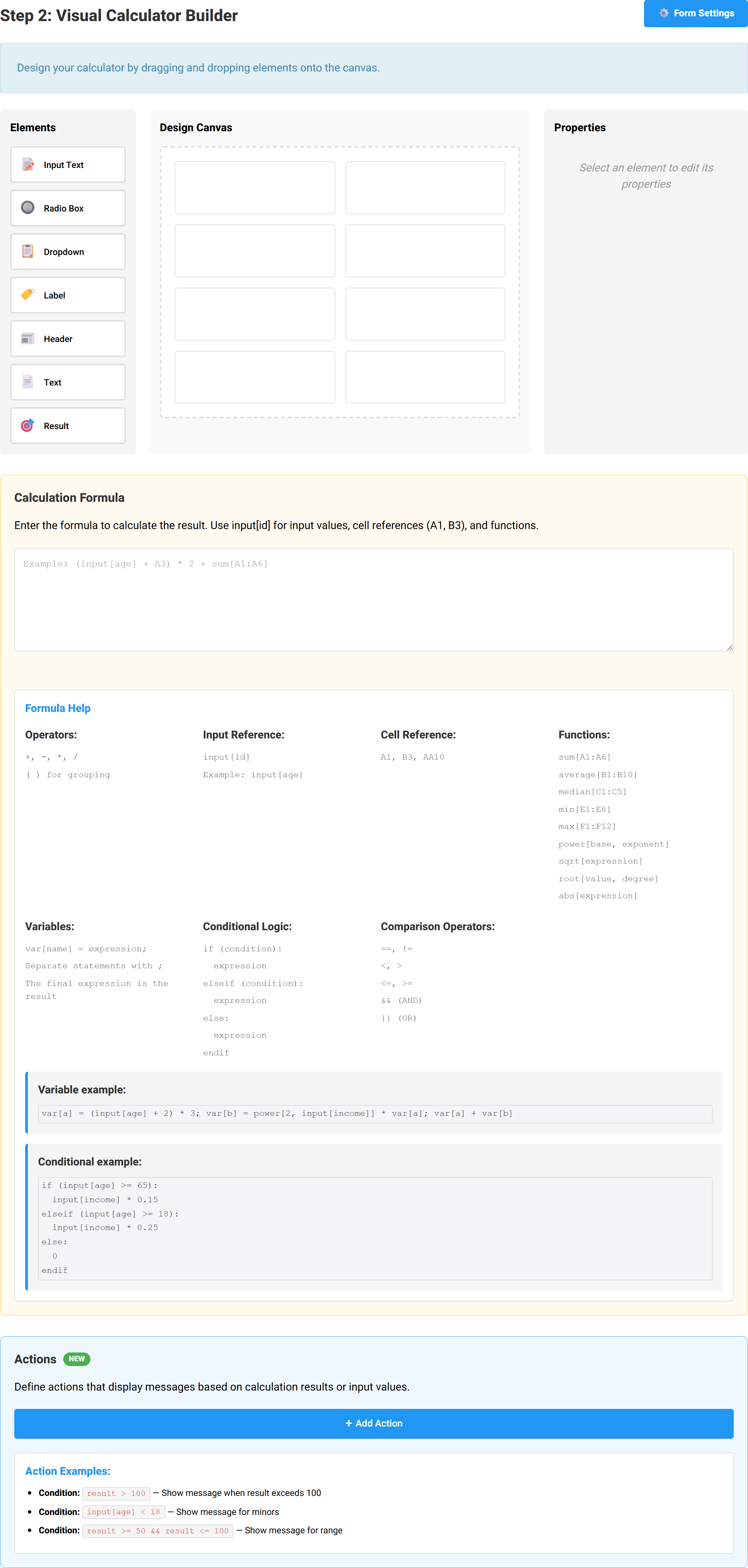
Three panels — Elements, Design Canvas and Properties — with the formula and actions below them.
The elements
| Element | What it is for |
|---|---|
| Input Text | A number the visitor types. Each one gets an Input ID that your formula refers to. |
| Radio Box | A choice between a few values. |
| Dropdown | A choice from a longer list. |
| Label | A caption. |
| Header | A heading for the calculator. |
| Text | A paragraph of explanation. |
| Result | Where the answer appears. Every calculator needs one. |
Drag an element onto a cell, then click it to edit it on the right.
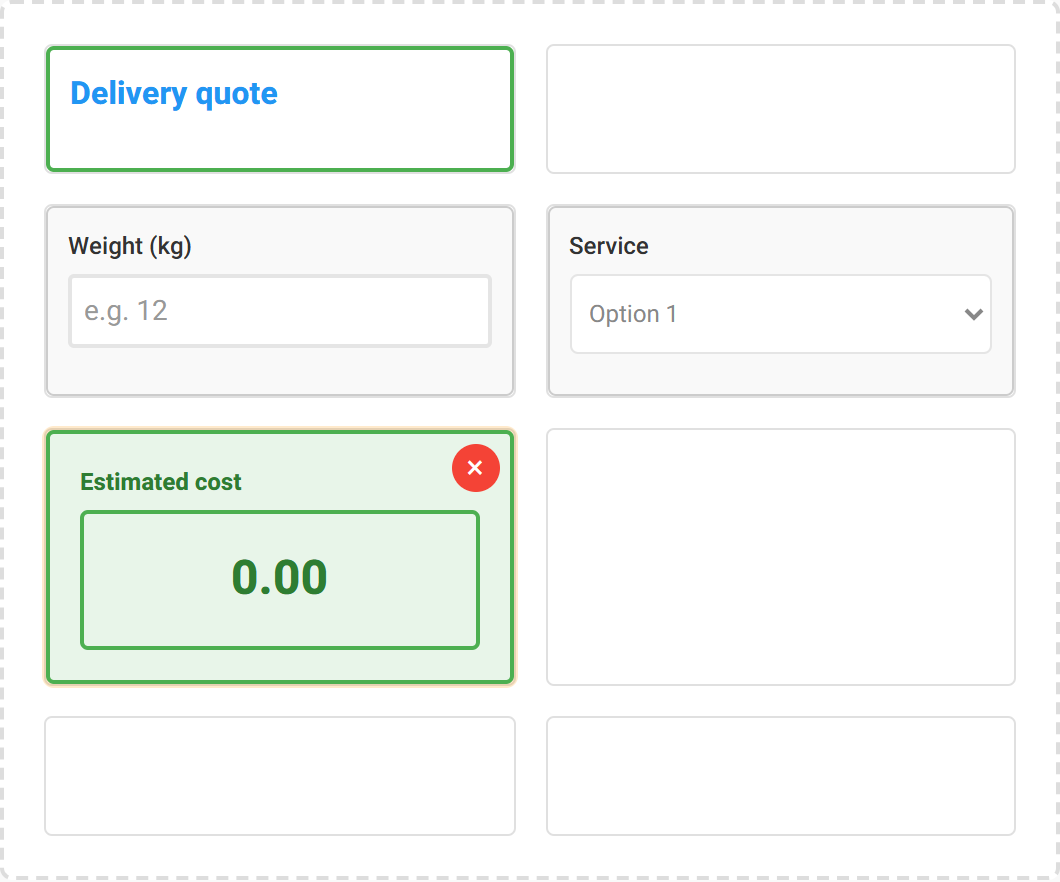
Properties — and the Input ID
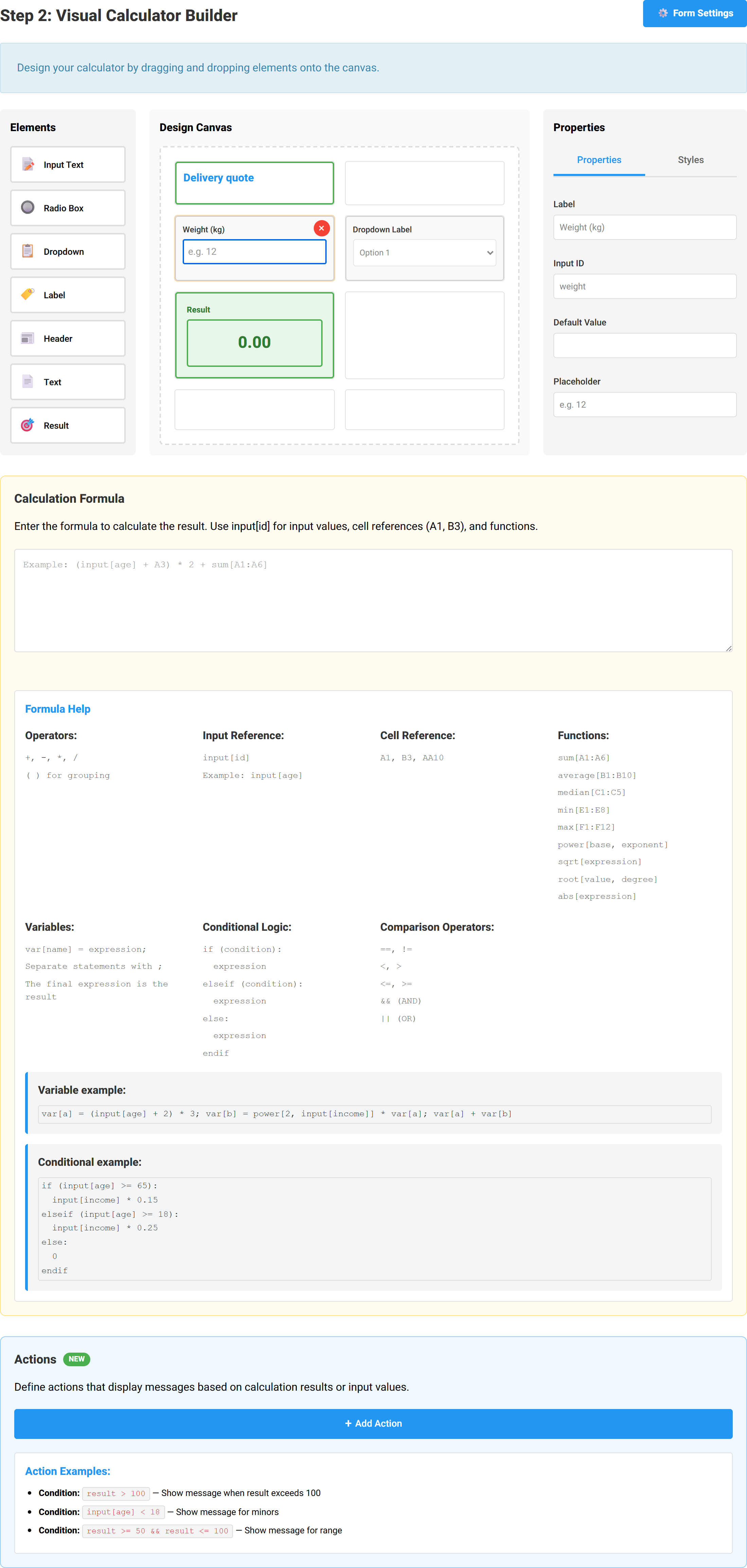
| Property | What it does |
|---|---|
| Label | The caption the visitor reads. |
| Input ID | The name your formula uses. Set this before writing the formula. |
| Default Value | What the field starts with. |
| Placeholder | Grey hint text inside the empty field. |
Give every input a meaningful ID straight away. The example sets the weight field's Input ID to weight, so the formula can say input[weight]. Left at its generated default the formula would read input[input_2], which is needlessly hard to follow.
The formula
![The calculation formula area containing the expression input[weight] multiplied by B2.](/tabulizer7/images/tutorials/calculator/calc-step-2-formula.png)
The example's formula is:
input[weight] * B2Which reads: take the number the visitor typed into the weight field, and multiply it by the value in cell B2 — the standard rate of 45 from the rate card. That one line uses both kinds of reference, and it is the whole idea of this wizard.
Formula reference
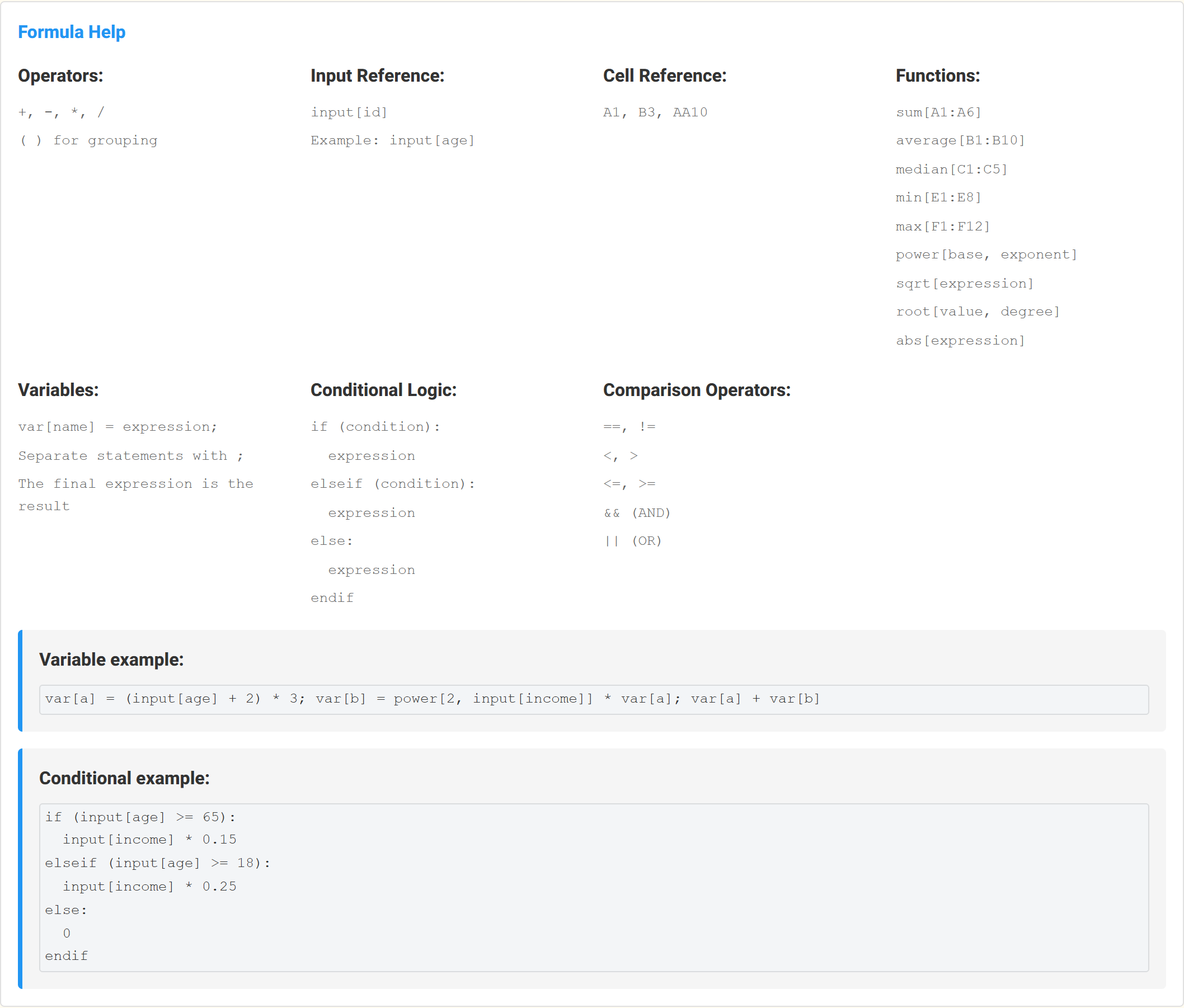
| What | How to write it | Example |
|---|---|---|
| Arithmetic | + - * /, with ( ) for grouping |
(a + b) * 2 |
| A field the visitor fills in | input[id] |
input[weight] |
| A cell from your data | Column letter and row number | B2, AA10 |
| Add up a range | sum[range] |
sum[A1:A6] |
| Average, median | average[range], median[range] |
average[B1:B10] |
| Smallest, largest | min[range], max[range] |
max[F1:F12] |
| Powers and roots | power[base, exponent], sqrt[x], root[value, degree] |
power[input[rate], 12] |
| Absolute value | abs[x] |
abs[input[a] - input[b]] |
| A named variable | var[name] |
var[vat] |
Functions take square brackets, not the round brackets a spreadsheet uses: sum[A1:A6], not SUM(A1:A6). Round brackets are reserved for grouping arithmetic.
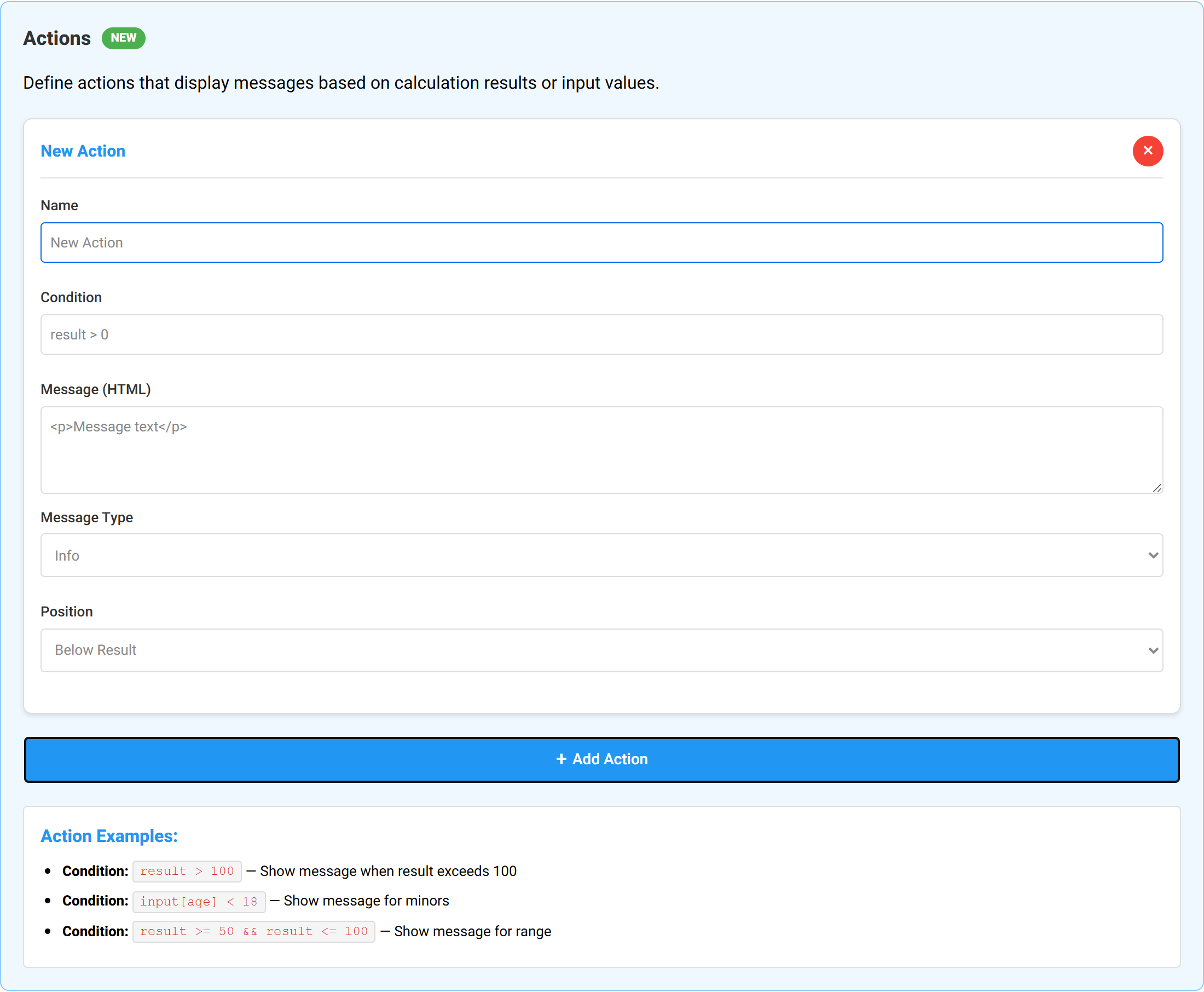
Actions
Actions react to the result — showing a message when it crosses a threshold, for instance, rather than leaving the visitor to interpret a bare number.
Form settings
The ⚙ Form Settings button opens a dialog covering the calculator's overall appearance and, importantly, how its numbers are formatted.
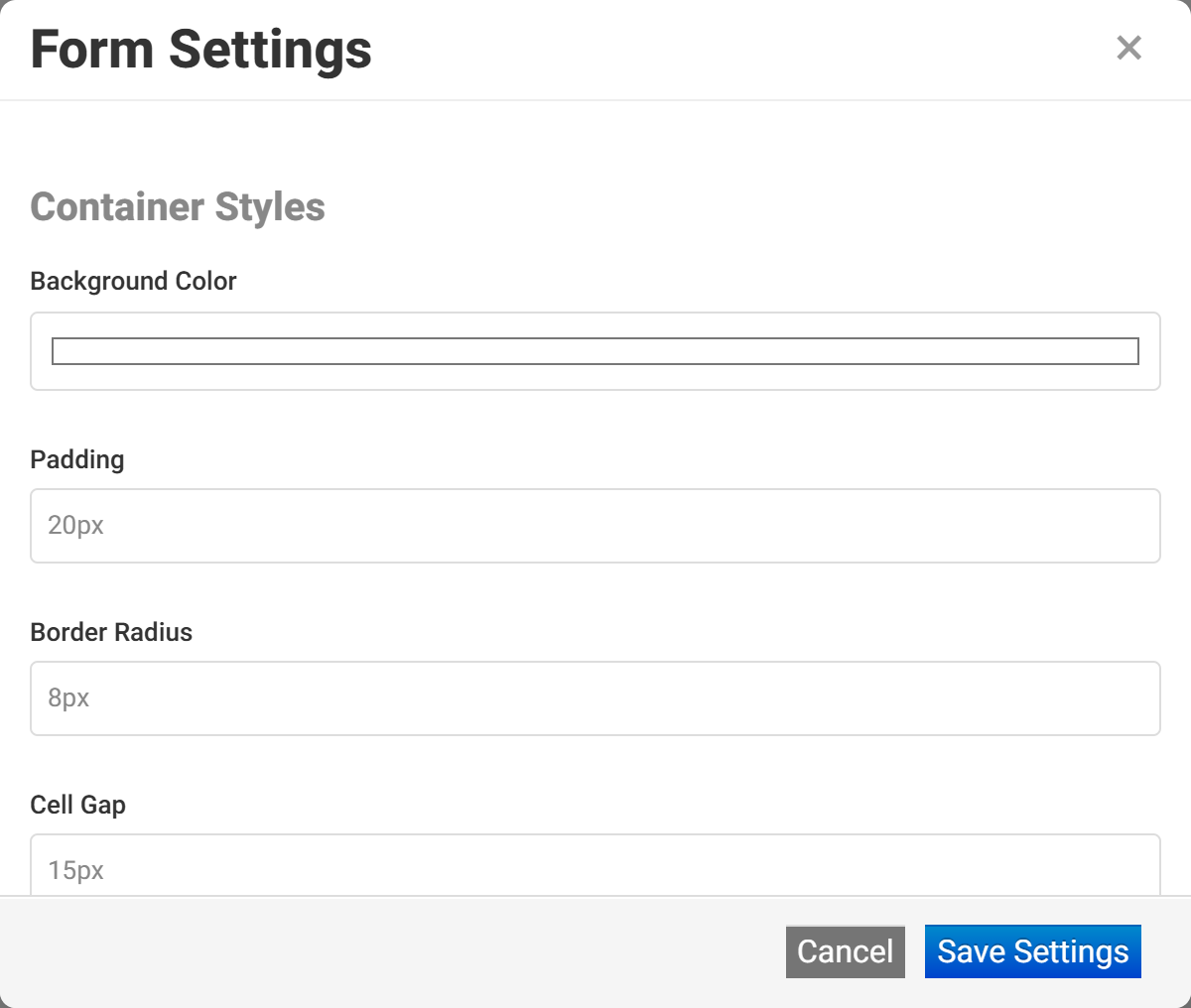
| Group | Covers |
|---|---|
| Container | Background colour, padding, border radius and the gap between cells. |
| Button | The Calculate button: its text, font size and colour, background, hover colour, radius, padding and width. |
| Numbers | Thousands and decimal separators, decimal places, and a prefix or suffix — a currency symbol, or a unit. |
Set the number formatting here rather than in the formula. A currency prefix and two decimal places turn a raw 540 into £540.00 without complicating the arithmetic.
Step 3 — Preview, lead capture and save
The preview really calculates
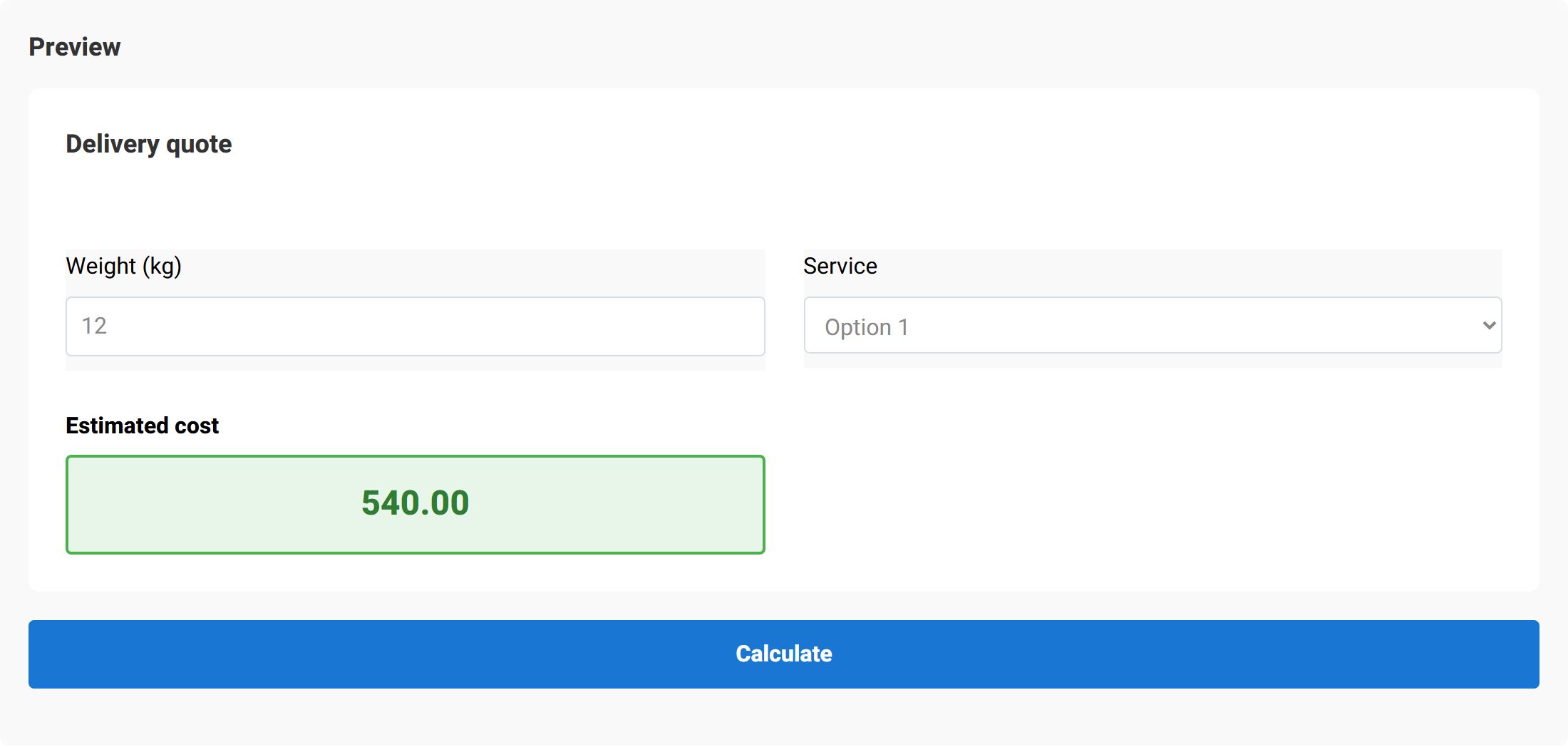
Press Calculate to see a result. The calculator does not update as you type — the visitor fills the fields in, then presses the button. If your preview shows 0.00, that is usually all that has happened.
Lead capture
Optionally, hold the result back until the visitor gives you an email address.
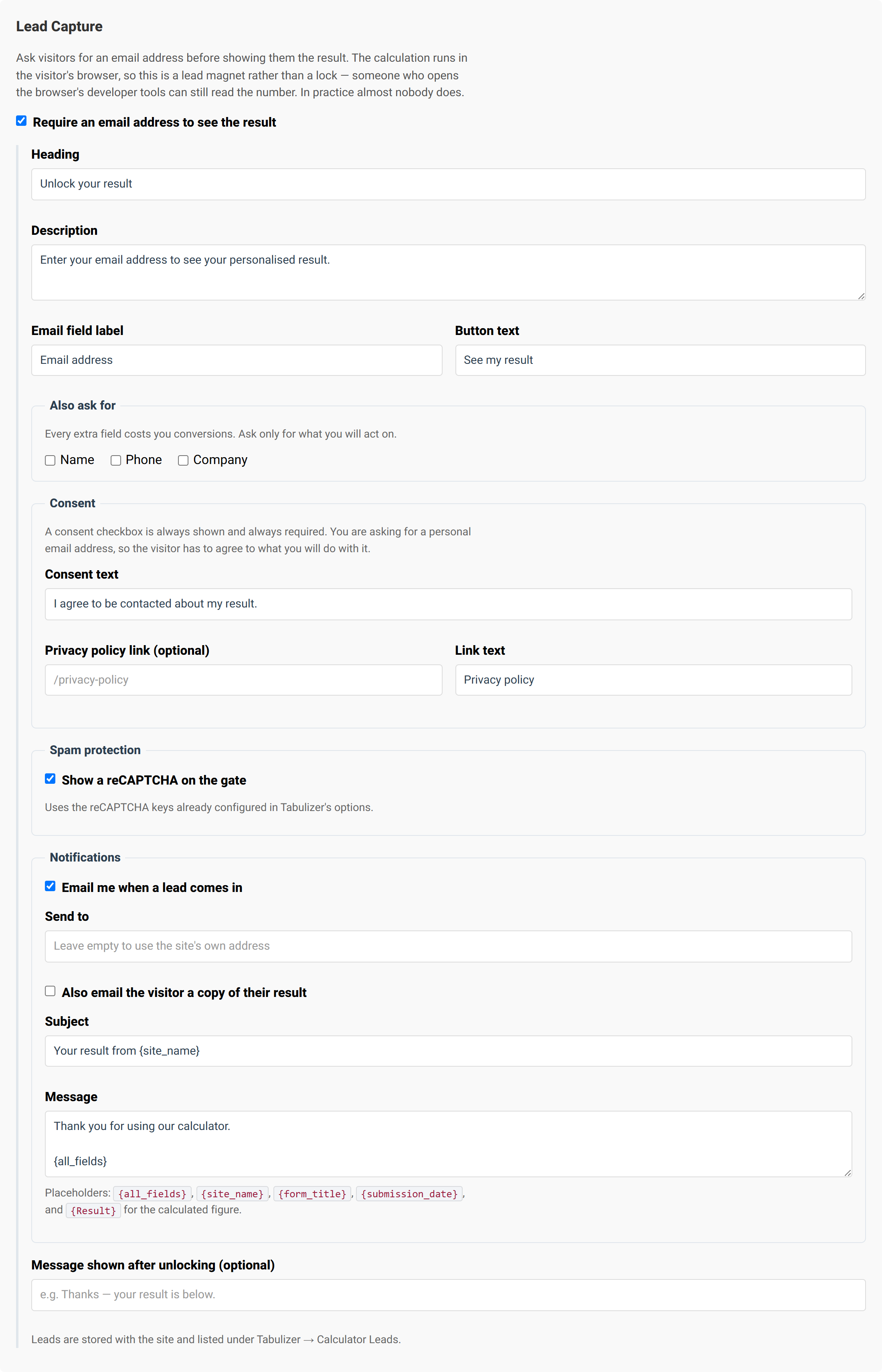
| Setting | What it does |
|---|---|
| Heading, description, email field label, button text | The wording of the gate. |
| Extra fields | Ask for a name, phone or company alongside the email address. |
| Consent text and privacy policy link | The tick-box wording, and where it links. |
| Show a reCAPTCHA on the gate | Spam protection for the gate itself. |
| Email me when a lead comes in | A notification, and the address it goes to. |
| Also email the visitor a copy | Sends them their result, with a subject and message you write. |
| Message shown after unlocking | Optional wording once the result is revealed. |
This is a lead magnet, not a lock. The calculation runs in the visitor's browser, so somebody who opens their browser's developer tools can read the number without giving you an address. In practice almost nobody does — but do not use the gate to protect anything that actually needs protecting.
Collecting email addresses means collecting personal data. Use the consent text and privacy policy link, and make sure your privacy notice covers what you do with the addresses.
Expected input structure

Save the ruleset
Using the ruleset on your own site
- In your site's administrator, open Tabulizer → Ruleset Manager and import the
.zipyou downloaded. - Create or edit the article that will hold the calculator.
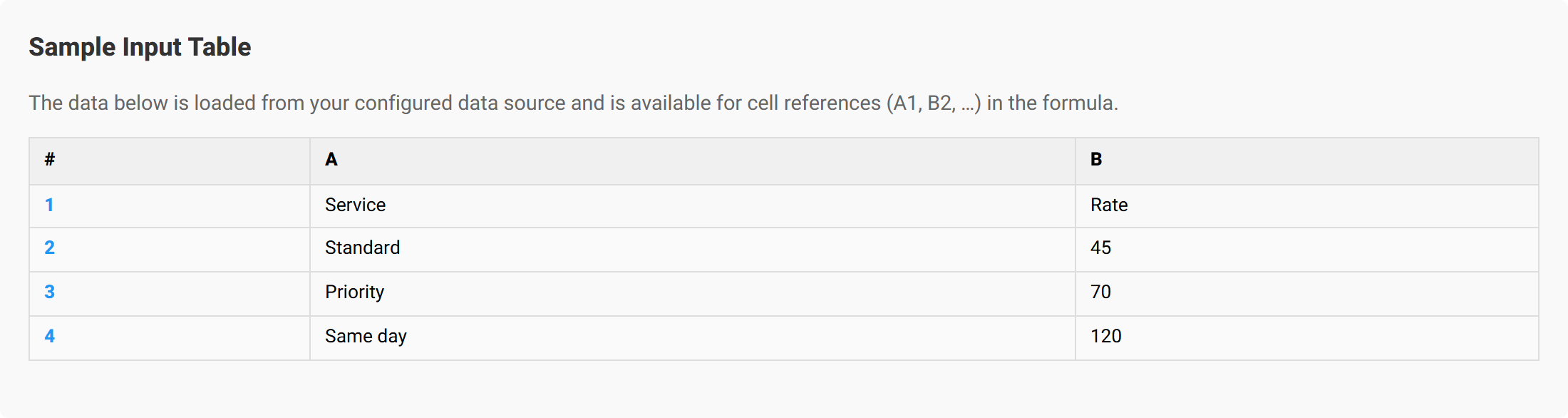
- If your calculator uses a data source, insert a table with the structure shown in the Sample Input Table section — that is where your rates live.
- Apply the imported ruleset to that table.
Rates change more often than formulas do. Because the figures live in your article's table, updating a price is an edit to that table — the formula and layout stay as they are.
If you chose No Data Source, there is no table to prepare — the ruleset carries the whole calculator.
Captured leads, if you enabled the gate, are listed in Tabulizer's administration.
Tips and troubleshooting
The result stays at 0.00
Press Calculate — the calculator does not update as you type. If it still shows zero, check that the Input IDs in your formula match the ones on the fields.
My formula does not recognise a field
input[weight] refers to the Input ID, not the label. Select the field in Step 2 and check the ID matches what the formula says, including capitalisation.
My cell reference picks up the wrong number
Remember the header row is row 1. In a rate card whose first line is Service,Rate, the first actual rate is B2, not B1.
A function is not working
Functions use square brackets: sum[A1:A6], not sum(A1:A6). Round brackets group arithmetic only.
The result needs a currency symbol or unit
Use the prefix and suffix in Form Settings under number formatting, along with the decimal places. Keep it out of the formula.
I need a calculator with no table behind it
Choose No Data Source in Step 1 and write your constants straight into the formula — input[amount] * 0.2 for a VAT calculation, for instance.
My calculator is cramped
Increase the Cell Gap in Form Settings, or go back to Step 1 and give the design grid more rows.
Nobody is completing the email gate
Look at the wording. A heading that says what they get — “Email me my quote” — converts better than a bare “Enter your email”, and asking for fewer extra fields helps.
Related articles
- Contact Form Wizard
- Chart Wizard
- Pricing Tables Wizard
- Gallery Wizard
- D3 Visualizations Wizard
- Calendars and Timelines Wizard
- Importing a ruleset into Tabulizer