The data source option
Tick Add a header row when results are not empty and type one label per column. The recommended way.
A database query returns values, not column names, so a table built from one starts without headings. That is deliberate: Tabulizer does not force cust_name or COUNT(*) on your visitors. You choose the header row yourself, and there are three ways to do it.
Tick Add a header row when results are not empty and type one label per column. The recommended way.
Put a row of labels in front of the data in SQL. Works, but it gets in the way of sorting and some servers block it.
Add the header in the ruleset, in step 5 of the online Table Wizard. Useful when one ruleset serves several queries.
Whichever you pick, the labels become row 1 of the table. To have them styled as headings, use a ruleset with 1 top header - in step 2 (Format) of the Table Wizard.
Open the data source - or create one with New Data Source - and set Source Type to Database Table/Query.
Under the query, tick Add header row - its label reads Add a header row when results are not empty. A Header row editor appears beneath it.
Press + Add header column once for every column your query returns and type the heading in each box.
Drag the labels by their handle until they follow the order of your SELECT list. Remove deletes one. Then save the data source.
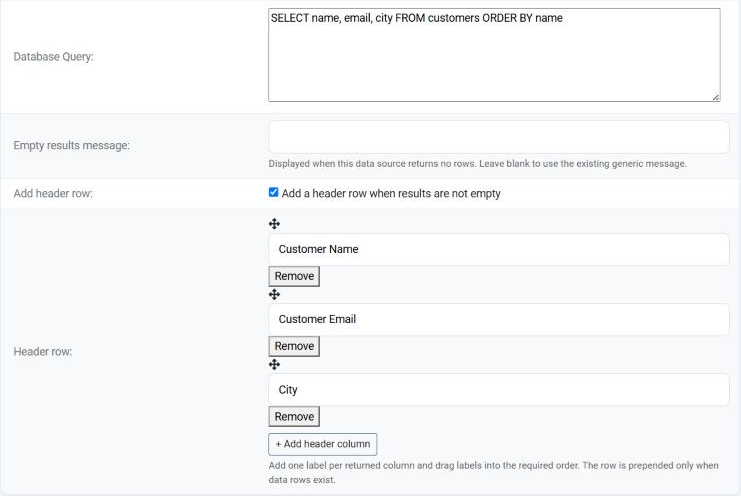
For the query above, name, email and city arrive under the headings Customer Name, Customer Email and City.
The same option is offered by the External Database/Query and Form Entries data sources.
Before the option above existed, the usual trick was to select a row of fixed text and glue the data underneath it:
(SELECT 'Customer Name', 'Customer Email')
UNION ALL
(SELECT name, email FROM customers)
Use UNION ALL rather than plain UNION: UNION also throws away duplicate rows, which is rarely what you want in a table.
ORDER BY inside the second part is ignored unless it comes with a LIMIT. If you need the rows sorted before they reach Tabulizer, the labels can end up somewhere in the middle.UNION SELECT in a submitted form as an SQL injection attempt. On such a server, saving the data source fails with a 403 or a blank page, through no fault of the query.The header can also belong to the ruleset rather than the data source. Open the online Table Wizard, go to step 5 (Modifications) and, under Add/Remove Elements, press Add new Data Addition:
Leave Table Element at Table and Element Range at all, and pick Custom Row (Type your values).
Set Insert Row Position to 1st.
The wizard shows one box per column of your table. Type a heading in each.
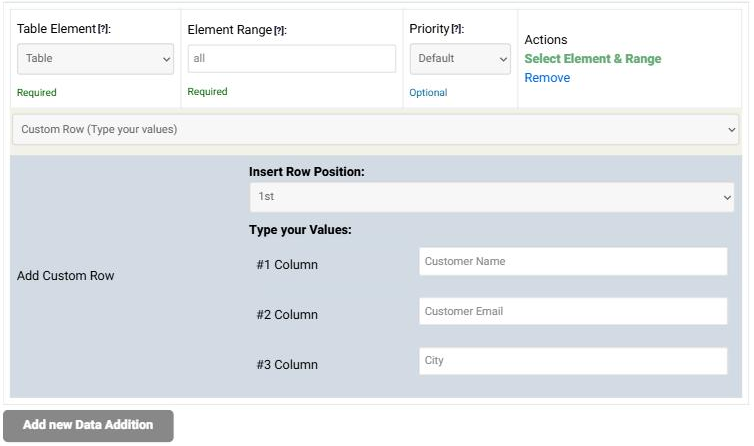
With 1 top header set in step 2, the added row is drawn as the table's heading row. Import the ruleset into your site and assign it to the data source.
| Way | Choose it when |
|---|---|
| Data source option | Almost always. The labels live next to the query they describe, the order of the rows is untouched, and nothing in it looks suspicious to a firewall. |
| UNION | You are maintaining an older data source that already does it this way, and it works. |
| Add Row rule | You want the same headings on several data sources that share one ruleset, or you build the table with the wizard anyway. |
The ruleset has no header. Pick one with 1 top header, or set it in step 2 of the Table Wizard.
They follow the order you gave them, not the column names. Drag them - or reorder your SELECT list - until the two match.
Each adds its own row. Keep one.
Your server's firewall is probably blocking the UNION. Remove it and use the Add header row option instead.
The full reference for this data source is The Database Table / Query Data Source, and every kind of Data Addition is covered in Add Rows and Columns.
Browse the rest of the Frequently Asked Questions, or open the Table Wizard to build a ruleset with a header.
Back to the FAQ