Tabulizer for Page Builders
Tabulizer for Page Builders
A separate add-on that puts a Tabulizer data source into Elementor, Divi and WPBakery as a native element - picked from the builder's own panel, with the same numbered parameter boxes everything else uses.
Why it is a separate plugin
Most WordPress sites use none of these builders, and the code that talks to them is only useful on a site that has one. So it ships on its own: Tabulizer for Page Builders, installed only if you want it, and carrying nothing that Tabulizer itself needs.
It depends on Tabulizer. If the main plugin is missing or too old, the add-on registers nothing at all and says so once in the admin - not on a visitor's page.
Installing it
Install Tabulizer first
The add-on needs version 7.0.20 or later. It does not replace or change the main plugin.
Upload and activate the add-on
Plugins › Add New › Upload Plugin, then activate Tabulizer for Page Builders.
Open your builder
The element appears in the builder's own panel, under the name Tabulizer Data Source. There is nothing to configure in the add-on itself - it has no settings page.
Elementor
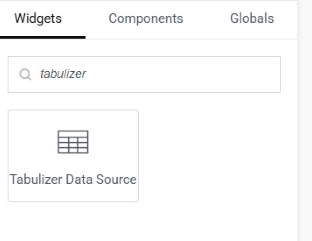
Search the Elements panel for tabulizer, and drag Tabulizer Data Source onto the page. It sits in the General category with a table icon.
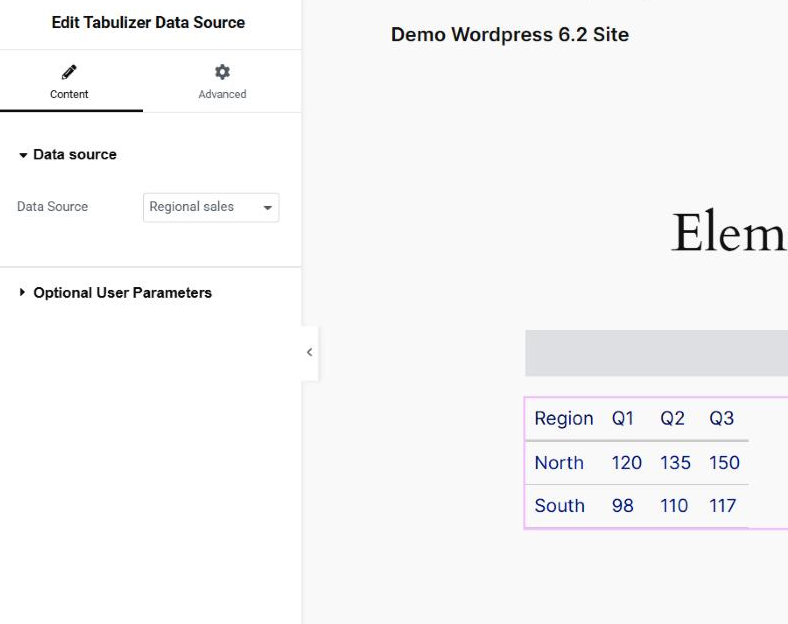
Once it is on the page, the Content tab has two sections: Data source, holding the picker, and Optional User Parameters, which starts collapsed.
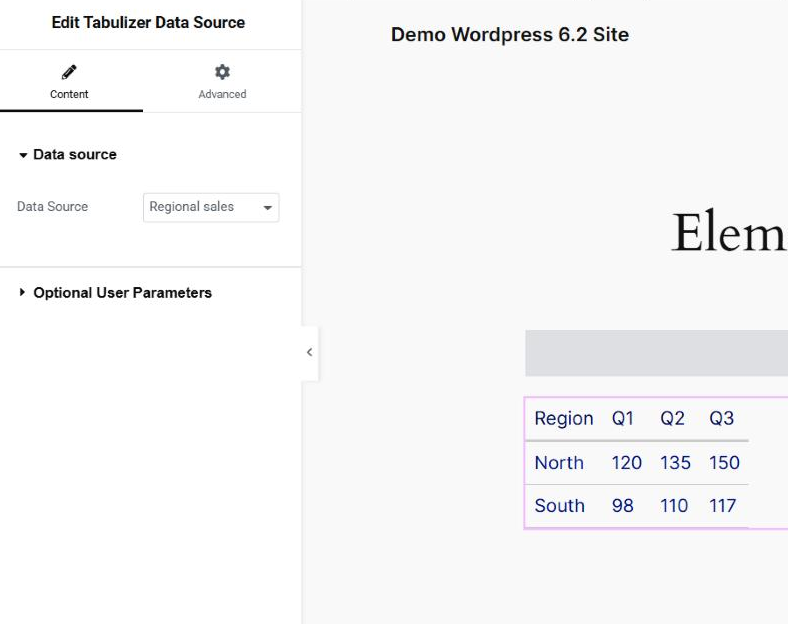
The canvas shows the real table straight away, rendered by the site with the data source's own ruleset - not a placeholder. What you see in the builder is what a visitor gets.
Open the parameters section and the five numbered boxes are there, with the help line above them.
Divi
In the Divi Builder, add a module and choose Tabulizer Data Source. It supports the Visual Builder, so you can place it and see the result in context.
Its settings sit on the Content tab, in two toggles that mirror the Elementor sections:
| Toggle | What is in it |
|---|---|
| Data source | The Data Source drop-down, listing every data source on the site by title. |
| Optional User Parameters | Five text fields, user_param_1 to user_param_5. The help line appears under the first. |
WPBakery
In WPBakery Page Builder, add an element and look under the Content category for Tabulizer Data Source. The settings are the same drop-down and the same five numbered fields.
WPBakery renders its elements through shortcodes, so the add-on registers one as well:
[tabulizer_data_source data_source="…" user_param_1="…"]
The parameters work the same everywhere
All three builders, the block and the widget go through one renderer, so there is one set of rules to learn.
| In the builder | In the data source |
|---|---|
The first box, user_param_1 |
{user_param_1:text}, {user_param_1:int}, {user_param_1:cmd}, {user_param_1:float} or {user_param_1:date} |
The second box, user_param_2 |
The same, numbered 2 |
The numbering is positional and fixed: box 3 is always user_param_3, whatever boxes 1 and 2 hold.
{user_param_1} is never substituted and shows up in the table as literal text. Tabulizer also refuses :text inside database queries and file paths - use :cmd, :int, :float or :date there, which are cleaned first.If a data source expects a parameter and the element does not supply one, the placeholder stays in the query as literal text, matches nothing, and the table comes back empty. Fill the box, and give the data source an Empty results message so that case reads as a sentence rather than a blank space in your layout.
^) cannot appear in a value - it separates one parameter from the next, and one typed into a box is dropped. A colon is fine.Which one should I use?
| You are working in | Use |
|---|---|
| Elementor, Divi or WPBakery | This add-on's element. It is native to the builder, so it drags, duplicates and styles like everything else there. |
| The block editor | The Tabulizer Data Source block - Tutorial 5. No add-on needed. |
| A sidebar or footer on a classic theme | The Tabulizer Data Source widget - Tutorial 6. No add-on needed. |
| Building a table rather than placing one | The Tabulizer Table block and its wizard - Tutorials 1 to 4. |
Common questions
Do I need this add-on to use Tabulizer with a page builder?
Not strictly. Most builders can place a WordPress widget or a shortcode, so a table can be shown without it. The add-on makes the data source a first-class element of the builder, which is a much better experience.
I use only Elementor. Does the Divi code slow my site down?
No. Each integration is loaded only if its builder is present.
The element is not in my builder's panel.
Check that both plugins are active, and that your builder is one of the three. If an admin notice mentions Tabulizer, the main plugin is missing or too old.
Can I change the table's appearance from the builder?
Not the table itself - that comes from the data source's ruleset, so change it under Tabulizer › Data Sources and every element using it follows. The builder's own spacing and alignment controls apply to the element around the table as usual.
Can I show the same data source twice on one page?
Yes. Add two elements with different parameters and you get two views of the same data, from one query and one cache.
I deactivated the add-on. What happens to my pages?
Elementor and Divi elements stop rendering until it is reactivated; the WPBakery shortcode keeps working, because that is registered independently of the builder.
Add it to your builder
Install Tabulizer for Page Builders, then look for Tabulizer Data Source in your builder's element panel.
Back to the Knowledge Base