How to create a static table in Wordpress
Creating a Static Table
Build a styled table from data you type or point at, and put the finished HTML into the post - where you can carry on editing it like any other content.
What “static” means here
A static table is ordinary HTML. The wizard reads your data once, applies a ruleset to it, and writes the finished <table> into a Tabulizer Table block. From that moment the table belongs to the post: the block holds it as editable content, so you can retype a cell, correct a number or fix a heading without going near the wizard again.
That is the appeal, and it is also the limitation. The table is a snapshot. If the spreadsheet it came from changes next month, the post does not notice. For data that keeps moving you want a dynamic table instead, which is Tutorial 3.
Finding the wizard
The wizard lives in a block. Open a post, click the block inserter (the + button), and type tabulizer.
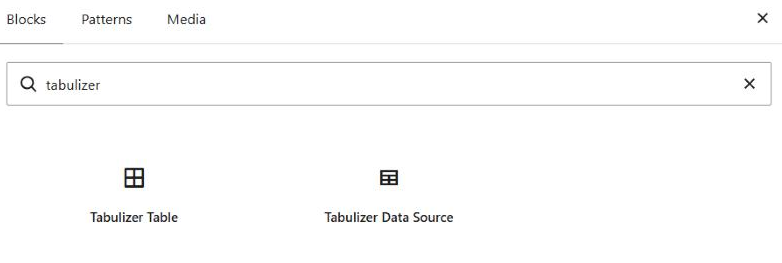
| Block | What it is for |
|---|---|
| Tabulizer Table | The wizard. This is the one you want for all four of these tutorials. |
| Tabulizer Data Source | A simpler block that just shows a data source you have already built, with optional user parameters. It has its own guide. |
Insert Tabulizer Table and you get a placeholder with one button on it.

Step 1 - choose the mode
Click Open Tabulizer Wizard and the dialog opens on the same four cards every time. This tutorial is the first one, and it is already selected.
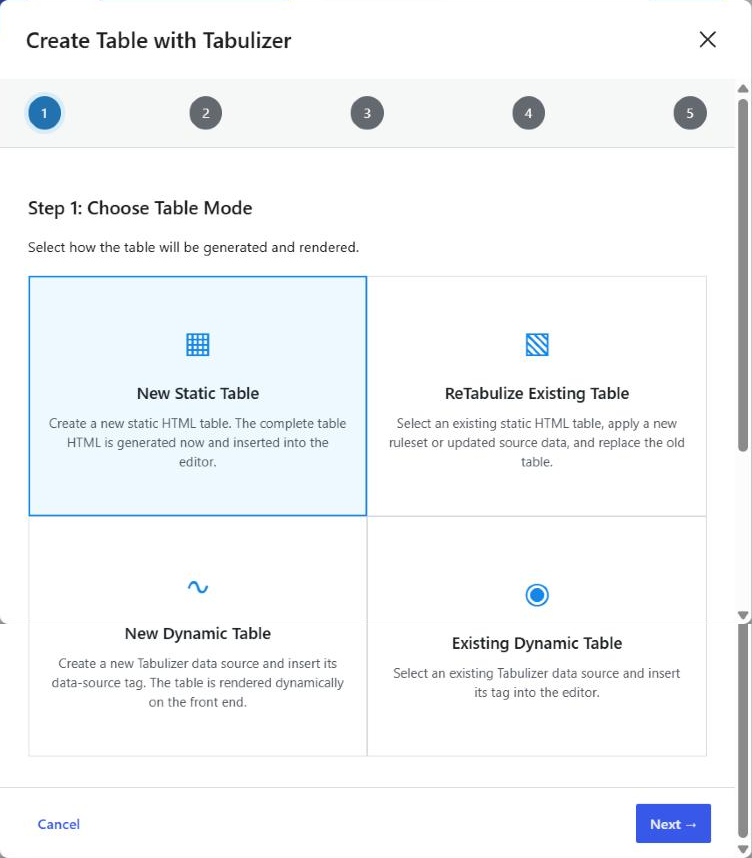
| Mode | What it does |
|---|---|
| New Static Table | This one. Generates the complete HTML table now and puts it in the block. |
| ReTabulize Existing Table | Rebuilds a table that is already in the post - Tutorial 2. |
| New Dynamic Table | Creates a data source and inserts a tag - Tutorial 3. |
| Existing Dynamic Table | Inserts the tag of a data source you already built - Tutorial 4. |
Step 2 - where the data comes from
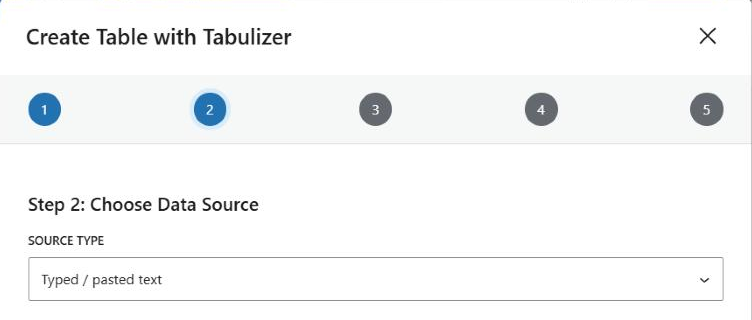
Ten sources are offered. Nine of them are also available to a dynamic table; the exception is the first, and it is the one most people want here.
| Source | Use it when |
|---|---|
| Typed / pasted text | You have the numbers in your head or on a scrap of paper. Static only - there is nothing for a dynamic table to re-read. |
| CSV / Text file or URL | The data is in a file. You can point at a path or URL, or upload the file here - see below. |
| Excel / ODS file | A spreadsheet, in either format. |
| Database query | A SQL SELECT against the WordPress database or an external one. |
| HTML table from URL | The table exists on another web page and you want a copy of it. |
| Google document / sheet | The data is kept in a shared Google sheet. |
| JSON URL, XML URL, RSS feed, Google / ICS calendar | The data comes from a feed or an endpoint rather than a file. |
Step 3 - the data itself
What this step asks for depends entirely on the source. Typed text gives you a box to paste into.
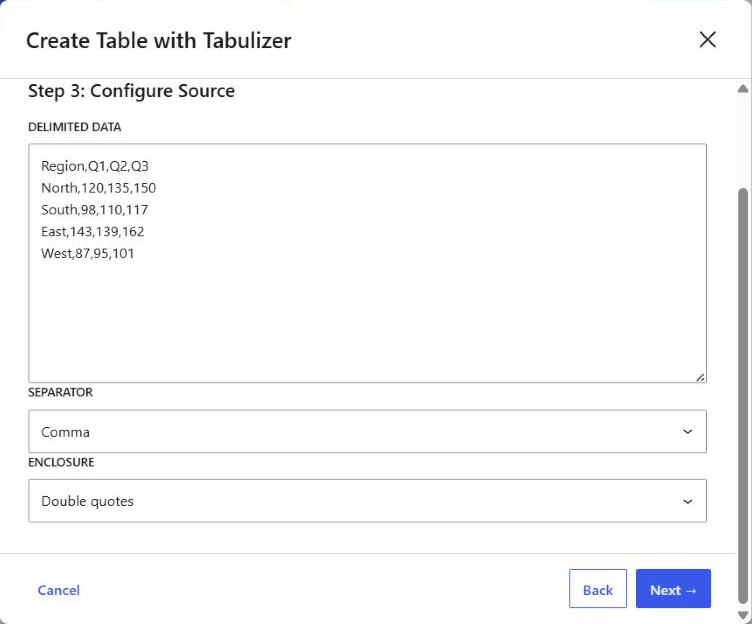
Separator and Enclosure sit underneath. The defaults - comma and double quote - are right for anything you type by hand. Change them only when you are pasting from somewhere that disagrees: semicolons are common in spreadsheets saved on European locales, and a value containing a comma has to be wrapped in the enclosure character to survive.
North,,150 is three cells, North,150 is two.Choose CSV / Text file or URL instead and this step gains an upload box: a file picker, an Overwrite an existing file with the same name checkbox, and an Upload file button. The file is uploaded to the site and the path filled in for you, so you never have to reach for FTP or the Media Library to get a spreadsheet onto the server.
Step 4 - the ruleset
This is the step that decides what the table looks like and what it can do. Pick a Ruleset archive first; the Ruleset list then fills with the rulesets inside it.
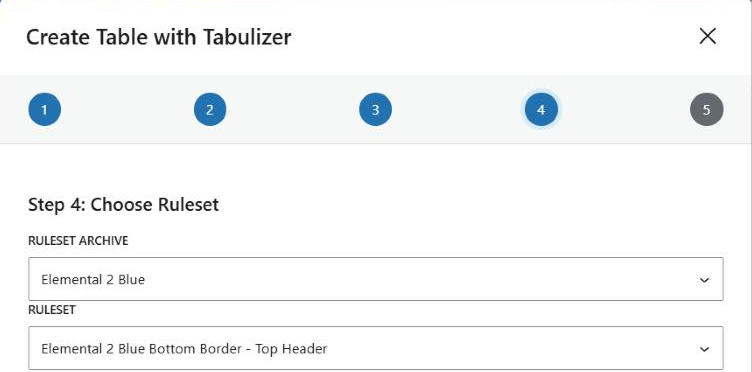
An archive is a family of rulesets that share a palette - Elemental 2 Blue, Elemental 2 Green and so on. The ruleset inside it is the specific look: where the borders go, whether the first row is a header, whether rows alternate shading.
class and id attributes intact or the behaviour stops working.Step 5 - confirm
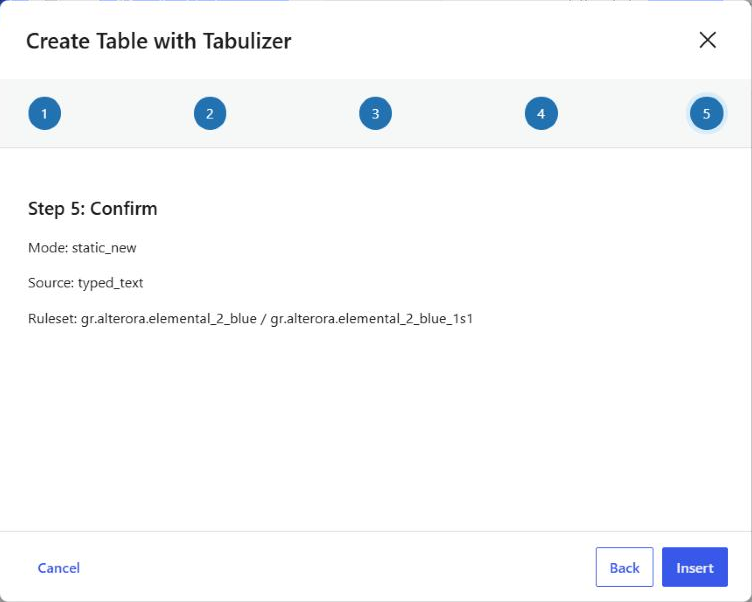
The summary is brief and it speaks in internal names - static_new, typed_text, and the ruleset's full identifier rather than its friendly title. It is a last check that you are on the right mode and the right ruleset, not a description of the table.
Click Insert and the dialog closes.
What lands in the post
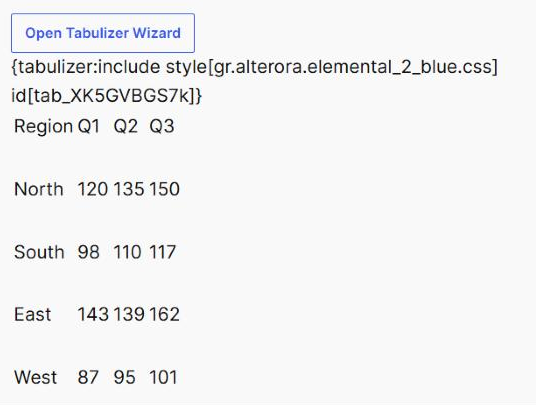
Two things, inside the Tabulizer Table block:
A stylesheet marker
A line reading {tabulizer:include style[….css] id[tab_…]}. It is not decoration - it is how the ruleset's stylesheet gets loaded for this table on the front end. Delete it and the table loses its styling.
The table
A real <table>, held in the block as editable content. It carries an id, a class naming the ruleset, and a data-ruleset attribute recording which archive and ruleset built it.
data-ruleset attribute is what lets you come back later and restyle the table without rebuilding it. The ReTabulize mode reads it - see Tutorial 2.Common questions
Can I edit the table afterwards?
Yes - that is the point of this mode. The generated HTML sits in the block as editable content, so you can click into a cell and change it.
Will my edits survive?
Until you reTabulize that table, yes. ReTabulize regenerates it from the cell text, so hand-applied formatting is lost even though the values are carried across.
Did this create a data source?
No. Nothing appears under Tabulizer › Data Sources. Static mode generates HTML and stops.
The table looks unstyled on the published page.
The include marker was deleted, or the table's class attribute was stripped. Reinsert, or use ReTabulize to rebuild it.
Sorting and searching do not work.
Either the ruleset does not provide them, or the table's id has been changed or duplicated. Two tables on one page must not share an id.
My data changes every week.
Then this is the wrong mode. A dynamic table re-reads its source on every page view - Tutorial 3.
Try it on a post
Add a Tabulizer Table block, click Open Tabulizer Wizard, and keep New Static Table selected.
Back to the Knowledge Base