How to insert an existing Dynamic Table (data source)
Inserting an Existing Dynamic Table
You have already built the data source properly. This is the two-click way to put it into an article - and to pass it a value while you are there.
When to use this mode
Use it whenever the data source already exists. That is most of the time, and it should be most of the time, because the place to build a data source is Components › Tabulizer › Data Sources › New, where the whole form is available - caching, header rows, column mapping, parameter labels, publishing preferences. The wizard's own New Dynamic Table mode asks for a useful subset; the component asks for everything.
So the comfortable working order is: build the data source once, with care, in the component. Then come to an article and insert it in a few seconds with this mode. Insert it into a second article the same way, and a third - they all point at the same source.
Getting there
Edit the article, place the cursor, open CMS Content › Tabulizer, and choose Existing Dynamic Table on step 1.
Step 2 - pick the source, and nothing else
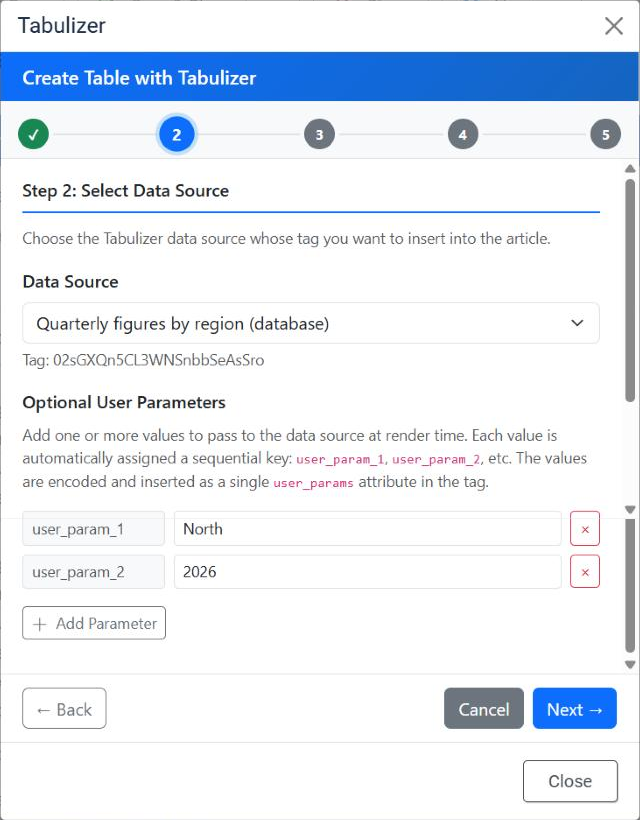
Every data source on the site is listed by title, with its type in brackets so two similarly named sources can be told apart. Choose one and its tag is printed underneath - the same short code that will go into the article.
Optional user parameters
Some data sources are written to be told something - a region in a WHERE clause, a year in a file path. Add Parameter adds a row; the row's key is assigned for you, in order, and you fill in the value.
| In the wizard | In the data source |
|---|---|
The first row you add, user_param_1 |
{user_param_1:text}, {user_param_1:int}, {user_param_1:cmd}, {user_param_1:float} or {user_param_1:date} |
The second row, user_param_2 |
The same, numbered 2 |
The placeholder in the data source always carries a type. A placeholder written without one - a bare {user_param_1} - is never substituted, and will appear in the table as literal text. The type is not decoration: it says how the value is cleaned before use.
:text parameters inside database queries and inside file paths outright, because an unrestricted value in either is an injection waiting to happen. Use :cmd, :int, :float or :date there - they are sanitised first. :text remains available inside a modification function.The numbering is positional: the first row is parameter 1 whatever you type in it. Remove a row and the ones below it move up, so a data source expecting three parameters needs three rows even if the middle one is left blank.
^) cannot appear in a value - it is the character that separates one parameter from the next. A colon is fine.Steps 3 and 4 do not happen
Click Next and the wizard goes straight to step 5. Configure and Ruleset are skipped, and the reason is worth stating plainly: the data source already carries both. Its source settings and its archive and ruleset were decided when it was created, and the wizard has no business overriding them from inside an article.
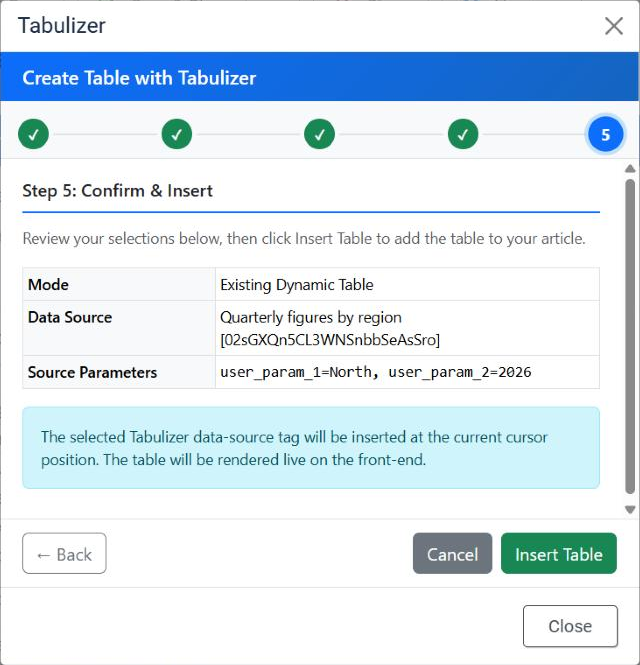
Notice what the summary does not list: there is no Archive row and no Ruleset row, because those belong to the data source rather than to this insertion.
What lands in the article
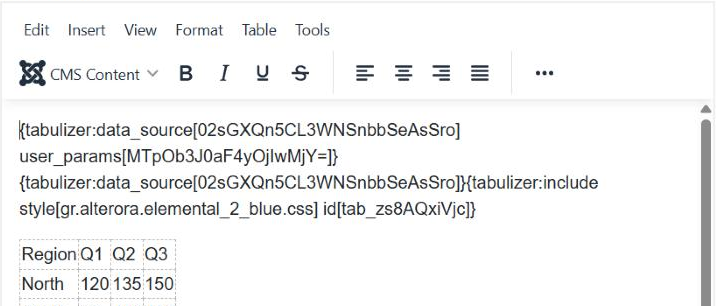
Without parameters, a bare tag: {tabulizer:data_source[…]}.
With parameters, the same tag plus a user_params attribute holding the values, encoded:
{tabulizer:data_source[02sGXQn5CL3WNSnbbSeAsSro] user_params[MTpOb3J0aF4yOjIwMjY=]}
That encoded string is simply 1:North^2:2026 - the parameter number, a colon, the value, joined by carets. It is encoded so that punctuation in a value cannot break the tag, not to hide anything.
Common questions
My data source is not in the list.
It has not been created yet, or you are looking for it under a different title. Check Components › Tabulizer › Data Sources; the list in the wizard is that list.
Why can I not choose a ruleset here?
Because the data source has one. Change it there and every article showing that source changes with it - which is usually what you want.
Do I have to fill in parameters?
No. Leave the section alone unless the data source was written to expect them; most are not.
The parameter value is showing as {user_param_1} in the table.
The placeholder in the data source has no type. Change it to {user_param_1:cmd} - or another type - and it will be substituted.
Can a visitor change the parameter?
Not from the tag. What the wizard writes is fixed for that article. To let people filter a table, use the sorting and filtering the ruleset provides instead.
Can I edit the tag by hand?
You can retype the data source tag, but do not hand-edit the encoded user_params value. Re-run the wizard - it is quicker than getting the encoding right.
Is this the same mechanism as the data source module?
Yes. The module takes the same values in the same numbered rows and renders the same way - so a data source proved in an article works unchanged in a module position.
Insert one you already built
Open an article and choose CMS Content › Tabulizer › Existing Dynamic Table.
Back to the Knowledge Base