How to create a Dynamic Table (automatically updated)
Creating a Dynamic Table
Point the wizard at data that keeps changing, and let the article show today's figures without anyone editing it again.
What a dynamic table really is
A dynamic table is a data source. The wizard creates one, saves it in the Tabulizer component, and puts a short tag into the article pointing at it. Nothing of the table itself is stored in the article.
The payoff is that the table is read fresh when a visitor opens the page. Replace the spreadsheet on the server, or let the database fill up with new rows, and every article carrying that tag shows the new figures. Nobody edits an article; nobody remembers which three pages had last quarter's numbers in them.
Getting there
Edit the article, put the cursor where the table belongs, open CMS Content › Tabulizer, and choose New Dynamic Table on step 1. Tutorial 8 covers the toolbar button and the mode cards.
Step 2 - the source, with two differences
The source list is the same one a static table gets, with exactly two changes - and both make sense once you see them.
| Change | Why |
|---|---|
| Typed Text / CSV disappears | Text you typed into a wizard cannot change by itself. There would be nothing for a dynamic table to re-read, so the option is simply not offered. |
| Form Entries appears | Submissions to a Tabulizer form arrive over time, which is the definition of changing data. It is only useful dynamically, so it only shows up here. |
Everything else - CSV File, Excel File, Database Query, Remote HTML Table, Google Doc / Spreadsheet, JSON File / API, Google Calendar / ICS, RSS / Atom Feed, XML File - is available in both modes. Here, though, they behave the way you would hope: the file or the endpoint is read again on each page view rather than once.
Step 3 - configure the source
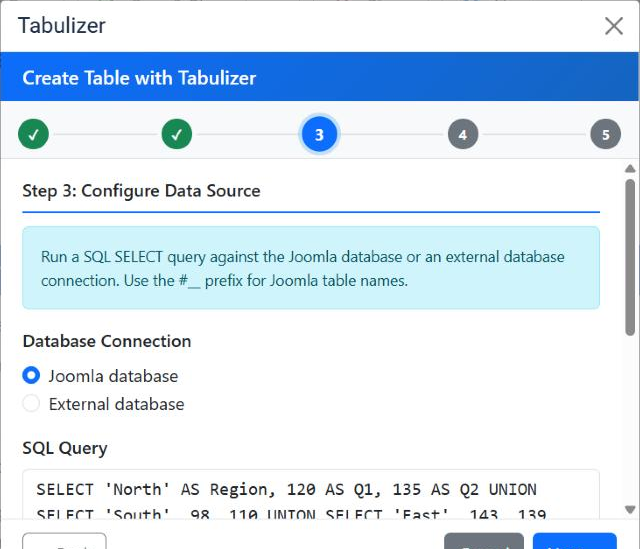
The fields depend on the source. A database query, for example, asks which connection to use and what to run.
| Field | Notes |
|---|---|
| Database Connection | Joomla database uses the site's own connection - no credentials to enter. External database opens fields for a separate server. |
| SQL Query | A SELECT. Write Joomla table names with the #__ prefix so the query keeps working if the table prefix changes. |
| Empty results message | What a visitor sees when the query returns nothing. Worth filling in - the default is a bare empty table, which looks broken rather than empty. |
| Include header row | Whether the column names become the table's first row. |
SELECT * against a user table will put email addresses on a public page.Step 4 - the ruleset
Choose an Archive and then a Ruleset, exactly as for a static table. The difference is where the choice is kept: it is stored on the data source, not in the article. Change it later on the data source and every article using that tag follows, with nothing to re-edit.
Step 5 - name it
This step has a field the static modes do not: Data Source Title.
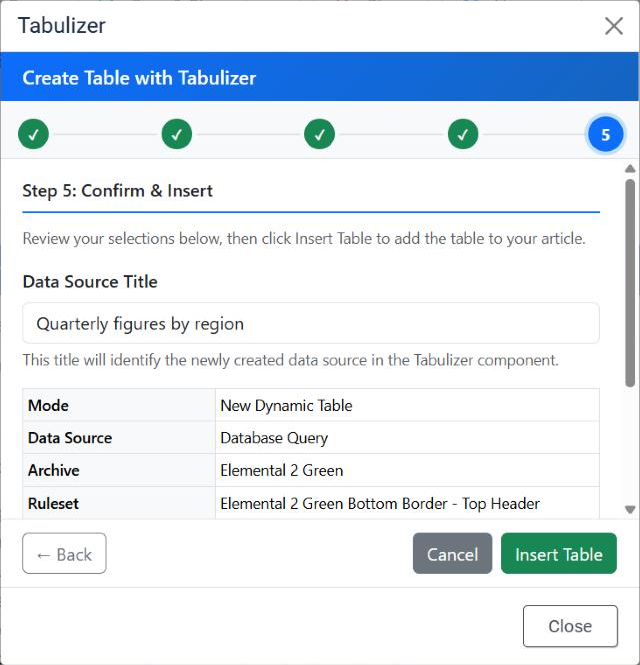
The help text under it says what it is for: this title will identify the newly created data source in the Tabulizer component. That is your only chance to label it conveniently at creation time, and it is worth spending five seconds on. A site accumulates data sources quickly, and they are listed by title - “Quarterly figures by region” is findable in a year's time, “Table 4” is not.
Click Insert Table.
What lands in the article
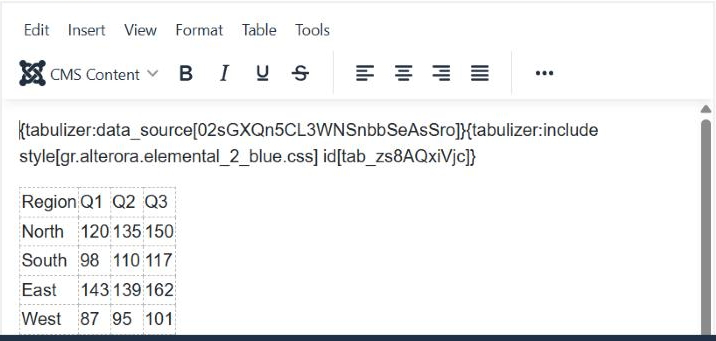
One line: {tabulizer:data_source[…]}. No table, no stylesheet marker, no rows - the tag is the whole thing, and the table appears when a visitor views the page.
The data source you just made
Go to Components › Tabulizer › Data Sources and it is there, under the title you gave it, with its tag, its source type, its archive and ruleset, and its query or file path. Click it to edit any of that.
This is the important half of the story, and it is where the wizard's own limits show. The wizard asks for what it needs to get a table on screen. The component's data source form offers considerably more:
| Available on the data source | What it gives you |
|---|---|
| Caching | A cache type and lifetime. The single most useful setting for a remote file or a heavy query - without it, every page view goes and fetches the data again. |
| Header row contents | Supply your own column headings instead of taking whatever the source calls them. |
| Column mapping and table order | Reorder, drop or remap columns without changing the query or the file. |
| User parameter labels | Name the values that can be passed in at render time, so they are self-describing. |
| Publishing preferences | Control how and where the data source may be published. |
Common questions
Can I edit the table in the article?
No, and that is the deal. The article holds a tag; the cells do not exist until the page is rendered. Edit the data, or edit the data source.
I deleted the tag by accident.
The data source is untouched - it lives in the component. Insert it again with Existing Dynamic Table.
Can the same data source appear in two articles?
Yes. Paste the same tag into as many articles as you like; each renders it independently, and the cache serves them all.
The table is slow.
Turn on the data source's cache. A remote file or a large query re-read on every page view is the usual cause.
The front end shows an empty table.
The source returned no rows. Set an Empty results message so visitors see a sentence rather than an empty frame, then check the query or the file path.
I want to change the styling later.
Edit the data source and pick a different ruleset. Every article using the tag changes at once.
Make one from live data
Open an article and choose CMS Content › Tabulizer › New Dynamic Table.
Back to the Knowledge Base