The Data Source Merger
The Data Source Merger
One table out of several sources. Stack three regional spreadsheets into one list, or set a query beside a feed column by column - without exporting anything, copying anything, or keeping a combined file in step by hand.
What it does
A Data Source Merger has no file, no query and no feed of its own. Its data is other data sources - any types, in any mixture - combined in one of two ways:
| Merge | What it does | Short tables are |
|---|---|---|
| Vertical | Appends rows. Table B's rows follow table A's, making a longer table. | Padded with empty cells on the right, so every row ends up the same width. |
| Horizontal | Appends columns. Table B's columns sit beside table A's, making a wider table. | Padded with empty rows at the bottom, so every column ends up the same height. |
The builder states it on screen, under the workspace: Vertical: append rows; missing columns become empty. Horizontal: append columns; missing rows become empty.
| Use vertical when | Use horizontal when |
|---|---|
| Each source holds the same kind of record - three branches, four months, several departments - and you want one combined list. | Each source holds different facts about the same things, in the same order - a list of products in one, this week's stock levels in another. |
The form
Components › Tabulizer › Data Sources › New Data Source, then set Source Type to Data Source Merger. The usual common fields are there; in place of a file or a query there is a visual builder.
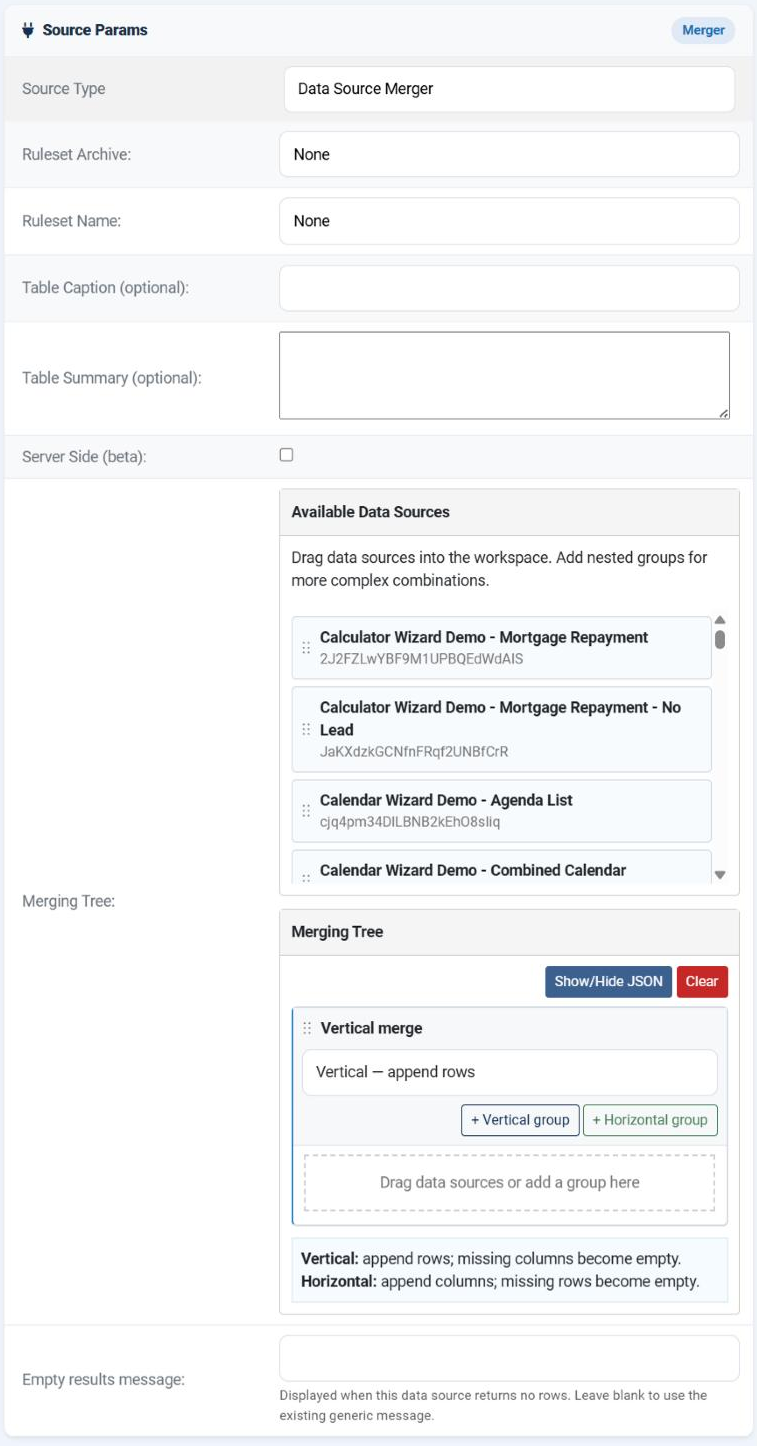
| Part of the builder | What it is |
|---|---|
| Available Data Sources | Every other data source on the site, each with its title and its tag. Drag one into the workspace to include it. |
| Merging Tree | The workspace. It starts with a single group whose dropdown reads Vertical — append rows; change it to Horizontal — append columns and the heading changes to match. |
| + Vertical group / + Horizontal group | Add a nested group inside the current one, so parts of the tree can combine differently from the whole. |
| The drop zone | Drag data sources or add a group here. Items are combined top to bottom in the order you place them, and can be dragged to reorder. |
| Show/Hide JSON | Reveals the tree as it is actually stored. Useful for checking a complicated structure, and for copying one. |
| Clear | Empties the workspace and starts again. |
Building a tree
Build the parts first
Create and preview each ordinary data source on its own. A merger of two sources that were never checked is two problems at once.
Choose the top-level merge
Vertical for a longer table, Horizontal for a wider one.
Drag the sources in
In the order you want them. For a vertical merge that is the order the blocks of rows will appear.
Nest where the shape demands it
A group inside a group is evaluated first, and its result takes part in the outer merge as if it were a single table.
Choose a ruleset and preview
The ruleset is applied to the combined table, not to the parts.
A worked example
| Goal | The tree |
|---|---|
| One price list from three regional spreadsheets | A vertical group containing the three CSV data sources. |
| Products beside their live stock levels | A horizontal group containing the product query and the stock query - both sorted identically. |
| Products beside stock, for two warehouses, one under the other | A vertical group containing two horizontal groups: each inner group pairs that warehouse's products with its stock, and the outer group stacks the two results. |
Nesting may go up to thirty levels deep, which is far more than any real table needs.
Things worth knowing
| Behaviour | What it means for you |
|---|---|
| The parts keep their own settings | Each source is read with its own parameters and its own cache. A merger of five cached sources is cheap; a merger of five uncached remote files is five network fetches per page view. |
| Only the rows are taken | The ruleset named on each part is not used. The merger's own ruleset styles the combined table. |
| Header rows become ordinary rows | Stack three sources that each begin with a heading line, and the headings appear three times, in the middle of the data. Produce the parts without headings and let the merger's ruleset supply one. |
| A merger may contain a merger | And a loop is detected and refused rather than hanging the page - a source cannot include itself, directly or through a chain. |
| Exporting takes the parts with it | Export a merger and every data source it uses, however deeply nested, is packed into the same zip. You do not have to find them yourself. |
Common questions
The palette is empty.
There are no other data sources yet. Build the parts first - a merger has nothing to merge.
My columns are jumbled.
The sources do not agree on column order. Position is what matters: make column 1 the same thing everywhere, by rewriting a query's SELECT list or reordering a spreadsheet.
Headings appear in the middle of the table.
Each part carries its own heading line. Remove them from the parts and let the ruleset add one heading to the combined table.
A horizontal merge pairs the wrong rows.
It matches by position. Sort both sources identically and make sure they contain exactly the same records.
One part is empty - what happens?
It contributes nothing and the rest still merge. That is usually what you want, but it also means a silently broken source is easy to miss. Preview each part occasionally.
The page is slow.
Every part is read on every uncached view. Cache the parts, the merger, or both.
Can I see what I built?
Press Show/Hide JSON. The stored tree is shown as it is, which is the quickest way to check a nested structure.
Build a merger
In your Joomla administrator: Components › Tabulizer › Data Sources › New Data Source.
Back to the Knowledge Base