The XML File Data Source
The XML File Data Source
XML is a tree, and a table is a grid. This source turns one into the other: you say which repeating element is a row and which of its tags are the columns, and Tabulizer builds the table - header row included.
When to use it
Choose XML file when the data is published as XML: an export from another system, a product catalogue, a price list, a sitemap-like index. Almost every business system can produce XML, and unlike a web page it is meant to be read by software - which makes it a far stabler source than scraping HTML.
The form
Components › Tabulizer › Data Sources › New Data Source, then set Source Type to XML file.
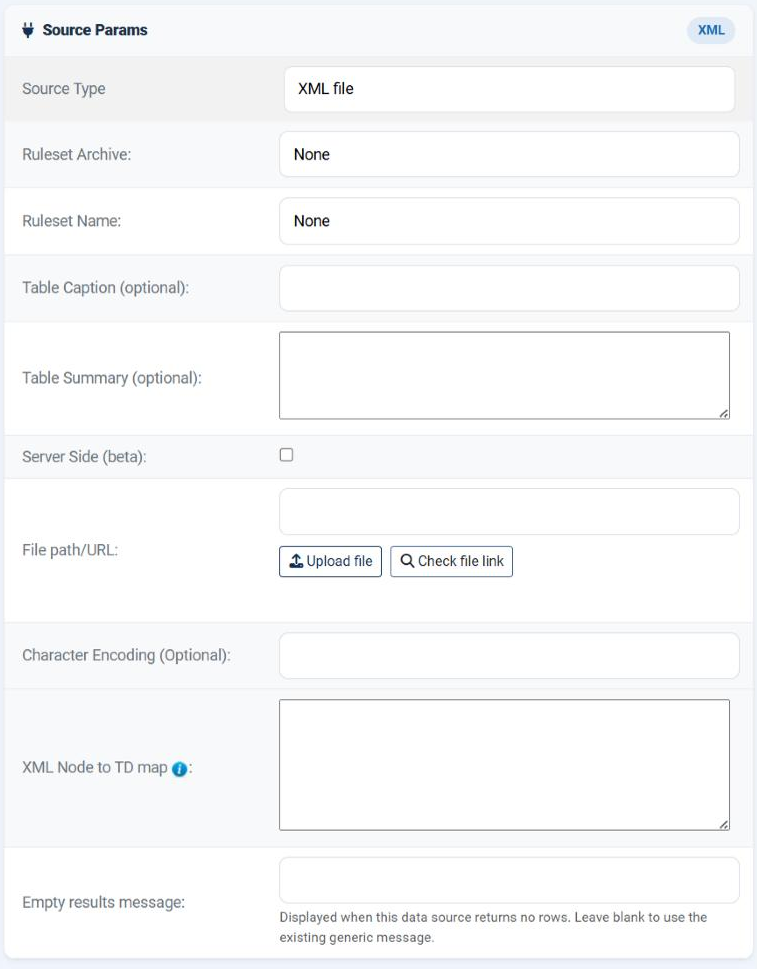
| Field | What it does |
|---|---|
| File path/URL | Where the XML is: a file name held in Manage Data Files, a path relative to the site root, an absolute server path, or a URL. Check file link tests it before you save. |
| Character Encoding (Optional) | Leave empty for UTF-8. Fill it in only if the document is in another encoding and the characters arrive mangled. |
| XML Node to TD map | Which elements become columns, and what to call them. Required - see below. |
| Empty results message | What to show when the document is readable but produces no rows. |
allow_url_fopen as the fallback. With neither, no URL will work. The Status page shows whether cURL is present.The node map
This is the one field that needs thought. Take a document like this:
| The XML | What it means for the table |
|---|---|
<catalog> |
The root. Ignored. |
<cd> … </cd>, repeated |
The repeating element. Each one becomes a row. |
<title>, <artist>, <country>, <company> |
The children. Each named one becomes a column. |
The map lists the tags you want, each with the heading it should get. Entries are separated by a caret (^), and within an entry the tag and its label are separated by an equals sign:
TITLE=Title^ARTIST=Artist^COUNTRY=Country^COMPANY=Label
That produces a four-column table whose first row reads Title, Artist, Country, Label, followed by one row per <cd>. The order of the entries is the order of the columns, and tag names are matched regardless of case.
Reading an attribute instead of an element
Some documents put values in attributes - <cd id="117" stock="4">. Use a double equals sign for those:
| Entry | What it reads |
|---|---|
TITLE=Title |
The text of the <title> element. |
ID==Reference |
The id attribute, wherever it appears, under the heading Reference. |
CD.ID==Reference |
The id attribute of a <cd> element specifically. Use this form when more than one element carries an attribute of that name. |
Elements and attributes can be mixed freely in one map: CD.ID==Ref^TITLE=Title^ARTIST=Artist.
Leaving the map empty
If you leave XML Node to TD map blank, Tabulizer works the structure out for itself:
It finds the row element
The direct child of the root that occurs most often - <cd> in the example above.
It reads the first row's children
Every child element of the first such row becomes a column, in document order.
It names them after the tags
The header row is the tag names with their first letter capitalised.
That is often enough for a tidy, regular document, and it is the fastest way to see what is in a file you have just been given. Write a map when you want fewer columns, a different order, or headings in your own language.
cd/title - is not read as a map here; the field is interpreted as the caret format, and anything else falls back to auto-detection. If your columns come out as "everything the file contains" when you asked for three, that is why.What you get
| Behaviour | Detail |
|---|---|
| A header row is always produced | Row 1 is the labels from your map, or the tag names when auto-detecting. Unlike a CSV file, you do not have to supply one. |
| Missing values become empty cells | A row whose element omits one of the mapped tags still has that column, empty - so the table stays rectangular. |
| Values are trimmed | The whitespace that XML indentation introduces is removed. |
| Attributes are a fallback | When auto-detecting, if a row has no child element of the expected name, an attribute of that name on the row element is used instead. |
Because row 1 is a header, pick a ruleset whose header size is 1 - otherwise the headings are styled as ordinary data.
Building one, in practice
Look at the file
Open it in a text editor or a browser. Find the element that repeats - that is a row - and note the children you want.
Start with no map
Save with the map empty and press Preview. You get every column, which tells you the real tag names.
Write the map
Now list only the columns you want, in the order you want, with proper headings. Preview again.
Turn the cache on
Especially for a remote document. An XML export that is refreshed nightly does not need parsing on every page view.
Common questions
I get "invalid XML contents".
The document did not parse. Open it in a browser - it will point at the first malformed line. An unescaped & is the usual culprit.
No rows were extracted.
None of the tags in your map was found. Check the spelling against the file, and remember that an attribute needs a double equals sign.
I asked for three columns and got nine.
The map was not recognised and auto-detection ran. Use the caret form - TAG=Label^TAG=Label - and avoid forward slashes in the field.
Can I reach a tag nested two levels inside a row?
The map matches by tag name, not by position, so a deeply nested tag with a unique name is found. Where the same name appears at several levels, map the attribute form or pre-flatten the export.
The columns are in the wrong order.
They follow the order of the entries in the map. Rewrite the map in the order you want.
The headings are in the wrong language.
The label after the equals sign is yours to choose - it need not resemble the tag at all.
Can I read a remote XML feed that needs a key?
If the key goes in the URL as a parameter, yes - put the whole URL in the field. There is no way to send a header or sign in.
Build an XML data source
In your Joomla administrator: Components › Tabulizer › Data Sources › New Data Source.
Back to the Knowledge Base