How to view and edit the User Preferences for Tabulizer
The User Preferences Page
Defaults for the whole component: how Tabulizer reads pasted data, what it takes out of an Excel file, how data sources are refreshed, what the paging menu offers, and the keys for a CAPTCHA.
Where it is, and what it is for
Components › Tabulizer, then User Preferences in the toolbar. The page says it plainly at the top: configure default behaviours and preferences for the Tabulizer component.
These are starting points, not locks. A ruleset that specifies something of its own overrides the default; the preferences decide what happens when nothing else has an opinion.
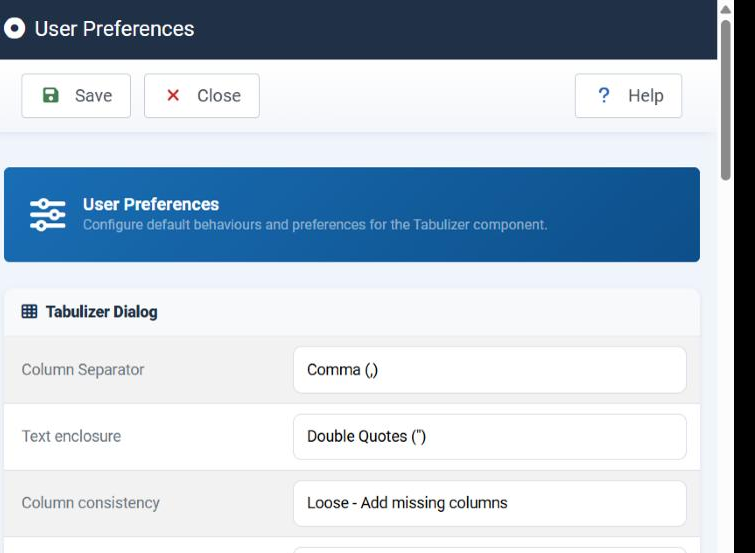
The toolbar has two buttons: Save writes the settings, Close returns to the ruleset list without saving.
Tabulizer Dialog
The Tabulizer dialog is the window you get in the Joomla editor when you insert or retabulize a table. These are its defaults.
| Field | What it does | Options |
|---|---|---|
| Column Separator | The character the dialog assumes is between the values of a row. Pick the one your data usually uses - a semicolon is the safer default where numbers are written with a decimal comma. | Comma (,); Semicolon (;); Asterisk (*); Caret (^); Space; Tab |
| Text enclosure | The quote character that wraps a value containing the separator, so "Smith, John" stays one cell. |
None; Double Quotes ("); Single Quotes (') |
| Column consistency | What to do when the rows do not all have the same number of columns. Strict warns you, which is how you find a missing value. Loose fills the short rows out with empty cells. | Strict - Every row must have the same number of columns; Loose - Add missing columns |
| Archive | The ruleset archive the dialog offers first. Set it to the archive you use most and the dialog stops asking. | Any archive installed on the site, or None |
| Ruleset | The ruleset within that archive to offer first. | The rulesets of the chosen archive |
| When Retabulize Remove Leftovers | Retabulizing a table re-reads it through a ruleset. This says whether markup left over from the previous pass is cleared out first. Yes keeps the result clean; No preserves anything you added by hand. | Yes; No |
Excel Reading Preferences
Nine tick boxes deciding which cell formatting Tabulizer takes out of an Excel file when it imports data from one. They apply when the data source has been told to read colours and font styles; each box is one attribute to carry across or ignore.
| Setting | What it carries across |
|---|---|
| Font Color | The colour of the text in the cell. |
| Background Color | The fill behind it. |
| Font Size | The size of the text. |
| Font Bold | Bold. |
| Font Italic | Italic. |
| Font Strikethrough | Struck-through text. |
| Font Underline | Underlining. |
| Font Superscript | Raised text. |
| Font Subscript | Lowered text. |
Data Source Preferences
| Field | What it does |
|---|---|
| Display warning for invalid source | Whether a table whose data source cannot be read says so on the page. On a site you are building, leave it on - it is how you find a broken query. On a live site, consider turning it off so a visitor sees an empty table rather than an error. |
| Refresh Keyphrase | Optional. A secret word that has to accompany the public URL that clears the data source cache, so that only someone who knows it can force a refresh. Leave it blank to allow the refresh without one. |
Datatables Preferences
| Field | What it does |
|---|---|
| Pagination - Available Lengths | The page sizes offered in the "rows per page" menu of a paged table, site-wide. A ruleset chooses its own starting size in the wizard; this is the list the visitor can choose from. |
Safe Mode
| Field | What it does |
|---|---|
| Safe Mode Enabled | Restricts what a ruleset is allowed to do on this site - the parts of a ruleset that can run code or reach outside the table. Turn it on when rulesets on this site may come from someone whose judgement you do not control. |
Form Builder reCAPTCHA
Google reCAPTCHA v2 (the checkbox kind) keys, used by Form Builder forms and by calculator lead forms that ask for a CAPTCHA.
| Field | What it does |
|---|---|
| Enable reCAPTCHA | Switches the CAPTCHA on for the forms that ask for one. |
| Site Key | The public key, used to draw the widget on your pages. |
| Secret Key | The private key, used by the server to check the answer. It is never displayed back to you: once stored, the field shows that a key is held and leaving it blank keeps it. Type a new one to replace it. |
Both keys come from Google's reCAPTCHA admin console, for the domain the site runs on.
Common questions
Are these settings per user or per site?
They are the component's defaults on this site. A ruleset that specifies something of its own still wins over them.
I set a default Archive and Ruleset. Why is the dialog still asking?
It asks, but with your choice already selected. The settings save you the search, not the confirmation.
Strict or Loose column consistency?
Strict while you are preparing data, because it tells you something is missing. Loose for data you do not control, where a short row is normal.
My secret key field looks empty - have I lost it?
No. It is deliberately never shown. If a key is stored, the field says so; leave it blank and the stored key is kept.
Should I turn Safe Mode on?
If every ruleset on the site is yours or came from tabulizer.com, it changes little. On a site where other people install rulesets, turn it on.
Open the preferences
In your Joomla administrator: Components › Tabulizer › User Preferences.
Back to the Knowledge Base