Step 2 · Format
The structure: how many header rows and columns, which borders, zebra striping and hover highlighting. Choices here create the parts that step 3 then styles.
Step 2 decides the shape of the table - which edges are headers, where the lines go, whether the rows alternate. Step 3 decides how all of it looks, down to a single cell picked out by a range.
The structure: how many header rows and columns, which borders, zebra striping and hover highlighting. Choices here create the parts that step 3 then styles.
The appearance: colours, fonts, padding, shadows, widths - for the table, each header, the body cells, the zebra rows, the hover state, and anything you single out yourself.
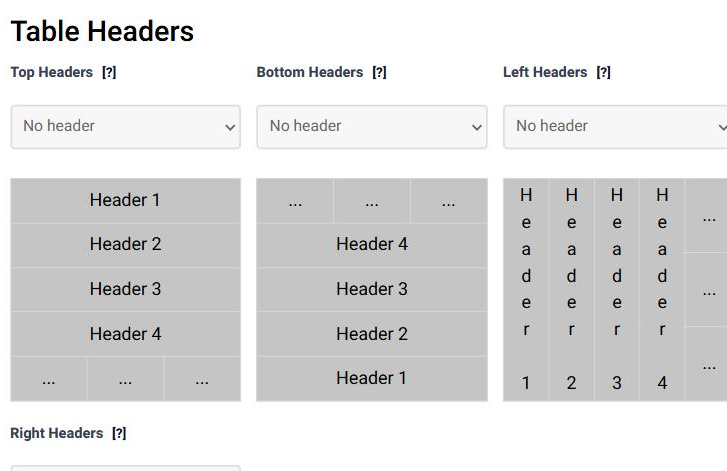
A Tabulizer table can have headers on all four sides. Each menu says how many rows or columns on that edge are headers, and the diagram beside it shows what you are choosing.
| Field | What it does | Options | Default |
|---|---|---|---|
| Top Headers | How many rows at the top are headers. These become real header cells, which is what sorting, filtering and screen readers rely on. | No header; 1 to 4 header(s) | No header |
| Bottom Headers | How many rows at the bottom are headers - a totals or summary line. | No header; 1 to 4 header(s) | No header |
| Left Headers | How many columns on the left are headers, for a table read by row. | No header; 1 to 4 header(s) | No header |
| Right Headers | How many columns on the right are headers. | No header; 1 to 4 header(s) | No header |
One choice decides where the lines go. The colour, width and style of those lines are set in step 3.
| Option | Where the lines are |
|---|---|
| No borders | None at all. The table is held together by spacing and colour. |
| Inside borders | Between the cells only; no line around the table. |
| Outside borders | Around the table only; nothing between the cells. |
| Full borders | Both - the classic grid. |
| Row borders | Horizontal lines between the rows. |
| RowC borders | Horizontal lines between the rows, with the outside edge closed. |
| Column borders | Vertical lines between the columns. |
| ColC borders | Vertical lines between the columns, with the outside edge closed. |
| Field | What it does | Options | Default |
|---|---|---|---|
| Zebra | Alternating stripes, which make a wide table easier to read across. The colour of the striped rows or columns is set in step 3. | No Zebra; Zebra/Rows; Zebra/Columns | No Zebra |
| Hover | Highlights what the pointer is over - the whole row, or the single cell. Its appearance is also set in step 3. | No Hover; Hover/Row; Hover/Cell | No Hover |
| Section | What it covers |
|---|---|
| Table Style | The table as a whole: background, shadow, outside border, corner radius, table width and individual column widths. |
| Table Headers | One block per header you asked for in step 2 - Header #1, Header #2 and so on, for each edge that has them. |
| Table Cells | Three groups: the ordinary body cells, the zebra rows or columns, and the hover state. The last two appear only if you switched them on in step 2. |
| Custom Styling | Anything else - a row, a column, a cell or a block of them, picked out by a range. |
| Field | What it does | Options | Default |
|---|---|---|---|
| Table Background Color | The background behind the whole table. A gradient also takes a start colour, an end colour and an angle. | Transparent (No Color); Solid; Gradient | Transparent |
| Table Shadow | A drop shadow around the table, with its own colour, angle, distance, blur and opacity. | No Shadow; Add Shadow | No Shadow |
| Outside Border | The line around the table: its style, its thickness and its colour. | No border; Add Border. Style: Solid, Dotted, Dashed, Double. Size: 1-10, 12, 15, 21, 30, 45 px | No border; Solid; 1 px; #000000 |
| Border Radius | Rounds the corners of the table. | 0 upwards, in pixels | 0 |
| Table Width | How wide the table is. In pixels or as a percentage of the space it sits in: 720px or 100%. |
Free text | Empty - the table takes its natural width |
| Column(s) Width | A width for individual columns: choose the column number, then type its width. Leave a box empty to let that column size itself. Same units as above. | Column number + free text | Empty |
Headers, body cells, zebra rows, the hover state and every custom rule are styled with the same set of controls. Learn it once:
| Control | Options | Default |
|---|---|---|
| Text Align | Default, Left, Center, Right, Justify | Default |
| Vertical Align | Default, Top, Middle, Bottom | Default |
| Padding | Default, 0 to 10 px, then 12, 15, 21, 30, 45 px | Default |
| Font Size | Default, 7 to 16 px, then 18, 20, 24, 30, 36, 42, 50, 60 px | Default |
| Font Style | Default, Normal, Bold, Italic, Bold + Italic | Default |
| Font Color | A colour picker | Unset |
| Font Family | Default, Arial, Arial Black, Arial Narrow, Georgia, Courier New, Lucida Console, Lucida Sans Unicode, Verdana, Times New Roman, Tahoma, Impact, Palatino Linotype, Century Gothic, Trebuchet MS, Copperplate, Gill Sans | Default |
| Text Shadow | No Shadow or Add Shadow, with colour, angle, distance, blur and opacity | No Shadow; #595959; 55° |
| Background Color | Transparent (No Color), Solid, or Gradient with a start colour, an end colour and an angle | Transparent; solid #ffffff; gradient #a0a0a0 to #f0f0f0 at 90° |
| Border | No border or Add Border, with style (Solid, Dotted, Dashed, Double), size and colour | No border; Solid; 1 px; #000000 |
Everything above styles whole regions of the table. Custom Styling is for the rest: the one column that holds prices, the row that carries a subtotal, the single cell you want in red.
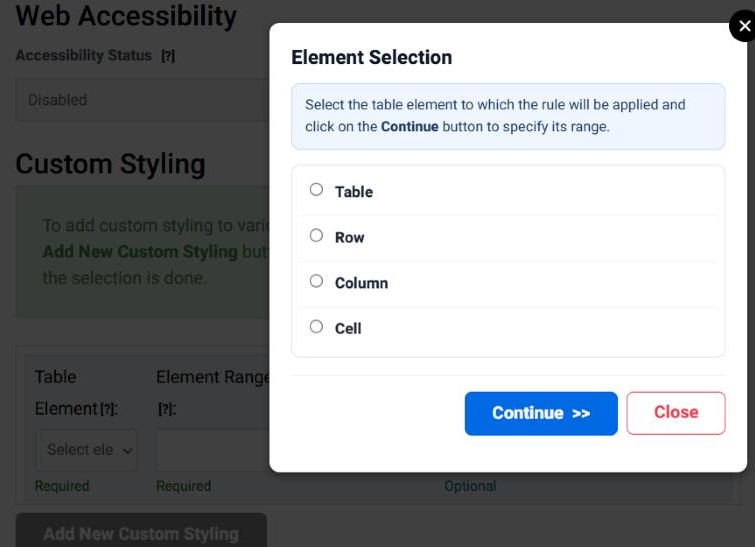
Click Add New Custom Styling and the wizard asks which kind of element the rule applies to, then helps you describe which ones.
| Field | What it does | Options | Required |
|---|---|---|---|
| Table Element | What the rule applies to. A row rule styles whole rows, a cell rule styles individual cells, and so on. | Table, Row, Column, Cell | Yes |
| Element Range | Which ones. A single number, a list, a span, counting from the end, every other one, or a condition on the values themselves. | See below | Yes |
| Range Key | Narrows a range that is expressed as a condition - which column the condition is tested against, for instance. | Free text | No |
| Element Section | Restricts the rule to part of the element, such as the header part of a column rather than all of it. | Free text | No |
| The style controls | The same vocabulary as everywhere else: alignment, padding, fonts, colour, shadow, background and border. | As above | No |
A range says which rows, columns or cells a rule applies to. 3 is the third one; 2,5,9 is a list; 2-6 is a span; L1 is the last one and L2 the one before it, which keeps working when the number of rows changes; ODD and EVEN take every other one; ALL takes all of them. A cell rule takes a row and a column, as 3,2. Ranges can also be conditions - rows whose value in a given column is the largest, or matches a word - and that is where the Range Key comes in.
Ranges are shared by every rule in Tabulizer, not only styling, and they repay reading about properly: Elements, Ranges, Range Keys, Element Sections and Priority.
A cell can be inside a zebra row, in a styled column and inside a custom rule all at once. Tabulizer applies them in order of how specific they are and, where that is not enough, by the priority each rule carries: a higher priority wins. The same article linked above explains how priority is decided.
In practice: style the general case first - the table, the headers, the body cells - and add custom rules for the exceptions.
The header has to exist first. Go back to step 2 and set Top Headers (or the edge you meant) to at least 1; step 3 then shows a block for it.
Zebra striping is switched on in step 2 under Table Style. Without it there are no zebra rows for step 3 to colour.
Default writes nothing, so your site's stylesheet decides. Any other value writes a rule that overrides it.
Yes - Column(s) Width in step 3. Choose the column number and type a width; leave the others empty.
A custom rule on Row with the range ODD or EVEN.
Yes. Use the range L1, which counts from the end.
Open the Table Wizard, set the headers and borders in step 2, then style them in step 3.
Open the Table Wizard