Vertical: append rows
The rows of each source go under the previous one. Use it for data with the same columns: the same report from several stores, months or years. Columns a source does not have are left empty.
Orders from three stores in three spreadsheets, a product list in one place and stock levels in another: a Data Source Merger combines them into one table, stacking rows or placing columns side by side, and keeps it up to date as the sources change.
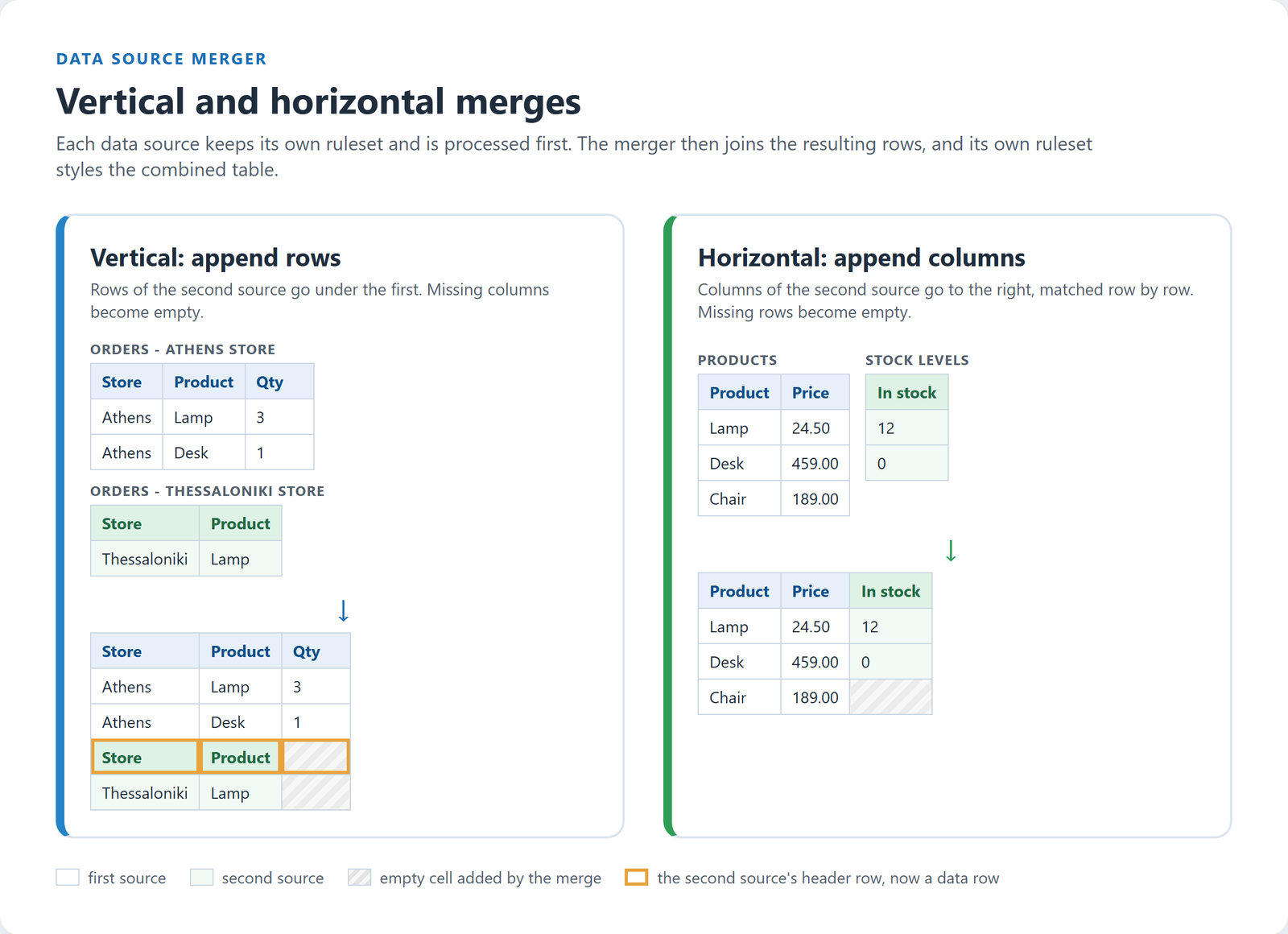
The rows of each source go under the previous one. Use it for data with the same columns: the same report from several stores, months or years. Columns a source does not have are left empty.
The columns of each source go to the right of the previous one, joined row by row: row 2 of one source next to row 2 of the other. Use it for sources that list the same items in the same order. Rows a source does not have are left empty.
A merger is a data source of its own, which you create in the back end:
Every table you want to combine must be a data source first, with its own ruleset.
In Tabulizer › Data Sources, click New and set the source type to Data Source Merger.
Drag data sources from Available Data Sources into the Merging Tree.
Pick the ruleset for the merged table, save, and insert the merger's tag in your page like any other data source.
The tree always starts with one group, Vertical merge by default. Drag data sources into it in the order you want them, and drag them up or down to reorder. The group's list switches it between Vertical — append rows and Horizontal — append columns.
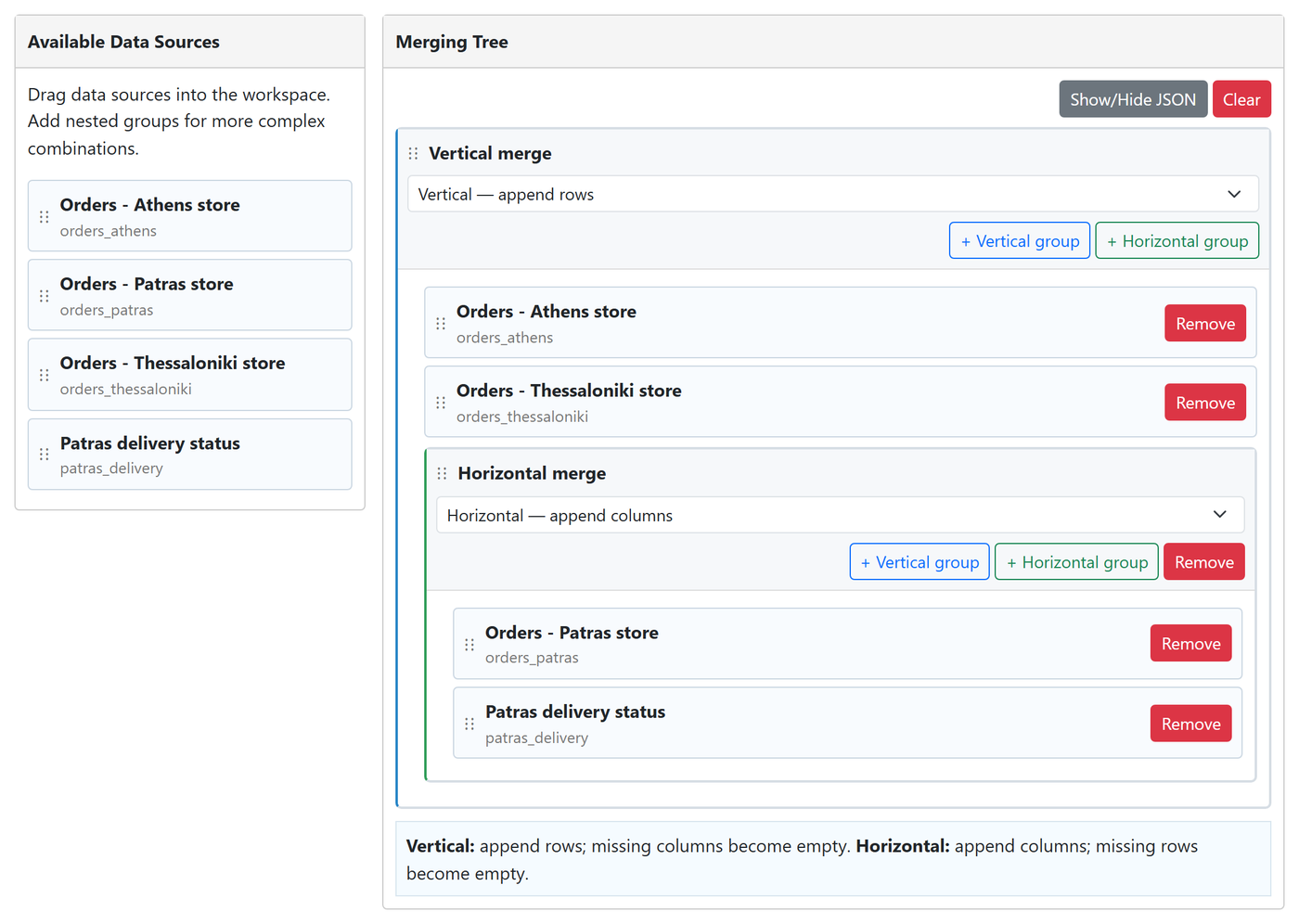
Groups can contain other groups. Click + Vertical group or + Horizontal group in a group to add one inside it. In the example above:
The Patras rows are wider, so the Athens and Thessaloniki rows get empty cells in the delivery columns. Groups are evaluated from the inside out, and they can be nested up to 30 levels deep.
Show/Hide JSON shows the tree as the merger stores it, which is handy for checking a complex tree. Clear starts again with an empty vertical group.
{
  "type": "vertical",
  "children": [
    { "type": "source", "tag": "orders_athens", "title": "Orders - Athens store" },
    { "type": "source", "tag": "orders_thessaloniki", "title": "Orders - Thessaloniki store" },
    { "type": "horizontal", "children": [
        { "type": "source", "tag": "orders_patras", "title": "Orders - Patras store" },
        { "type": "source", "tag": "patras_delivery", "title": "Patras delivery status" }
    ] }
  ]
}
Two kinds of ruleset take part, and each has its own job:
The merger does not know which row is a header. In a vertical merge, the header row of the second and later sources ends up in the middle of the table as an ordinary row, as the diagram above shows. Remove it in one of two ways:
1. The source then no longer shows its header when you use it on its own, either.SAME U3RvcmU= [1]^1. It removes every row whose first cell is exactly "Store" (U3RvcmU= in base64), except row 1. In the wizard's range window this is Text, operator SAME, text "Store", subrange 1, with ^1 typed at the end.See Tutorial 2 for more on removal rules.
Any data source on the site, whatever its type: files, spreadsheets, feeds, database queries, and other mergers. The merger you are editing is left out of the list.
No. Tabulizer detects a source that appears again in its own chain, directly or through another merger, and leaves it out.
A source that returns no rows, for example a file that cannot be read, is skipped and the merge continues with the others. The merge fails only when none of the sources returns any rows.
Yes. Exporting a merger from Data Sources also exports the data sources it merges, so the whole set can be imported on another site.
Design the merged table's ruleset in the Table Wizard, then combine your data sources in Tabulizer's Data Sources.
Open the Table Wizard