Remove Rows and Columns
Remove Rows and Columns
Hide the columns your visitors do not need, or drop the rows that do not belong in this table: discontinued items, empty lines, or everything above a price. The source data stays as it is; only the table changes.
Where to find it
Open the Table Wizard and go to step 5 (Modifications). Under Add/Remove Elements › Data Removal, click Add new Data Removal. A removal rule has no options of its own: it removes whatever its Table Element and Element Range select.
- Row: the range selects the rows to remove.
- Column: the range selects the columns to remove.
This tutorial uses the product list from Tutorial 1, where column 3 is the price band and column 4 the price.
Remove by position
When you know which rows or columns to drop, type their numbers in the range. Everything from Elements, Ranges and Priority works here.
| Element | Range | Removes |
|---|---|---|
| Column | 3 |
The Price band column. |
| Column | 3,5 |
Price band and Last order. |
| Row | L1 |
The last row, for example a totals line that came with the data. |
| Row | FIRST 3^1 |
The first three rows except the header. |
Remove by content: every expensive product
Usually you do not know the row numbers in advance, because the data changes. Select the rows by what they contain instead. Click Select Element & Range in the rule, choose Row and click Continue. Then:
Choose Text
"At least one row cell should contain a text value, based on certain criteria."
Operator CONTAINi
A cell contains the text, ignoring upper and lower case.
Text: expensive
Type it as plain text. The wizard encodes it for you.
Subrange: 3
Look only in column 3, the price band.
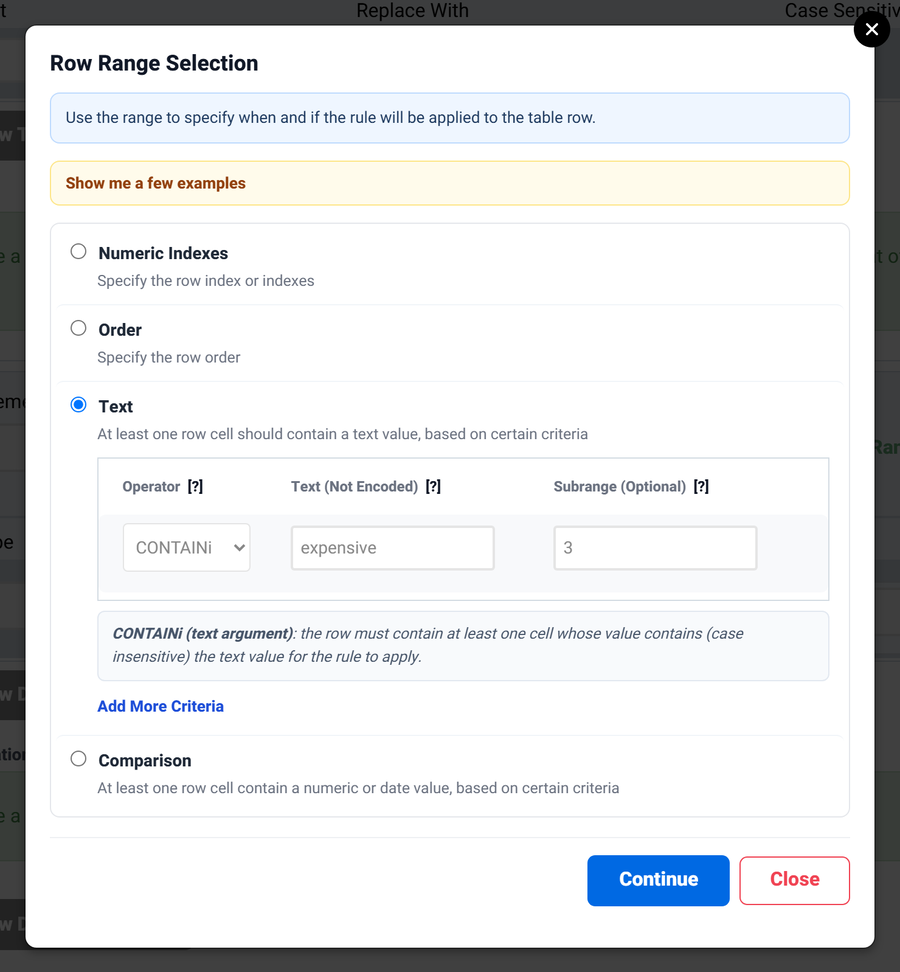
Click Continue and the wizard fills in the rule. The range it writes is CONTAINi ZXhwZW5zaXZl [3], where ZXhwZW5zaXZl is "expensive" encoded in base64 and [3] is the subrange.
![The Data Removal rule after the range selection: Table Element Row and Element Range CONTAINi ZXhwZW5zaXZl [3].](/tabulizer7/images/tutorials/data-modifications/removal-rule.png)
The Office chair, the Bookcase and the Standing desk are removed:
| Product | Colour | Price band | Price | Last order |
|---|---|---|---|---|
| Desk lamp | blue | affordable | 24.50 | 2026-09-02 |
| Notebook | Blue | affordable | 3.20 | 2026-09-14 |
| Monitor stand | grey | affordable | 39.00 | 2026-07-30 |
The text operators
| Operator | The row is selected when a cell… |
|---|---|
SAME / SAMEi |
is exactly the text / the same, ignoring case |
SAMEn / SAMEni |
is not the text / not the same, ignoring case |
CONTAIN / CONTAINi |
contains the text / contains it, ignoring case |
CONTAINn / CONTAINni |
does not contain the text / does not contain it, ignoring case |
EMPTY / EMPTYT |
is empty / is empty or holds only spaces |
EMPTY [4], for example, removes the rows whose price is missing. The Comparison choice in the same window works on numbers and dates: GREATER, GREATERE (greater or equal), LESS, LESSE, EQUAL and BETWEEN.
Combine several criteria
Click Add More Criteria to add another line, and choose how it joins the previous one:
| Join | Written as | Example | Rows removed |
|---|---|---|---|
| And | # |
"expensive" in column 3 and a price over 200 in column 4 | Bookcase, Standing desk |
| Or | ; |
"expensive" in column 3 or a price under 5 in column 4 | Office chair, Bookcase, Notebook, Standing desk |
| Not | ^ |
"blue" in column 2, not those with "expensive" in column 3 | Desk lamp, Notebook |
The first example is written CONTAINi ZXhwZW5zaXZl [3]#GREATER IzIwMA== [4], where IzIwMA== is #200, a number, in base64. You never have to type this yourself; the window builds it as you choose the options.
Things to know
When does a removal run?
Early: after modification functions and before replacements, formats and calculations. Those later rules see the smaller table, so their column numbers refer to the columns that are left. If you remove column 3, the price becomes column 3 for the rules that follow.
Can I keep the header row safe?
A content range can match the header too. Type ^1 at the end of the Element Range, for example CONTAINi ZXhwZW5zaXZl [3]^1, to leave row 1 alone whatever it contains.
Can I remove the whole table?
No. Removal rules work on rows and columns. To show nothing when the data is empty, use the data source's empty results message instead.
Clean up your table
Open the Table Wizard and add a Data Removal rule in step 5.
Open the Table Wizard