Contact Form Wizard
What the Contact Form Wizard does
This wizard builds a working contact form — fields, validation, confirmation emails and all — by dragging elements onto a grid. It produces a Tabulizer ruleset that you import into your own site, where the form is rendered, validated and delivered.
It differs from the other wizards in one important way: it does not read a table of your data. There is nothing to supply. The ruleset carries the entire form, and what arrives is what your visitors type into it.
The finished form can:
- collect text, email addresses, long messages, choices and file uploads;
- require some fields and validate what is entered;
- show or hide fields depending on what the visitor has already answered;
- email you when someone submits, and email them a confirmation;
- store submissions on your site, with a retention limit;
- guard against spam with a CAPTCHA.

Step 1 — Grid setup
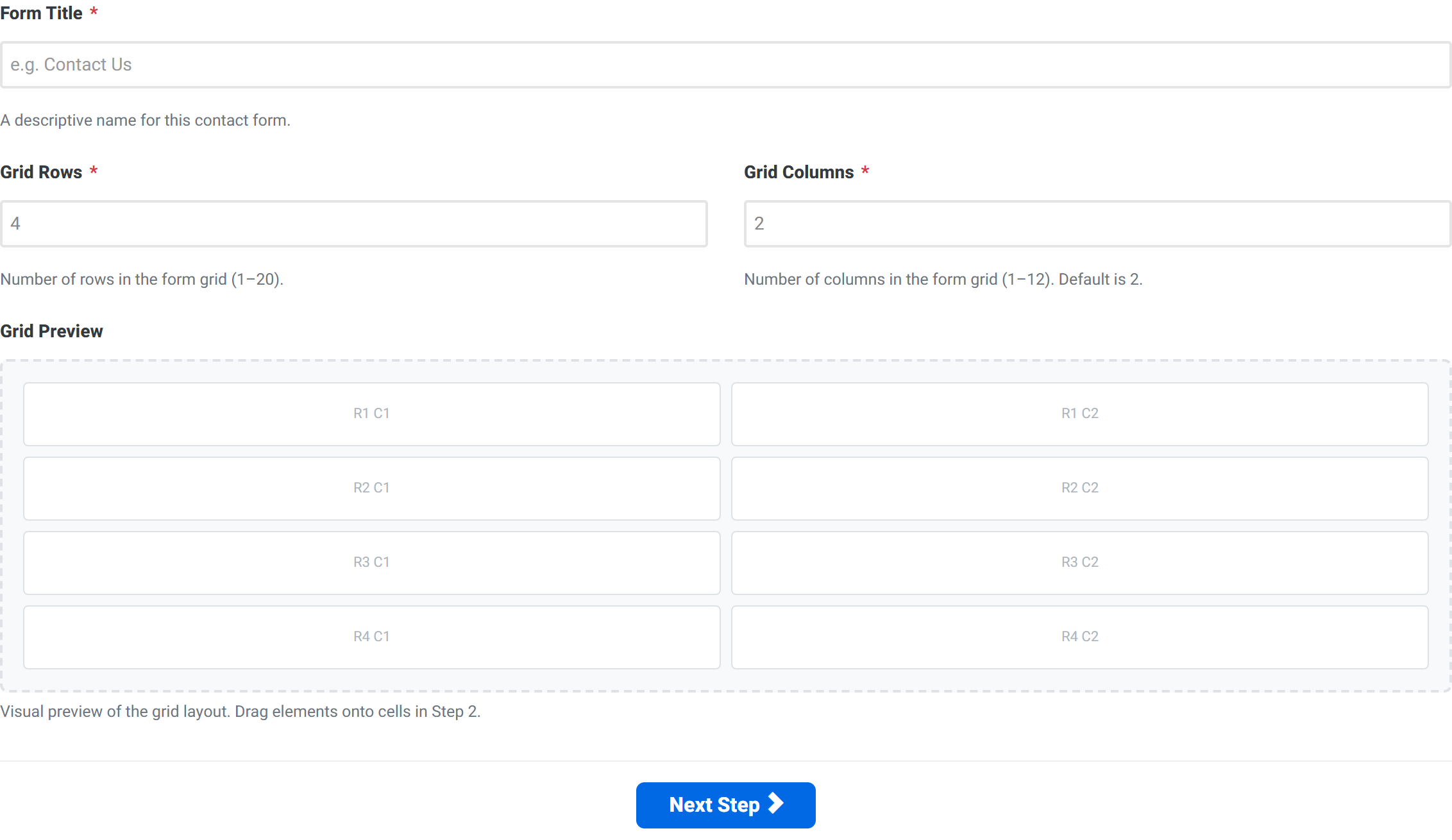
The form is laid out on a grid, and this step decides its shape. Three fields, and you can change your mind later.
| Field | What it does |
|---|---|
| Form title | The heading shown above the form, and the name you will recognise the ruleset by. |
| Grid rows | How many rows of cells the builder gives you. |
| Grid columns | How many cells per row. Two is a good default: it lets short fields sit side by side. |
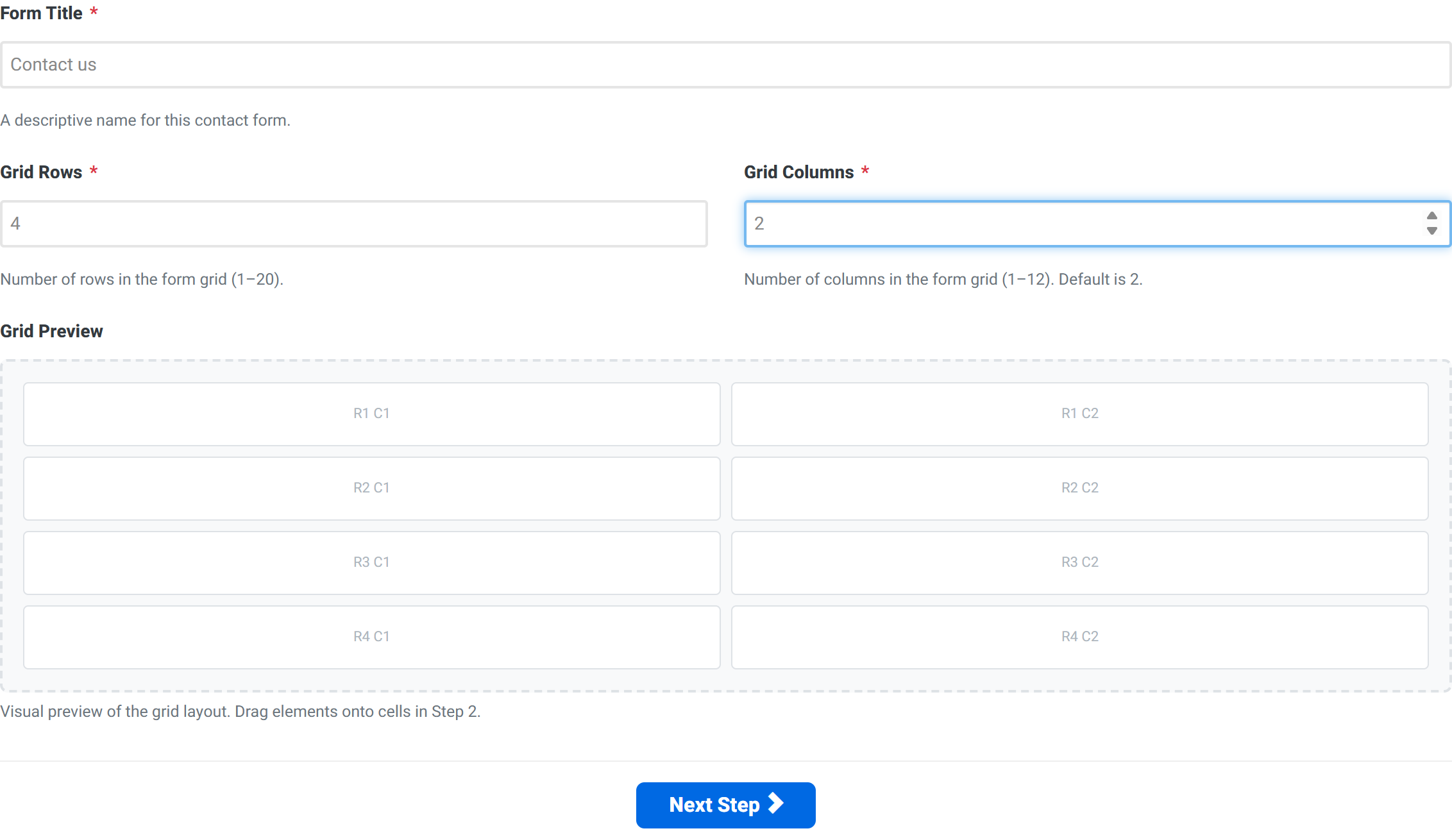
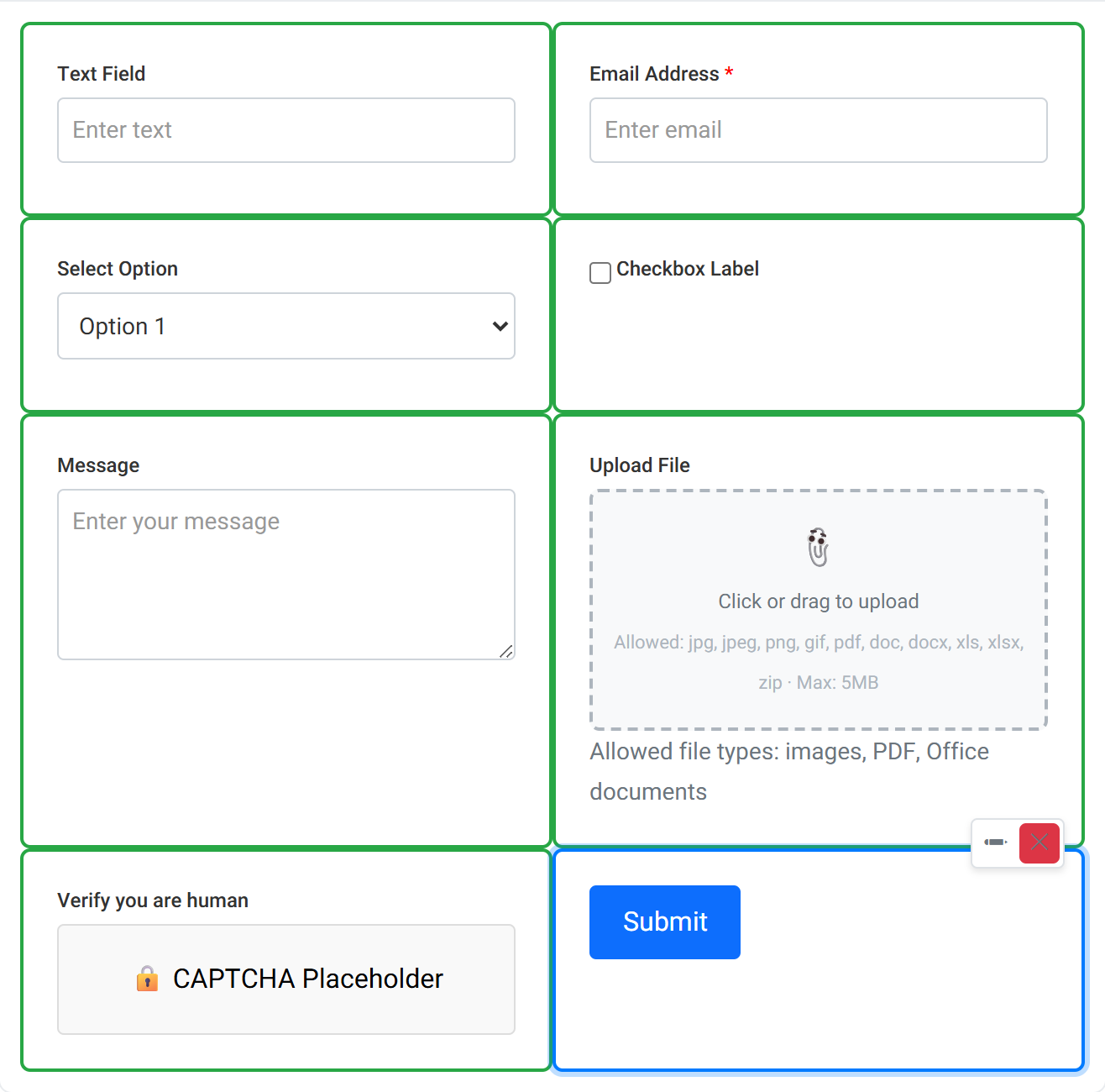
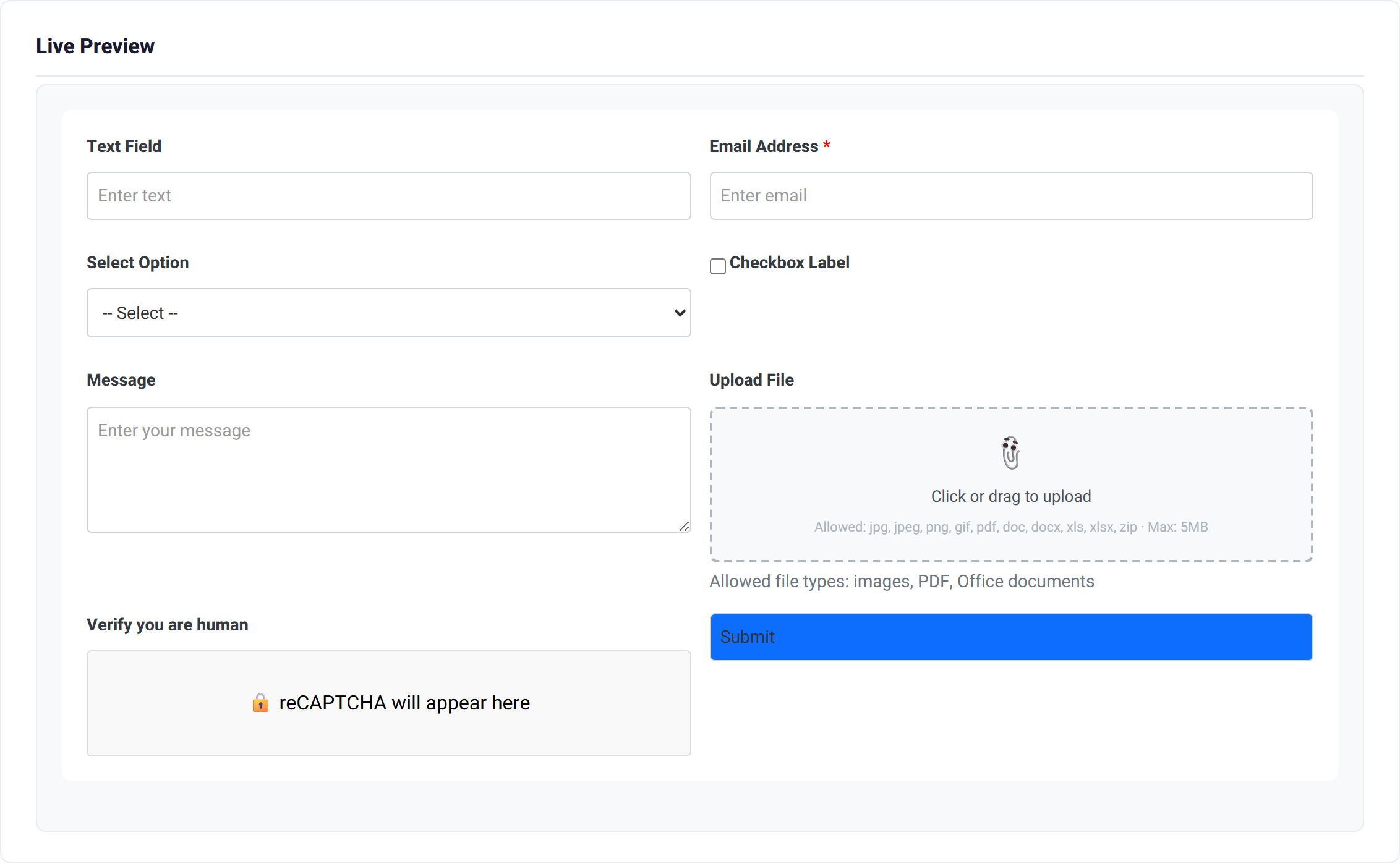
Plan for one field per cell. Count the fields you need, then pick a grid that holds them. Four rows by two columns gives eight cells — enough for a name, an email address, a subject, a consent tick, a message, an attachment, a CAPTCHA and a submit button, which is a complete contact form.
Step 2 — The builder
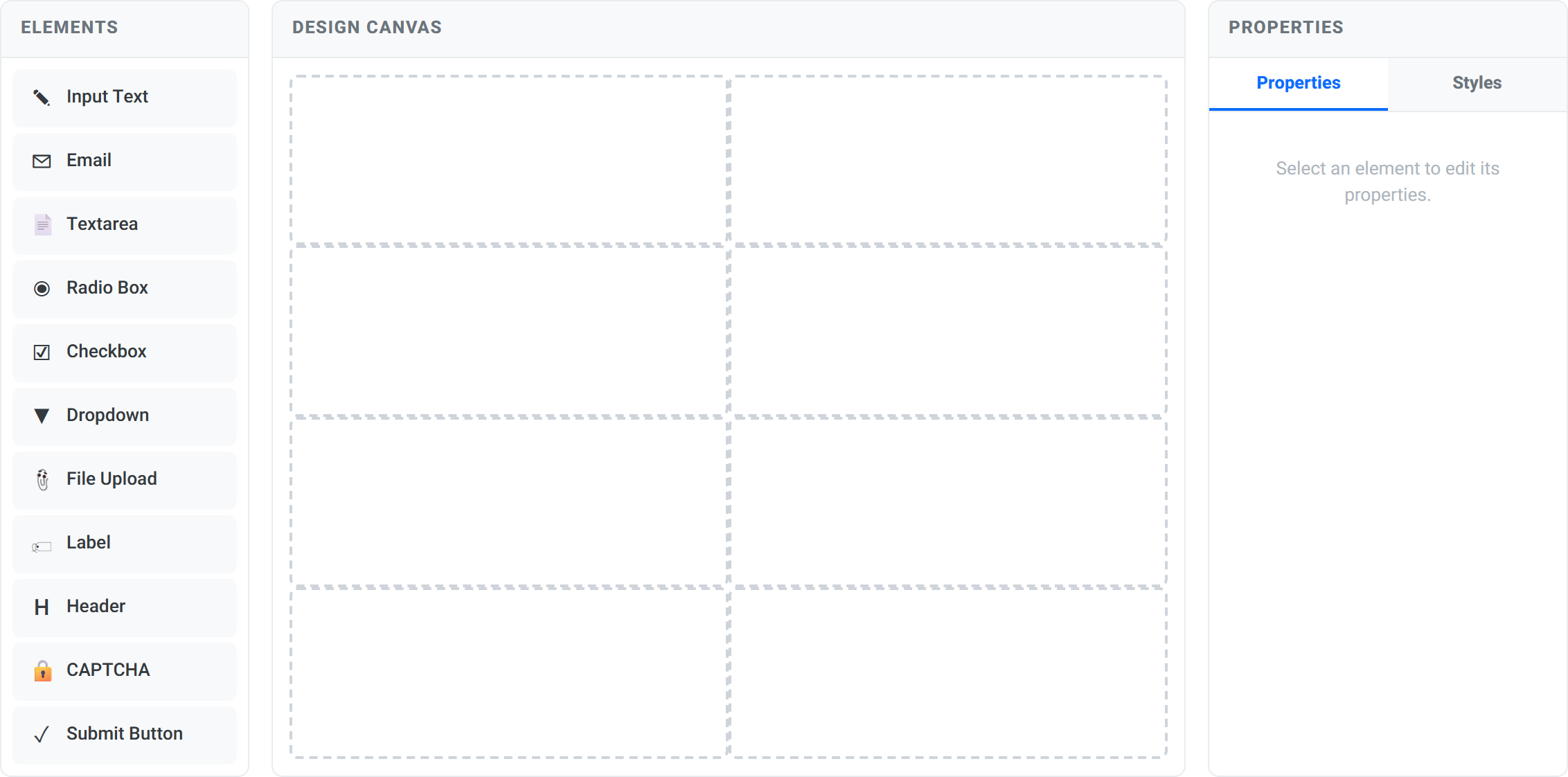
Three panels: the Elements palette on the left, the Design Canvas in the middle, and Properties on the right. You drag an element from the palette into a cell, then adjust it on the right.
The elements
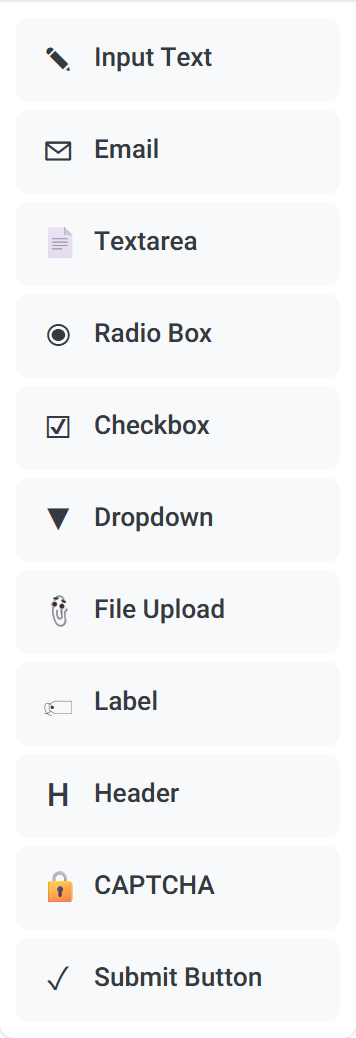
| Element | Use it for |
|---|---|
| Input Text | A single line — a name, a company, a reference. |
| An email address. Validated as one, and required by default. | |
| Textarea | A longer message. Its height is set by the Rows property. |
| Radio Box | One choice from a few visible options. |
| Checkbox | A single yes/no — consent, opt-in, agreement. |
| Dropdown | One choice from a longer list. |
| File Upload | An attachment. Allowed types and a size limit are shown to the visitor. |
| Label | A line of static text. |
| Header | A heading, for dividing a long form into sections. |
| CAPTCHA | Spam protection. |
| Submit Button | The button that sends the form. Every form needs one. |
Placing and editing fields
Drag an element from the palette onto a cell. Once placed, it shows a small toolbar with two controls: ✎ to edit it and ✕ to remove it. Clicking the field itself selects it and loads its settings into the Properties panel.
Properties
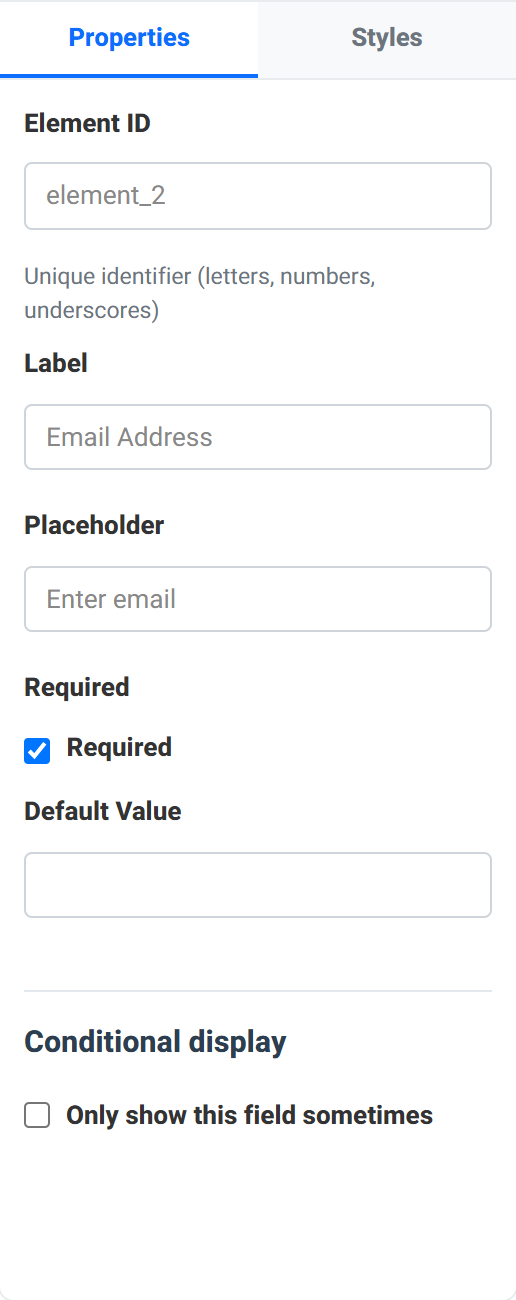
| Property | What it does |
|---|---|
| Element ID | The field's identifier — letters, numbers and underscores. It names the field in your notification email, so customer_email reads better than element_2. |
| Label | The visible caption above the field. |
| Placeholder | Grey hint text inside the empty field. A hint, not a substitute for the label. |
| Required | The form will not submit until this is filled in. |
| Default Value | What the field starts with. |
| Rows | Textarea only — how tall it is. |
| Options | Dropdown, radio and checkbox — the choices offered. |
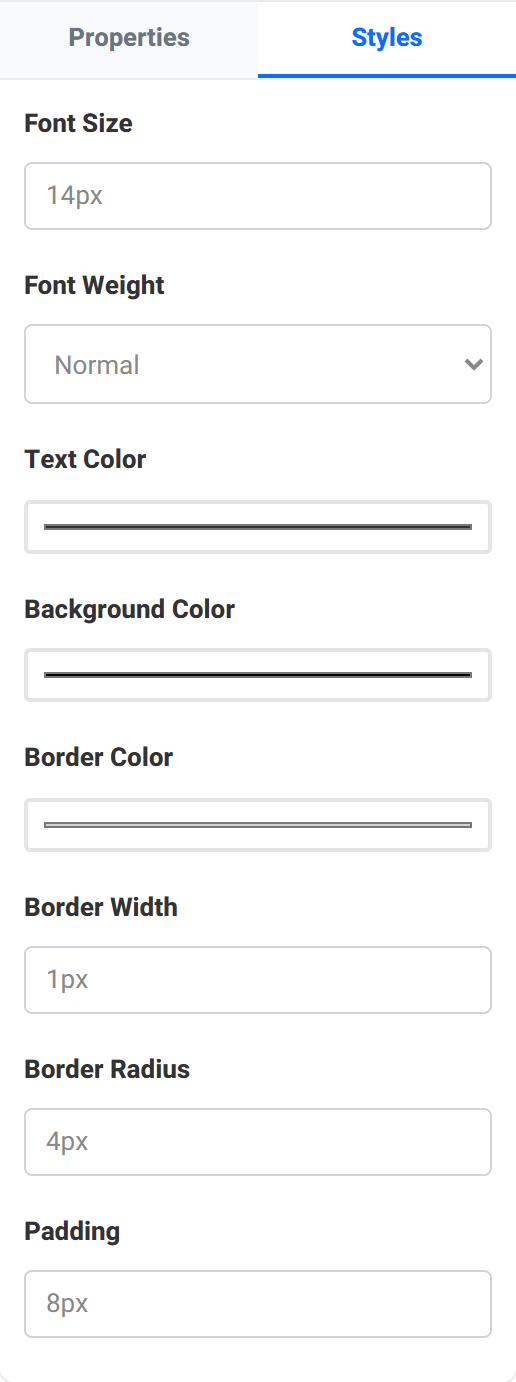
The Styles tab beside Properties sets that field's font size, weight, text colour and background.
Form settings — styling the whole form
The Styles tab dresses one field. To style the container the whole form sits in, use Form settings at the top right of the Design Canvas.

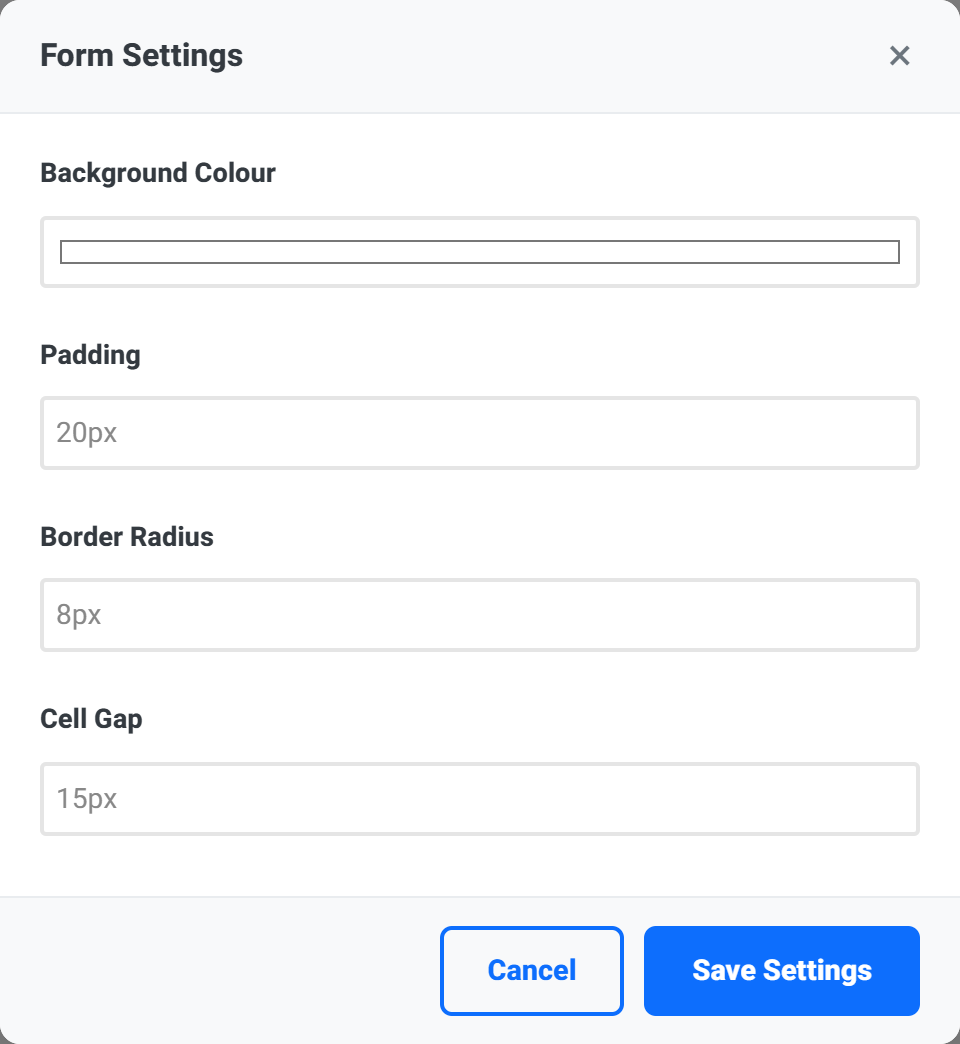
| Setting | Default | What it does |
|---|---|---|
| Background colour | #ffffff |
The panel the form is drawn on. |
| Padding | 20px |
The space between that panel's edge and the fields. |
| Border radius | 8px |
How rounded the panel's corners are. |
| Cell gap | 15px |
The space between one field and the next. |
Save Settings applies them; Cancel, the close button and the Escape key all discard your edits and leave the previous values in place.
Cell gap is the one worth adjusting. A crowded form usually reads better with a larger gap than the 15px default — try 24px on a form with more than about six fields.
Conditional display — showing a field only sometimes
Any field can be shown or hidden based on what the visitor has answered elsewhere. Tick Only show this field sometimes and a small rule editor appears.
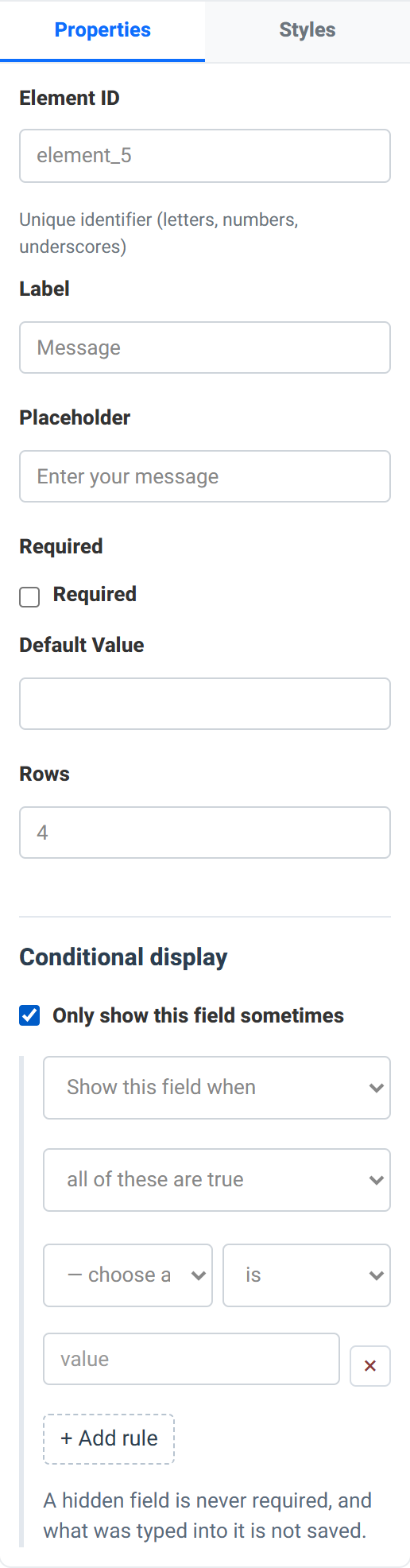
A rule has four parts:
- Show or hide this field when the rules match.
- All or any — whether every rule must match, or just one of them.
- Which field to look at, and how to compare it.
- The value to compare against.
+ Add rule adds another condition.
A hidden field is never required, and what was typed into it is not saved. This matters more than it first appears. It means you can mark a conditional field as required without trapping visitors who never see it — the requirement only applies when the field is actually on screen. It also means a visitor who fills in a field, then changes an earlier answer so the field disappears, does not silently submit the abandoned value.
A worked example. Add a dropdown called How should we reply? with the options Email and Phone. Then put a conditional rule on your phone number field: show this field when — all of these are true — How should we reply? is Phone. The phone box now only appears for people who asked to be phoned, and is only required for them.
Step 3 — Preview, email and save
Live preview
Email configuration
What happens when someone submits. Three independent blocks.
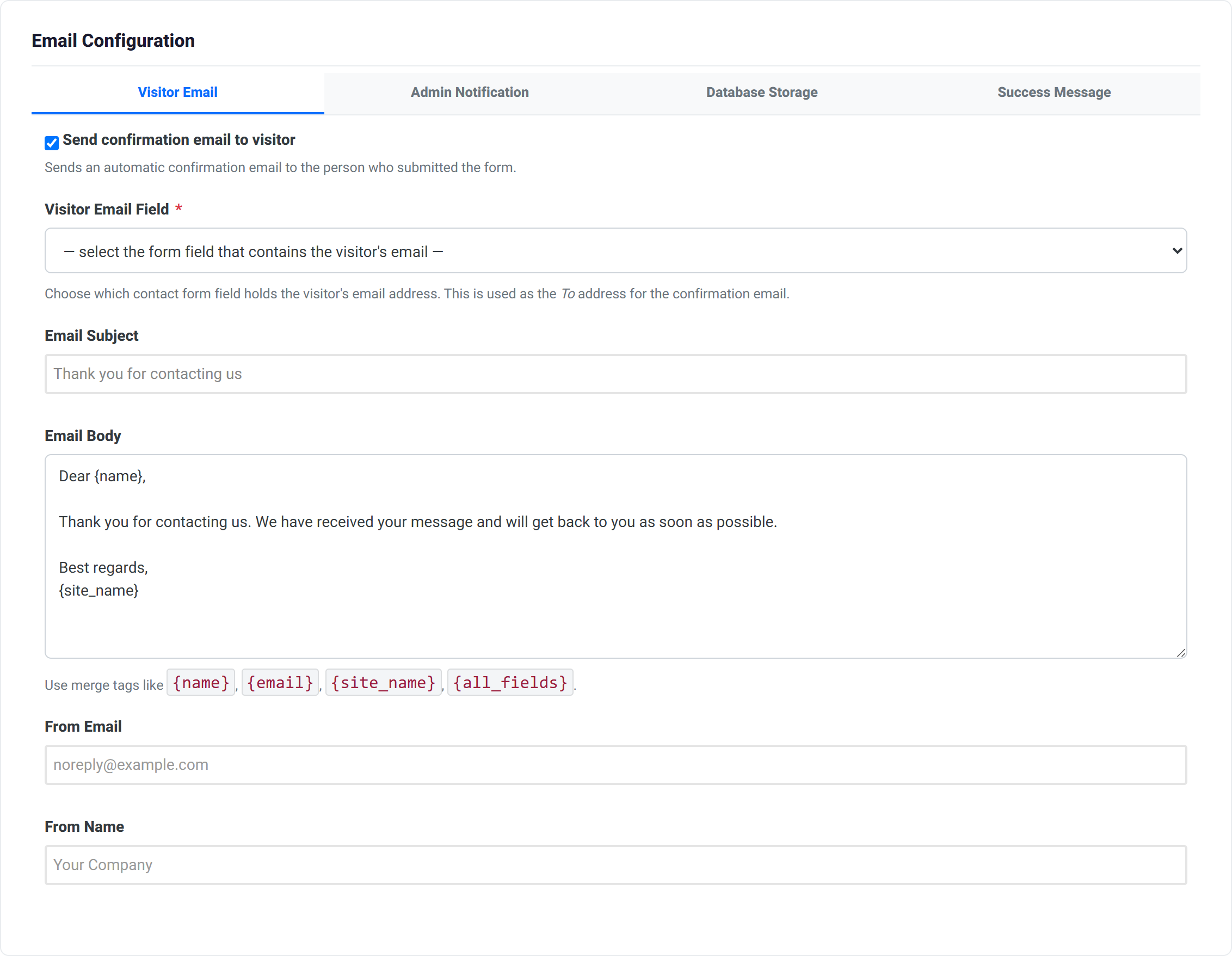
Confirmation email to the visitor
| Setting | Notes |
|---|---|
| Send confirmation email to visitor | Off unless you switch it on. |
| Visitor email field | Required if you enable this. Which field on your form holds the visitor's address — the wizard cannot guess. |
| Email subject / body | What they receive. |
| From email / From name | Who it appears to come from. |
Notification email to you
| Setting | Notes |
|---|---|
| Send admin notification email | The one most people want. |
| Recipient email | Where submissions are sent. |
| Email subject / body | What you receive. |
Storing submissions
| Setting | Notes |
|---|---|
| Save submitted form data in the database | Keeps a copy on your site, so nothing is lost if an email fails. |
| Retention days | How long a stored submission is kept before being deleted. |
| Max submissions per day | A ceiling that limits the damage from an automated flood. |
Storing submissions means storing personal data. Set a retention period you can justify, and make sure your privacy notice says what you keep and for how long.
After submission
Either show a success message in place of the form, or redirect to a thank-you page of your own. Choose one in After Submission; the field for the other is ignored.
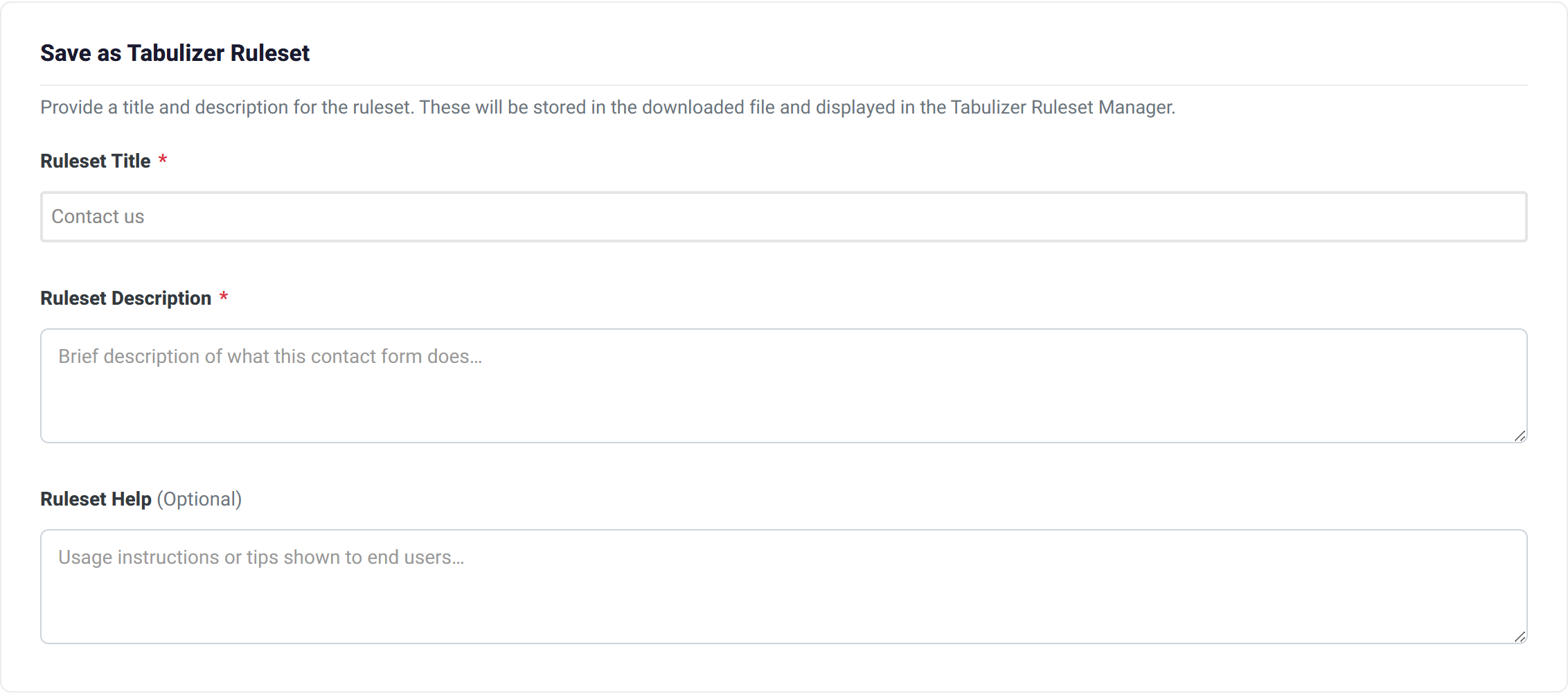
Save the ruleset
Using the ruleset on your own site
- In your site's administrator, open Tabulizer → Ruleset Manager and import the
.zipyou downloaded. - Create or edit the article where the form should appear.
- Apply the imported ruleset.
Unlike the other wizards, there is no data table to prepare. The ruleset contains the whole form. Everything it needs to render, validate and deliver ships with Tabulizer.
Submissions, if you enabled storage, are listed in Tabulizer's administration alongside the retention settings you chose.
Tips and troubleshooting
I cannot drop an element into a cell
Each cell holds one element. Remove what is there first with the ✕ button on its toolbar, or drop into an empty cell.
My form has no submit button
The submit button is an element like any other — drag it from the palette into a cell. It is the last item in the list.
The confirmation email is not being sent
Check Visitor email field in Step 3. Enabling the confirmation email without telling the wizard which field holds the visitor's address leaves it with nowhere to send. The field is marked required for exactly this reason.
A conditional field never appears
Check the value in the rule matches the option exactly, including capitalisation. If the rule watches a dropdown, compare against the option's value rather than its visible label when the two differ.
A required conditional field is blocking submission
It should not — a hidden field is never required. If submission is blocked, the field is probably still visible because its rule is matching when you did not expect it. Check whether all or any is the right choice for your rules.
My field names are unhelpful in the notification email
Set a meaningful Element ID on each field. That identifier is what appears in the email, so message beats element_5.
I am getting spam
Add the CAPTCHA element to the form, and set Max submissions per day in the storage block as a backstop.
I want two fields side by side
That is what columns are for — drop each into a cell in the same row. If you need a different arrangement, go back to Step 1 and change the grid.
Related articles
- Calculator Wizard
- Pricing Tables Wizard
- Gallery Wizard
- Chart Wizard
- D3 Visualizations Wizard
- Calendars and Timelines Wizard
- Importing a ruleset into Tabulizer