The Tabulizer Data Source Widget
The Tabulizer Data Source Widget
Put a table in a sidebar or a footer - every page, no post to edit, and with the same numbered parameter boxes the block uses.
What it is for
A table in a post belongs to that post. Sometimes the table belongs to the furniture of the site instead: opening hours beside the contact form, a price summary in every footer, a short league table down the sidebar of a whole section.
Widget areas are how classic WordPress themes do furniture, and Tabulizer Data Source is a widget like any other. Choose a data source, give it a title if you want one, drop it in the area, and it appears wherever that area appears.
First: does your theme have widget areas?
This is the question that decides everything, and it is worth settling before you go looking for the widget.
| Theme | What you get |
|---|---|
| A classic theme - Twenty Twenty-One and earlier, and most commercial themes | Widget areas, and this widget. Appearance › Widgets opens normally. |
| A block theme - Twenty Twenty-Two and later, including Twenty Twenty-Four | No widget areas at all. Appearance › Widgets says the theme does not support widgets, and there is nowhere to put this. |
Finding the widget
On a classic theme, open Appearance › Widgets. On WordPress 5.8 and later this is the block-based widgets screen, so you add a widget the same way you add a block: click the + and search.
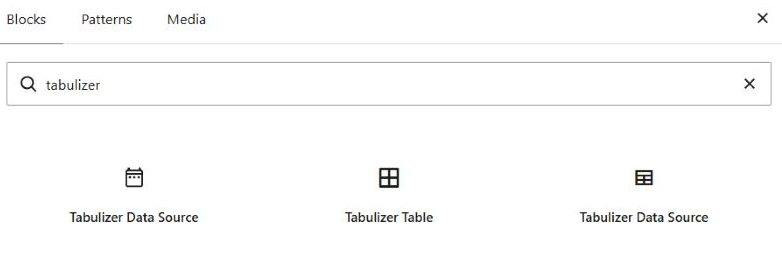
Three results come back, and two of them share a name. They are not interchangeable:
| Result | What it is |
|---|---|
| Tabulizer Data Source (first) | The widget. The one this tutorial is about. It has a Title field, which is the giveaway. |
| Tabulizer Table | The wizard block - Tutorials 1 to 4. |
| Tabulizer Data Source (last) | The block - Tutorial 5. No Title field; it has a settings sidebar instead. |
The settings
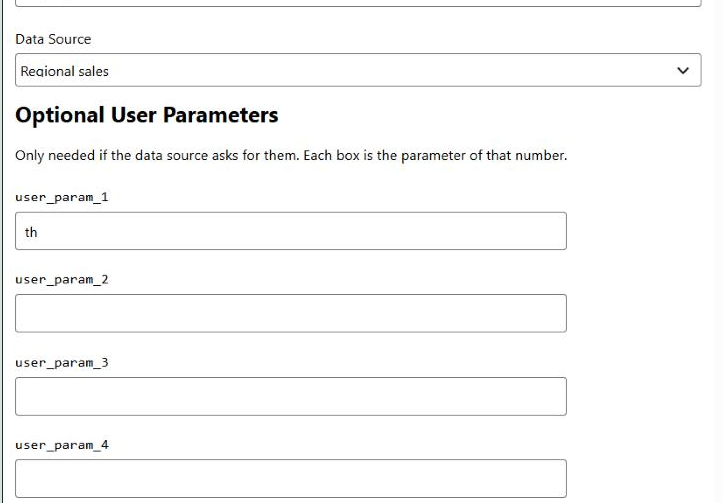
| Setting | What to do with it |
|---|---|
| Title | The heading above the table, styled by your theme like any other widget title. Leave it empty and the table stands on its own. |
| Data Source (required) | Every data source on the site, by title - the same list as Tabulizer › Data Sources. This is the only setting the widget genuinely needs. |
| Optional User Parameters | Five numbered boxes. Leave them alone unless the data source asks for values - most do not. |
User parameters
The boxes work exactly as they do in the block, because it is the same code underneath.
| In the widget | In the data source |
|---|---|
The first box, user_param_1 |
{user_param_1:text}, {user_param_1:int}, {user_param_1:cmd}, {user_param_1:float} or {user_param_1:date} |
The second box, user_param_2 |
The same, numbered 2 |
The numbering is positional and fixed: box 3 is always user_param_3, whatever boxes 1 and 2 hold.
{user_param_1} is never substituted and shows up in the table as literal text. Tabulizer also refuses :text inside database queries and file paths - use :cmd, :int, :float or :date there, which are cleaned first.And if a data source expects a parameter but the widget does not supply one, the placeholder stays in the query as literal text, matches nothing, and the table comes back empty. Fill the box, and give the data source an Empty results message so that case reads as a sentence rather than a blank frame.
^) cannot appear in a value - it separates one parameter from the next, and one typed into a box is dropped. A colon is fine.What it looks like on the site
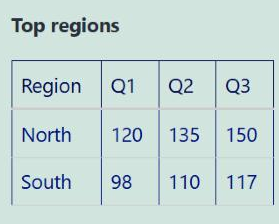
The widget title sits above the table, and the table carries the data source's own ruleset - borders, colours, header styling and all. Here user_param_1 holds a value that matches two of the four regions, so two rows are shown.
Common questions
The widget is not in the list.
Almost always a block theme, which has no widget areas - check Appearance › Widgets. If the screen tells you the theme does not support widgets, use the block instead.
Can I show two different data sources?
Yes - add two widgets. Each has its own data source, title and parameters.
Can I show the same data source in a widget and in a post?
Yes, and it is a normal thing to do. They are independent: the data source is read for each, and its cache serves both.
The table is slow on every page.
A widget in a sidebar reads its data source on every page view. Turn the data source's cache on - that is what it is for, and it matters more here than in a single post.
I switched themes and my widget vanished.
WordPress remembers widget placement per theme, so a widget can end up under Inactive widgets after a switch. Its settings are kept - drag it back into an area, or re-add it.
I deleted the widget. Did I lose the data source?
No. The data source lives under Tabulizer › Data Sources and is untouched.
Is this the same as the Joomla module?
Yes, in everything that matters - same data source list, same numbered parameters, same rendering. A data source set up for one works unchanged with the other.
Add one to your sidebar
On a classic theme: Appearance › Widgets, then search for Tabulizer Data Source.
Back to the Knowledge Base