The Tabulizer Data Source Block
The Tabulizer Data Source Block
Drop a data source into a post, a page or a page builder - pick it from a list, pass it a value if it asks for one, and see the finished table while you are still editing.
What it is for
A data source is normally placed with the Tabulizer wizard, which walks five steps and writes a tag. That is the right tool when you are building something. It is more than you need when the data source already exists and you simply want it on this page.
Tabulizer Data Source is that simpler block: one list to choose from, five optional boxes, and a live preview. No wizard, no tag to copy, nothing to get wrong.
Finding it
Click the block inserter (the + button) and type tabulizer. Two blocks come back.
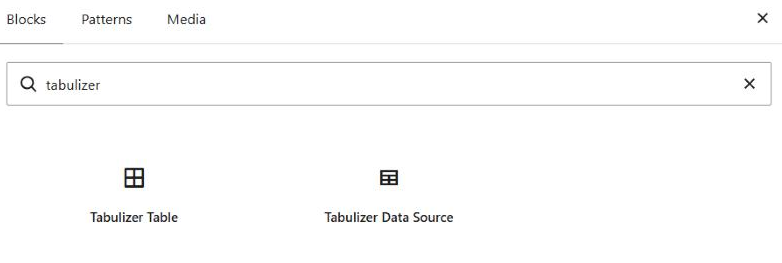
| Block | Use it when |
|---|---|
| Tabulizer Data Source | This one. The data source already exists and you want to show it. |
| Tabulizer Table | You need the wizard - to build a table from scratch, to reTabulize an existing one, or to create a new data source on the spot. Tutorials 1 to 4. |
Choosing the data source
A fresh block has nothing to show and says so: Choose a data source in the block settings. Open the block settings (the sidebar toggle in the top right) and the list is there.
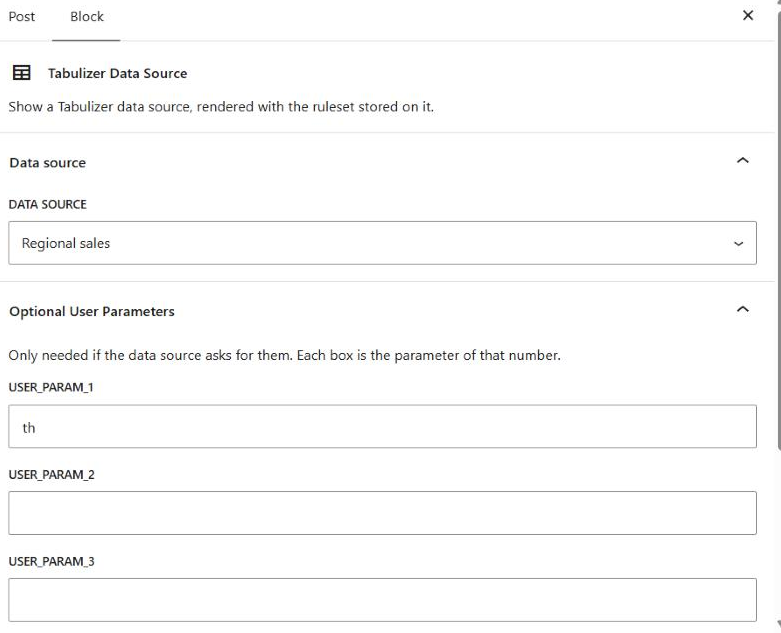
Every data source on the site is listed by title - the same list you see under Tabulizer › Data Sources. Pick one and the table appears immediately.
What you see while editing
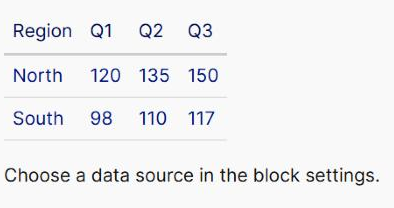
The block renders on the server and shows you the result, not a placeholder. The table in the editor is produced by the same code that will produce it for a visitor, with the data source's own ruleset applied - so if it looks right here, it is right.
Optional user parameters
Some data sources are written to be told something - a region in a WHERE clause, a year in a file path. The Optional User Parameters panel is where a block supplies those values. There are five boxes, numbered.
| In the block | In the data source |
|---|---|
The first box, user_param_1 |
{user_param_1:text}, {user_param_1:int}, {user_param_1:cmd}, {user_param_1:float} or {user_param_1:date} |
The second box, user_param_2 |
The same, numbered 2 |
The numbering is positional and fixed: box 3 is always user_param_3, whatever boxes 1 and 2 contain. Leave a box empty and that parameter is empty - the ones below it do not move up.
{user_param_1} is never substituted and will appear in the table as literal text. Tabulizer also refuses :text inside database queries and file paths, because an unrestricted value in either is an injection waiting to happen - use :cmd, :int, :float or :date there, which are cleaned first.WordPress prints control labels in capitals, so the boxes read USER_PARAM_1 in the sidebar. The parameter itself is user_param_1; the capitals are the editor's styling, not part of the name.
^) cannot appear in a value - it is the character that separates one parameter from the next, and one typed into a box is dropped. A colon is fine.If a data source expects a parameter and does not get one
It returns nothing. The placeholder is only replaced when a value is supplied, so an unanswered {user_param_1:cmd} stays in the query as literal text and matches no rows. The block then renders an empty table rather than an error, which looks like a fault but is not one.
Two things make that case behave itself:
Fill the box
If the data source asks for a parameter, every block that uses it needs to supply one. That is the normal fix.
Set an empty-results message
On the data source, under Tabulizer › Data Sources, fill in Empty results message. A visitor then reads a sentence instead of staring at an empty frame - and you see it in the editor too, which makes the cause obvious.
One data source, several tables
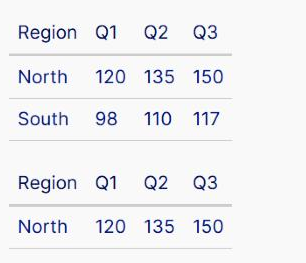
Both tables above come from one data source on one page. The only difference is the value in user_param_1: the first block passes a value that matches two regions, the second passes North.
That is the cheapest way to get several views of the same data. There is one query to maintain, one ruleset, one cache - and as many tables as you have blocks.
The same thing outside the post
| Where | What to use |
|---|---|
| A post or page | This block. |
| A sidebar or footer | The Tabulizer Data Source widget, under Appearance › Widgets. Same data source list, same numbered boxes. Note that block themes have no widget areas at all - on those, use this block in a template instead. |
| Elementor, Divi or WPBakery | The matching element from the Tabulizer for Page Builders add-on, a separate plugin you install only if you use one of those builders. |
Common questions
Can I edit the table in the post?
No. The block holds a reference to the data source, not a table - the rows are produced when the page is rendered. To change what it shows, change the data source, or pass a different parameter.
How do I change the styling?
Edit the data source and pick a different ruleset. Every block, widget and builder element using that data source follows at once.
The same data source twice on one page - is that a problem?
No, and the picture above does exactly that. Each block renders independently and the data source's cache serves them both.
Do I have to fill in parameters?
Only if the data source asks for them, which most do not. Leave the panel closed otherwise.
My parameter shows up as {user_param_1} in the table.
The placeholder in the data source has no type. Change it to {user_param_1:cmd} - or another type - and it will be substituted.
I deleted the block. Did I lose the data source?
No. The data source lives under Tabulizer › Data Sources and is untouched. Add the block again and pick it from the list.
Should I use this block or the Tabulizer Table block?
This one shows a data source that exists. The Tabulizer Table block runs the wizard, which is what you want for building a static table, reTabulizing an existing one, or creating a new data source.
Put one on a page
Add a Tabulizer Data Source block and pick a data source from the list.
Back to the Knowledge Base