How to insert an existing Dynamic Table (Data source)
Inserting an Existing Dynamic Table
You have already built the data source properly. This is the few-clicks way to put it into a post.
When to use this mode
Use it whenever the data source already exists. That is most of the time, and it should be most of the time, because the place to build a data source is Tabulizer › Data Sources › New, where the whole form is available - caching, table caption, server-side loading, header rows, column mapping, parameter labels. The wizard's own New Dynamic Table mode asks for a useful subset and says so in a notice; the Data Sources page asks for everything.
So the comfortable working order is: build the data source once, with care, on that page. Then come to a post and insert it in a few seconds with this mode. Insert it into a second post the same way, and a third - they all point at the same source.
Getting there
Add a Tabulizer Table block where the table belongs, click Open Tabulizer Wizard, and choose Existing Dynamic Table on step 1.
Step 2 - pick the data source
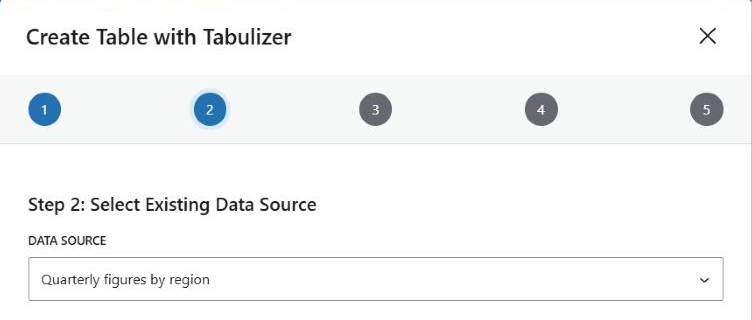
Every data source on the site is listed by title. That is the whole of this step - pick one and move on.
Steps 3 and 4 - deliberately empty
Click Next and the wizard still walks you through steps 3 and 4, but there is nothing on either of them:
| Step | What it says |
|---|---|
| 3 - Configure | “The existing data source configuration will be used as stored.” |
| 4 - Ruleset | “The selected data source already stores its ruleset configuration.” |
The reason is worth stating plainly: the data source already carries both. Its source settings and its archive and ruleset were decided when it was created, and the wizard has no business overriding them from inside a post. The steps remain in the sequence so the progress bar still reads one to five; just click Next through them.
Step 5 - confirm
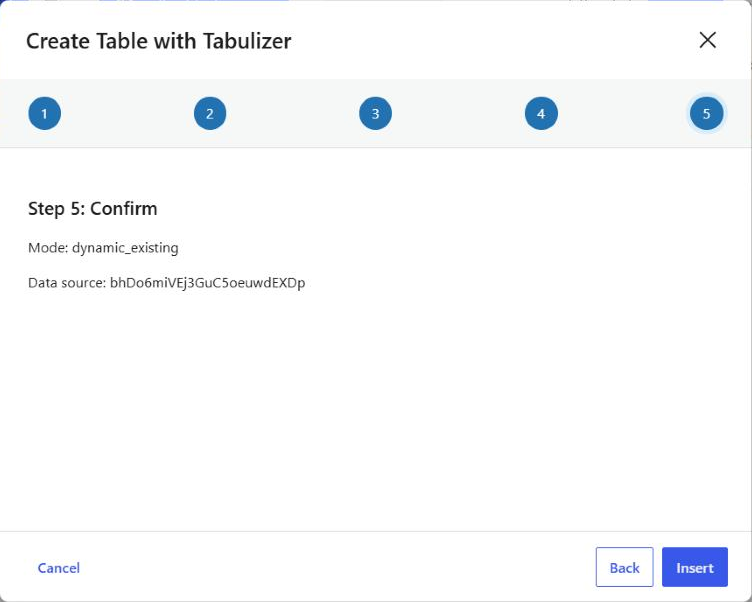
The summary names the mode and the data source by its tag rather than its title - the tag is what is about to be written into the post, so that is the honest thing to show.
Click Insert.
What lands in the post
A single tag, inside the block:
{tabulizer:data_source[bhDo6miVEj3GuC5oeuwdEXDp]}
That is all of it. No table, no stylesheet marker, no ruleset - the tag names a data source and everything else is looked up when the page is rendered. The same tag inserted into five posts gives five copies of one table, and changing the data source changes all five.
A note on user parameters
Some data sources are written to be told something - a region in a WHERE clause, a year in a file path. The wizard on WordPress does not offer a way to pass those values: there is no parameter section in any of its five steps.
If you need them, use the Tabulizer Data Source block instead of the Tabulizer Table block. It does the same job - pick a data source, show its table - and adds numbered boxes for user_param_1, user_param_2 and so on. The same values are available to the Tabulizer Data Source widget and to the Elementor, Divi and WPBakery elements in the Tabulizer for Page Builders add-on.
{user_param_1:text}, {user_param_1:int}, {user_param_1:cmd}, {user_param_1:float} or {user_param_1:date}. A placeholder written without one is never substituted and appears in the table as literal text.Common questions
My data source is not in the list.
It has not been created yet, or you are looking for it under a different title. Check Tabulizer › Data Sources; the list in the wizard is that list.
Why can I not choose a ruleset here?
Because the data source has one. Change it there and every post showing that source changes with it - which is usually what you want.
How do I know which ruleset it will use?
Open the data source under Tabulizer › Data Sources - the archive and ruleset are listed against it there. The wizard does not repeat them because it cannot change them.
Can a visitor change the parameter?
Not from a tag - whatever is inserted is fixed for that post. To let people filter a table, use the sorting and filtering the ruleset provides.
Can I show the same data source twice on one page?
Yes. Insert the tag in two blocks and both render, reading the same source.
Should I use this block or the Tabulizer Data Source block?
Either shows a data source. Use this one when you are already in the wizard; use the Tabulizer Data Source block when you want user parameters, or when you are placing the table in a widget area or a page builder.
Insert one you already built
Add a Tabulizer Table block and choose Existing Dynamic Table.
Back to the Knowledge Base