The Excel File Data Source
The Excel File Data Source
Point Tabulizer at a workbook, name the sheet and the area you want, and that block of cells becomes a table on your site. Update the workbook, upload it again, and every page that uses it follows - with the option of carrying the spreadsheet's own colours and bold text across.
When to use it
Choose Excel File when the workbook is where the data really lives - a price list, a timetable, a results sheet that somebody maintains in Excel and always will. It reads .xls, .xlsx and OpenDocument .ods.
It can do two things a CSV export cannot: take a defined rectangle out of a sheet, rather than the whole file, and bring the cell formatting with it.
The form
Components › Tabulizer › Data Sources › New Data Source, then set Source Type to Excel File.
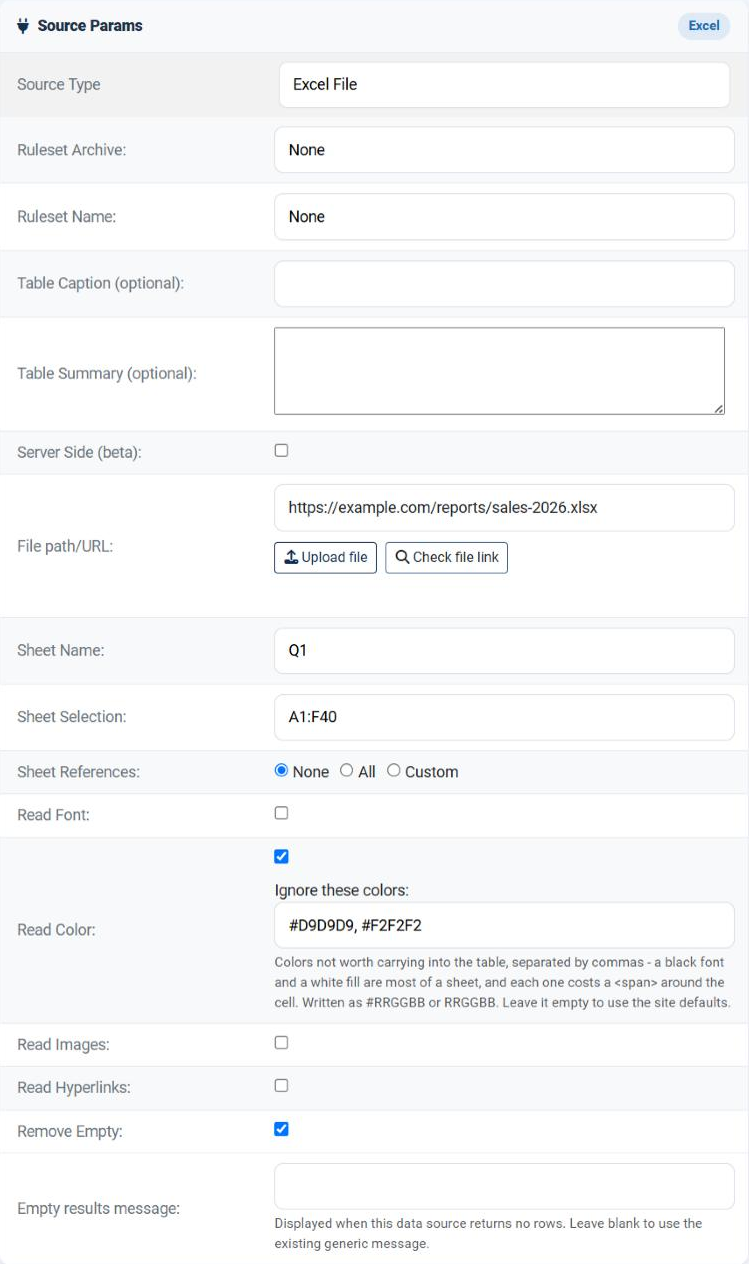
File path/URL
The workbook. The same four forms are accepted as for any file source.
| What you type | What it means |
|---|---|
prices.xlsx |
A file uploaded through Manage Data Files. Use this one: it carries across to another site unchanged. |
tmp/prices.xlsx |
A path relative to the site root. |
/full/server/path/prices.xlsx |
An absolute path on the server. |
https://example.com/prices.xlsx |
A URL. The workbook is downloaded to a temporary folder first, then parsed. |
Upload file opens the data file manager; Check file link tests what you typed before you save.
allow_url_fopen as the fallback. If neither is available the download fails before the parsing even begins. The Status page shows whether cURL is present.What happens to a remote workbook
A URL cannot be parsed where it stands, so Tabulizer downloads the workbook into the site's temporary folder first and reads it from there. That copy is deleted as soon as the reading is done; nothing accumulates, and the file on the other server is never touched.
When a Google spreadsheet is the better answer
If the workbook lives elsewhere so that it can keep changing, a Google Spreadsheet data source is usually the better tool, and for two reasons.
| What you want | Why Google Spreadsheet suits it better |
|---|---|
| The table to follow the data | Publish the sheet to the web and the table follows it. Edit the spreadsheet, and the next read picks the change up - there is nothing to export, nothing to upload, and no workbook to download and parse on the way. The published data is already in a form Tabulizer can read directly. |
| Several people editing the same data | A shared Google spreadsheet is built for it: colleagues edit at the same time, in a browser, with the usual sharing permissions and history. The Excel route in that situation means someone re-exporting and re-uploading a file after every change, and whoever forgets leaves the site showing stale figures. |
Keep the Excel source for a workbook that is genuinely a file: a fixed export, a document kept in the site's own data folder, or anything whose formatting you want to carry across - which is the one thing a published Google sheet cannot give you. See Data Sources · Tutorial 14 for the Google Spreadsheet type.
Sheet Name and Sheet Selection
Both are required. Between them they say which rectangle of which sheet becomes the table.
| Field | What to type | Notes |
|---|---|---|
| Sheet Name | The name of the worksheet tab, exactly as it appears in Excel - Prices 2026, Sheet1. |
You may also write #1, #2 and so on to mean the first, second or third sheet by position. That is the robust choice when the tab gets renamed but never moved. |
| Sheet Selection | Either the word all for the whole sheet, or a range in the usual Excel notation: A1:F20. |
The top-left cell comes first and the bottom-right second; a range written the other way round is rejected when you save. |
A named range is worth the effort when the sheet contains more than the table - a title, some notes, a working column off to the side. all brings the lot, and Remove Empty below will tidy the edges but not the stray notes.
Sheet References
Three radio buttons: None, All, Custom. They answer one question - does the area I selected contain formulas that point at other sheets?
| Choice | What happens | When |
|---|---|---|
| None | Only the selected sheet is loaded, and only the selected range within it. The fastest and lightest option. | The default, and right whenever the cells hold values or self-contained formulas. |
| All | Every sheet in the workbook is loaded so any reference can be resolved. | The formulas reach across several sheets and you would rather not list them. |
| Custom | A text box appears. Type the sheet names your formulas refer to, separated by commas: Sheet2,Sheet3. |
You know exactly which sheets are involved - the right middle ground in a large workbook. |
Carrying the formatting across
Four tick boxes decide how much of the workbook's appearance comes with the data. All four are off by default.
| Setting | What it brings across |
|---|---|
| Read Font | Text attributes: size, bold, italic, strikethrough, underline, superscript and subscript. |
| Read Color | Font colour and cell background colour. Ticking it reveals an Ignore these colors box - see below. |
| Read Images | Pictures embedded in the selected area. |
| Read Hyperlinks | Links on cells, so a clickable cell stays clickable. |
Ignore these colors
Tick Read Color and a second field appears under it. It takes a comma-separated list of colours this particular workbook is not worth carrying - written either way round, #FF0000 or FF0000, upper or lower case:
| Field | What it does |
|---|---|
| Ignore these colors | Colours named here are treated as "no colour" for this data source. A cell wearing one of them comes through as a plain value, exactly as if the workbook had never coloured it. |
The point is to keep the colours that mean something and drop the ones that do not. A sheet where losses are red and targets met are green carries two useful colours and a great deal of incidental shading; name the incidental ones here and only the meaningful cells arrive with any markup on them.
#FF0000 here does not bring back the black text and white fills that User Preferences was already dropping - you are adding to the exclusions, not replacing them. Leave the field empty and the site defaults apply on their own.Remove Empty
| Field | Options | What it does |
|---|---|---|
| Remove Empty | Tick box, on by default | Drops rows that are entirely empty and columns that are entirely empty, after reading. This is what saves you from a table with three blank columns on the right because the selected range was generous. |
Making it fast
Select a range, not the sheet
A1:F200 instead of all lets the reader skip everything else - as long as Sheet References stays on None.
Leave the Read boxes off
Loading a workbook's styling is a large part of the work in an .xlsx file, and all four boxes are off by default. Tick one only when the formatting genuinely carries meaning.
Turn the cache on
A workbook that changes weekly does not need parsing on every page view. A long Cache Time costs nothing and saves everything. For a remote workbook treat this as compulsory rather than an optimisation: without it, every visitor downloads the whole file before anything is parsed.
Clear the cache when you upload
Overwrite the file in Manage Data Files, then select the data source and press Clear Cache.
Common questions
It says the sheet name was not found.
Read the message - it lists sheet names it did find. Watch for trailing spaces in the tab name, and remember you can write #1 for the first sheet instead.
The page times out or runs out of memory.
In order: narrow the Sheet Selection, make sure Sheet References is None, untick the Read boxes so the styling is never parsed, and turn the cache on so it happens once rather than on every view. Check the memory limit and execution time on the Status page as well.
Cells that hold formulas come out empty or show an error.
The formula refers to a sheet that was not loaded. Set Sheet References to Custom and name those sheets, or to All.
The file is rejected for its size.
The limit is 16 MB. Delete the unused formatted rows below your data and save again - that is almost always where the bulk is.
Every cell has a white background I did not ask for.
Read Color is on and the ignore list in User Preferences has been changed. Plain white is ignored by default for exactly this reason. Add #FFFFFF to Ignore these colors on the data source to settle it without touching the site-wide setting.
My values arrive wrapped in HTML and the chart will not draw them.
Something is being read across. Untick Read Font and Read Color and the values come through plain. If you need some of the colours, keep Read Color and list the ones you do not need in Ignore these colors - only the cells still carrying a colour are wrapped.
Several of us need to edit the same spreadsheet.
Use a Google Spreadsheet data source instead. People edit the shared sheet in the usual way and the table follows; with an Excel file somebody has to re-export and re-upload it after every change, and the day they forget the site shows yesterday's figures.
There are empty columns on the right of my table.
The selected range is wider than the data. Narrow it, or tick Remove Empty.
Can I read a Google Sheet this way?
Not with this source, which reads a file - but there is a Google Spreadsheet type that does it properly, and for a sheet that keeps changing it is the better choice: publish the sheet and the table follows it, with nothing to download, export or upload. Use this source only if you want a Google sheet's formatting carried across, which means exporting it to .xlsx first.
Build an Excel data source
In your Joomla administrator: Components › Tabulizer › Data Sources › New Data Source.
Back to the Knowledge Base