The CSV / Text File Data Source
The CSV / Text File Data Source
The simplest source there is: a text file with one row per line and a character between the values. It is also the most reliable - no library to install, no formatting to misread, and every spreadsheet on earth can produce one.
When to use it
Choose CSV/Text File when your data is already a delimited text file, or when it can easily become one. A spreadsheet saved as CSV loses its colours and its formulas, and that is usually a feature: the ruleset decides how the table looks, so the file only has to carry the values.
| Use CSV when | Use something else when |
|---|---|
| The file is exported from a spreadsheet, an accounting system or a database tool. | You need the workbook's own colours and bold text - use Excel File. |
| A colleague updates one file and you want the site to follow. | The data lives in this site's database - use Database Table/Query. |
| The file sits on another server and is published as plain text. | The remote file is a web page with a table in it - use HTML file or Webpage. |
The form
Components › Tabulizer › Data Sources › New Data Source, then set Source Type to CSV/Text File.
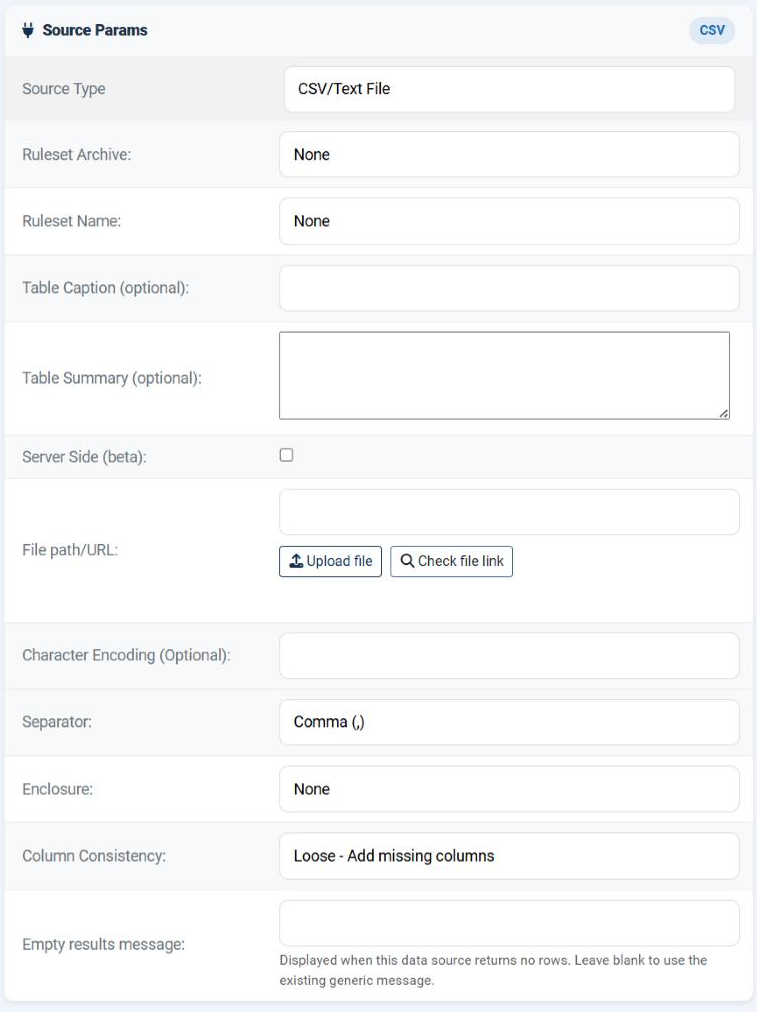
The first six rows are the same for every data source: the ruleset to apply, the optional accessibility caption and summary, and the server-side switch. The rows below them are what makes this a CSV source.
File path/URL
Where the file is. One field accepts four different kinds of answer.
| What you type | What it means | When to use it |
|---|---|---|
prices.csv |
Just a file name: the file in Tabulizer's own data folder, uploaded through Manage Data Files. | Nearly always. It is the only form that survives being exported to another site, because it contains no path. |
tmp/prices.csv |
A path relative to the site root. | The file is produced by something else on the same site and lands somewhere fixed. |
/full/server/path/prices.csv |
An absolute path on the server. | The file is written outside the site - by a nightly job, say. It will have to be corrected by hand on any other site. |
https://example.com/data/prices.csv |
A URL, internal or external. | Somebody else publishes the file and you do not want a copy. Turn the cache on. |
Two buttons sit beneath the field. Upload file takes you to the data file manager so you can put the file on the site without leaving the task. Check file link tests the value you have typed and tells you whether it can be read - use it before saving, every time.
allow_url_fopen is enabled. If cURL is missing and allow_url_fopen is off - a common hardening choice - the read fails and no amount of correcting the URL will help. The Status page tells you whether cURL is present; your host controls both.Character Encoding (Optional)
Leave it empty. Tabulizer works in UTF-8, which is what nearly every file is, and an empty field means "it is already UTF-8".
Fill it in only when the file is something else and you can see it: accented characters coming through as question marks, diamonds or little pairs of symbols. Then type the encoding the file is actually in - ISO-8859-1 and ISO-8859-7 are the usual answers for older Western European and Greek exports, windows-1252 for files that came out of an old Windows application - and the contents are converted on the way in.
Separator, Enclosure and Column Consistency
These three decide how each line is cut into cells.
| Field | Options | What it does |
|---|---|---|
| Separator | Comma (,); Semicolon (;); Asterisk (*); Caret (^); Space; Tab | The character between two values. It must be the one your file actually uses - look at the file in a text editor rather than guessing from the extension, because a file called .csv is very often semicolon-separated. |
| Enclosure | None; Double Quotes ("); Single Quotes (') | The quote character that wraps a value which itself contains the separator, so "Smith, John" stays one cell. Set it to match the file. With None, every separator splits, quotes and all. |
| Column Consistency | Strict - Every row must have the same number of columns; Loose - Add missing columns | What to do when the rows are not all the same width. Strict warns you, which is how you find the line with the missing value. Loose pads the short rows with empty cells so the table still renders. |
How the file is read
Worth knowing, because it explains most of the surprises.
| Step | What happens |
|---|---|
| 1. Fetch | The file is read from disk or fetched over the network. |
| 2. Convert | If you named an encoding, the contents are converted to UTF-8. |
| 3. Split into rows | The text is cut at every line break. Blank lines are skipped - a file with empty lines between sections does not produce empty rows. |
| 4. Split into cells | Each line is cut at the separator, respecting the enclosure. |
| 5. Apply the ruleset | The rows go through the chosen ruleset, which decides the header row, the styling and the interactive features. |
There is no "first row is the header" setting here, and none is needed: the ruleset decides how many rows are header rows. If your file carries its column names on line 1, pick a ruleset whose header size is 1.
Keeping it up to date
Upload the new file
Manage Data Files › Import Data File, same file name, Overwrite ticked.
Clear the cache
Only if this data source caches. Select it in the list and press Clear Cache.
Check
Press Preview. Nothing else needs touching - not the data source, not the pages.
Common questions
Every row lands in a single cell.
The separator is wrong. Open the file in a text editor and look at the character between two values - semicolons are extremely common in files exported on machines where the decimal mark is a comma.
Some rows have an extra column.
Those values contain the separator and are not quoted, or the Enclosure does not match the quote character the file uses.
Accented characters are mangled.
The file is not UTF-8. Name its real encoding in Character Encoding, or re-export it as UTF-8.
The remote file will not load.
Use Check file link first. If that fails while the URL works in your own browser, the server is not allowed to make outgoing requests: look at the cURL library on the Status page and ask your host about allow_url_fopen.
I get a warning about inconsistent columns.
Column Consistency is Strict and a line is short. That is the setting doing its job - find the line. Switch to Loose only once you know the short rows are intentional.
The first row should be a header but is not.
Header rows are a ruleset decision, not a data source one. Choose a ruleset whose header size is 1.
Can I point two data sources at one file?
Yes, and it is a good habit: the same file with two different rulesets gives you two presentations of the same data, each with its own tag.
Build a CSV data source
In your Joomla administrator: Components › Tabulizer › Data Sources › New Data Source.
Back to the Knowledge Base