Calendar and Timeline Wizard
What the Calendar & Timeline Wizard does
This wizard turns a plain table of events into an interactive calendar or timeline. You list your events once — date, title, description, category — choose one of twelve layouts, adjust the styling, and the wizard produces a Tabulizer ruleset that you import into your own site.
It covers two related jobs:
- Calendars place events on a grid by date — a month view, a working week, a single day, an agenda list, or a year at a glance.
- Timelines lay events out in order along a line — company history, a project roadmap, a CV, a product release history.
Both come with the same interactive extras: an event dialog, category filters, a search box and an Add to calendar export. You do not need to write any HTML, CSS or JavaScript.
How the pieces fit together
- You build the calendar in the online wizard on the Tabulizer website.
- The wizard gives you a ruleset archive (a
.zipfile). - You import that archive into Tabulizer on your own site.
- You apply the ruleset to a table of events in one of your articles. Tabulizer combines your real events with the ruleset and renders the calendar.
Your events live in your article, not in the wizard. The wizard works from sample events so you can design the layout. Adding next month's events later means adding rows to your table — there is no need to return to the wizard.
The wizard has three steps, shown in the progress bar on every page.

Step 1 — Choose a layout
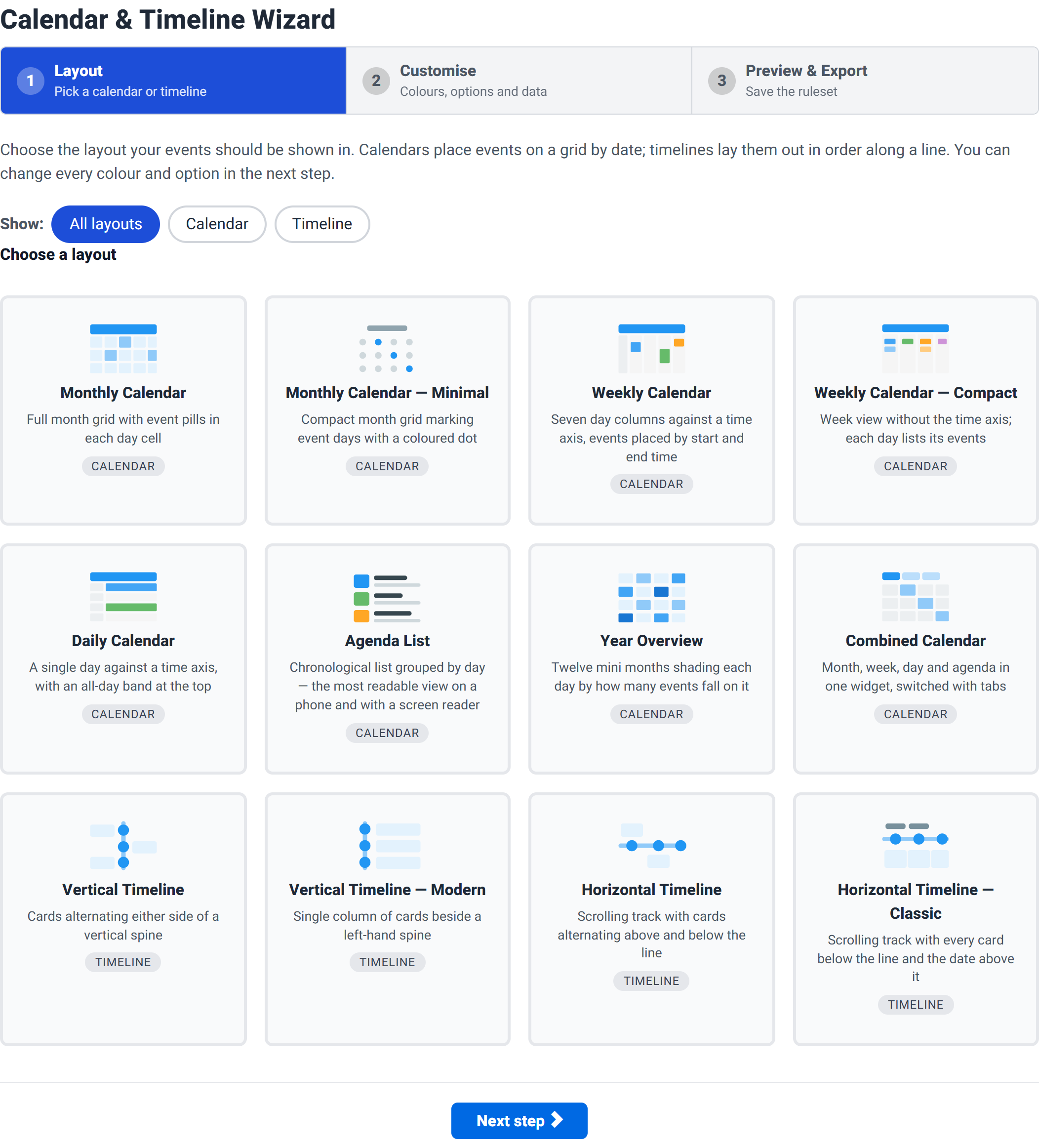
The calendar layouts
| Layout | What it shows | Best for |
|---|---|---|
| Monthly Calendar | Full month grid with event pills in each day cell | The usual choice. Events spread across a month. |
| Monthly — Minimal | Compact month grid marking event days with a coloured dot | A sidebar, or a month with far too many events to list. |
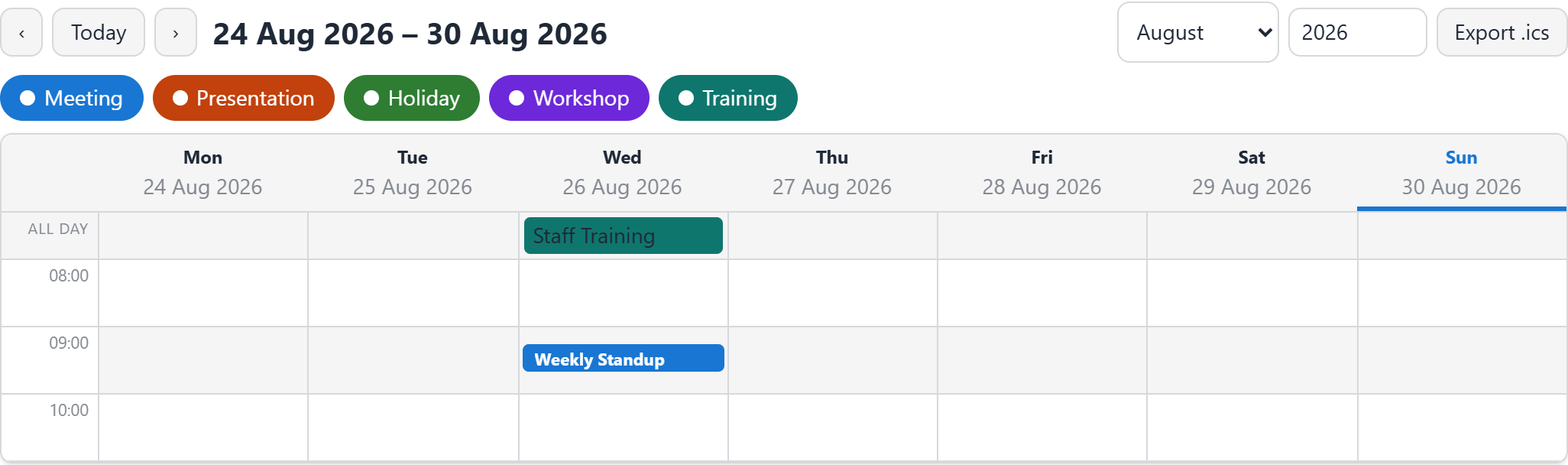
| Weekly Calendar | Seven day columns against a time axis, events placed by start and end time | Timetables, opening hours, class schedules. |
| Weekly — Compact | Week view without the time axis; each day lists its events | A week of events where the time of day matters less. |
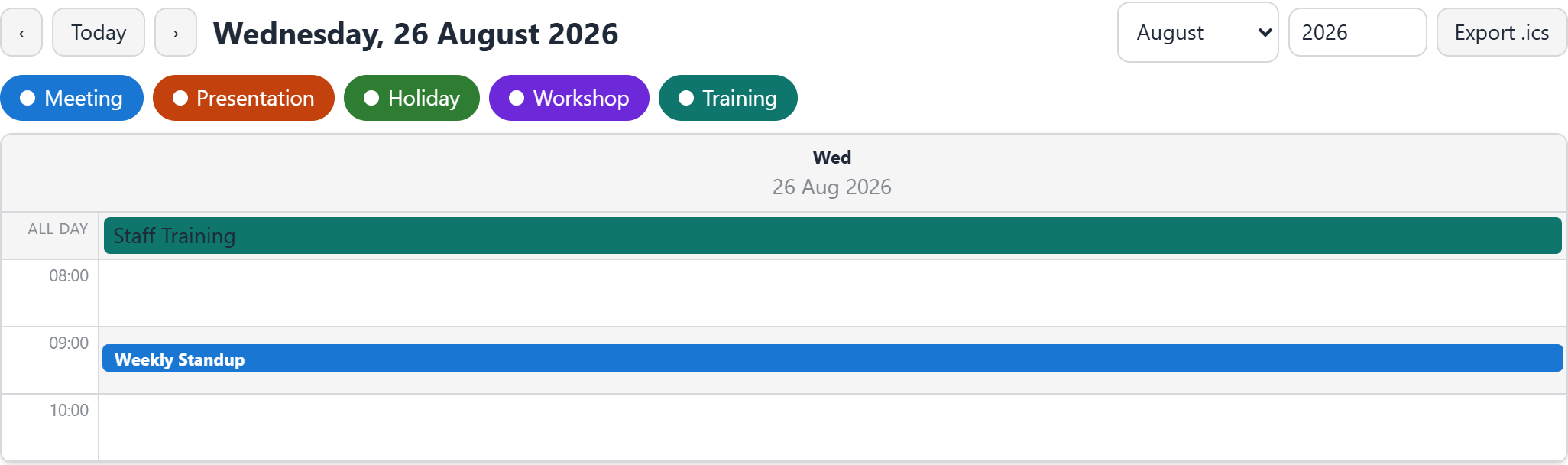
| Daily Calendar | A single day against a time axis, with an all-day band on top | Conference programmes, a single event day. |
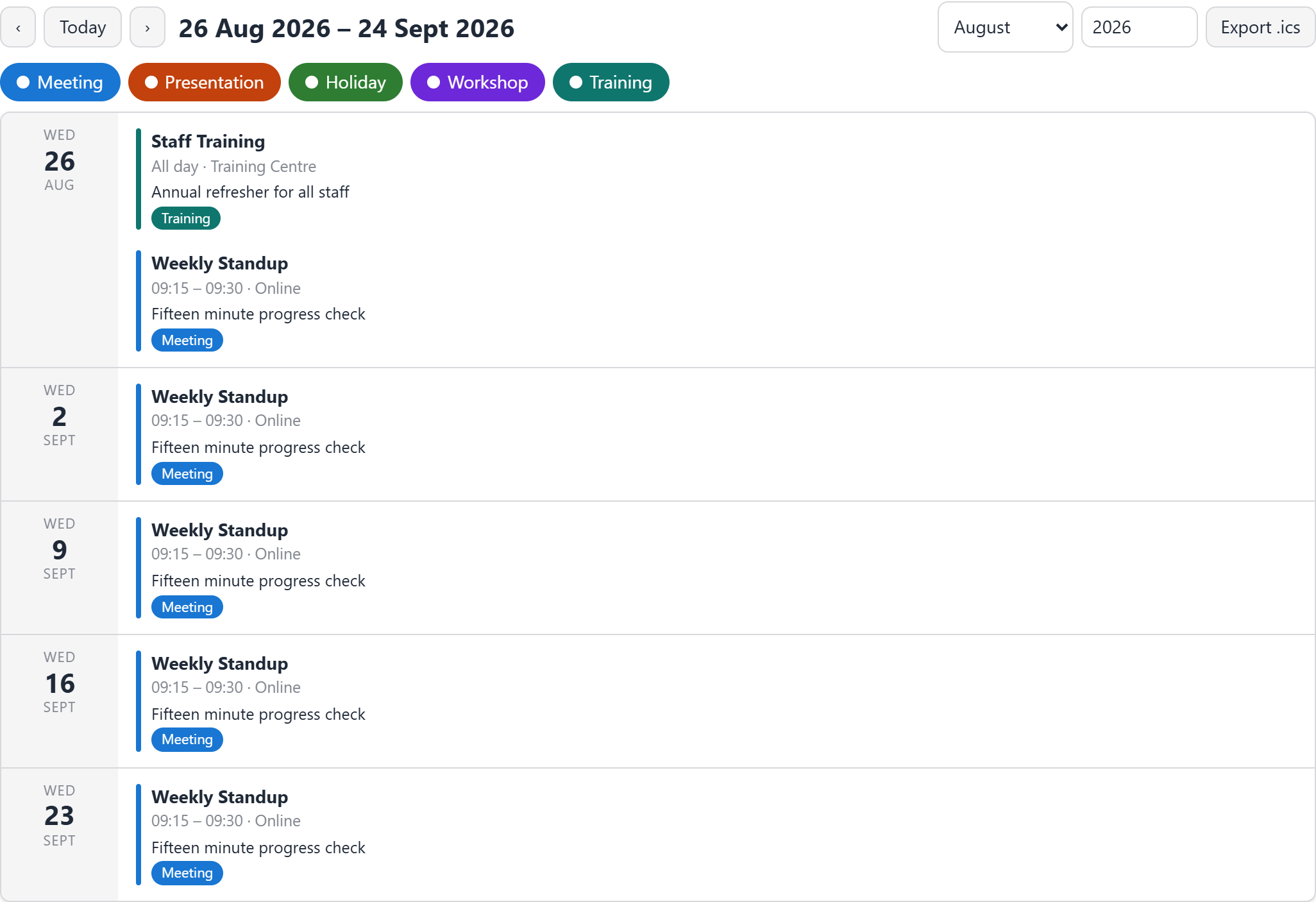
| Agenda List | Chronological list grouped by day | The most readable option on a phone and with a screen reader. |
| Year Overview | Twelve mini months shading each day by how many events fall on it | Seeing a whole year's density at a glance. |
| Combined Calendar | Month, week, day and agenda in one widget, switched with tabs | Letting visitors choose their own view. |
The timeline layouts
| Layout | What it shows | Best for |
|---|---|---|
| Vertical Timeline | Cards alternating either side of a vertical spine | Company history, a project's milestones. |
| Vertical — Modern | Single column of cards beside a left-hand spine | Narrow columns, and longer descriptions. |
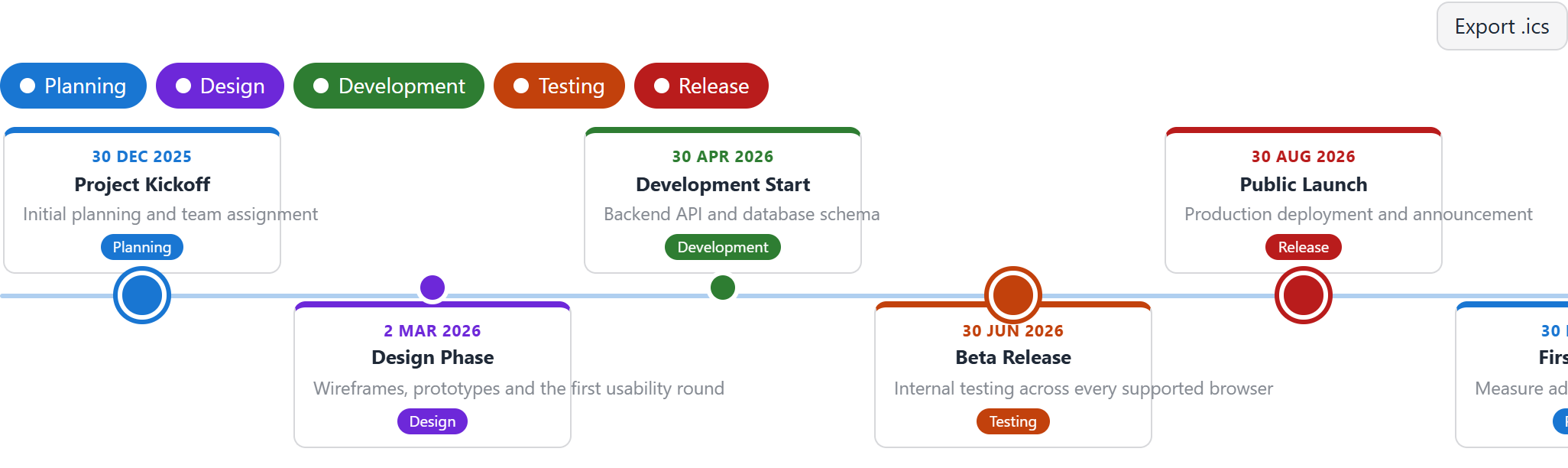
| Horizontal Timeline | Scrolling track with cards alternating above and below the line | A roadmap read left to right. |
| Horizontal — Classic | Scrolling track with every card below the line and the date above it | A cleaner horizontal read with consistent card heights. |
Which features go with which layout
Step 2 only shows the options your chosen layout can use, so it is worth knowing what belongs where before you choose.
| Available in | Features |
|---|---|
| Every layout | Event dialog, category filters, search box, Add to calendar (.ics) export |
| Calendars only | Previous/next navigation, quick month and year jump, highlight today, week starts on, hide weekends |
| Timelines only | Show dates, marker size, alternating sides, entrance animation, milestone markers |
| Monthly and Combined | Events per day limit, with the rest collapsed behind a “+2 more” link |
| Weekly, Daily and Combined | Time axis range (the day's start and end hour), all-day event band |
| Agenda and Combined | How many days one page of the agenda covers |
Settle on your layout before fine-tuning Step 2. Moving to a layout that does not offer an option can leave that option switched off when you move on again. The affected checkbox is always visible on the settings page, so you can simply tick it back — but it is easy to miss.
Step 2 — Customise
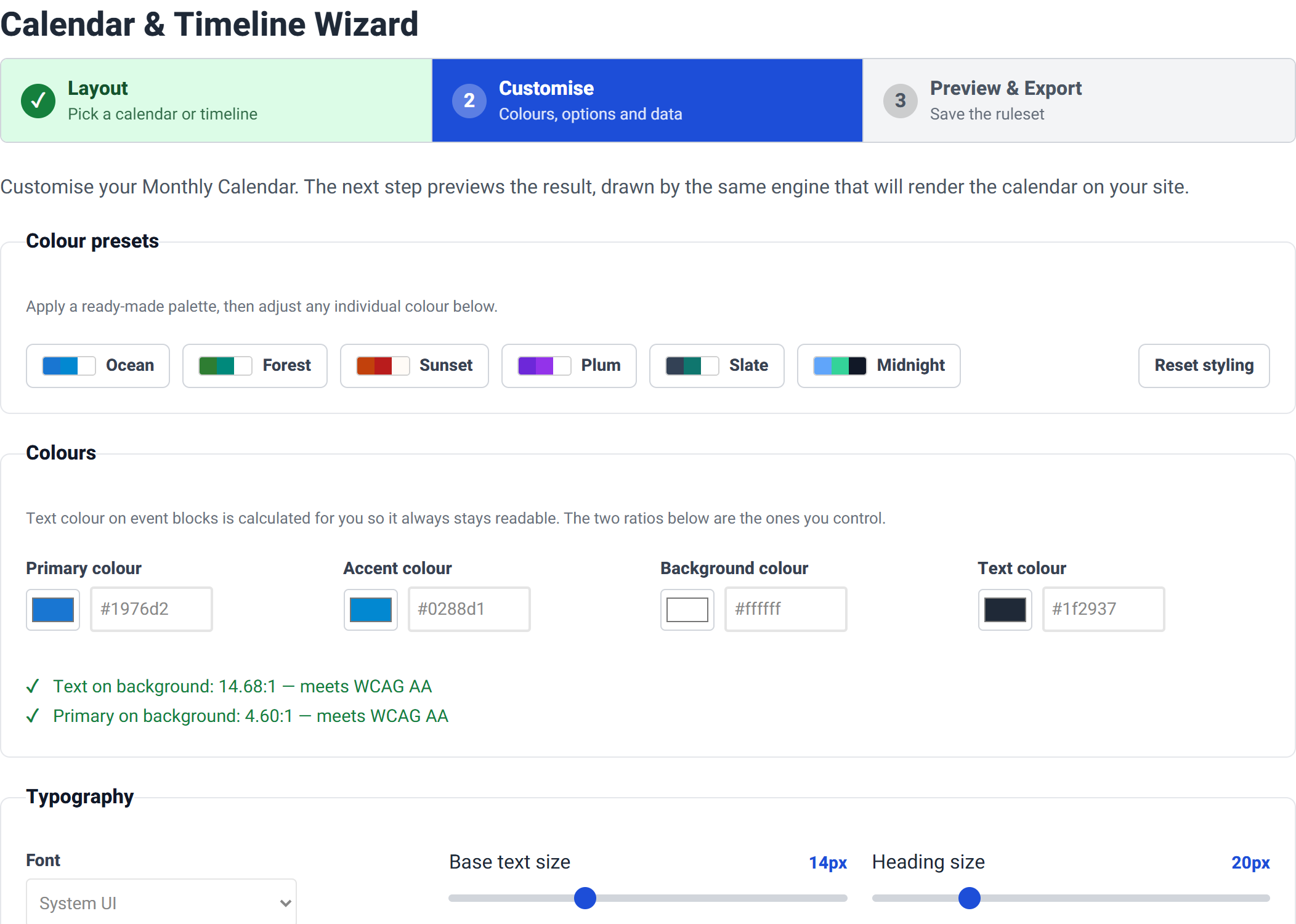
Colour presets and Colours
Six palettes — Ocean, Forest, Sunset, Plum, Slate and Midnight — then four individual colours: primary, accent, background and text.

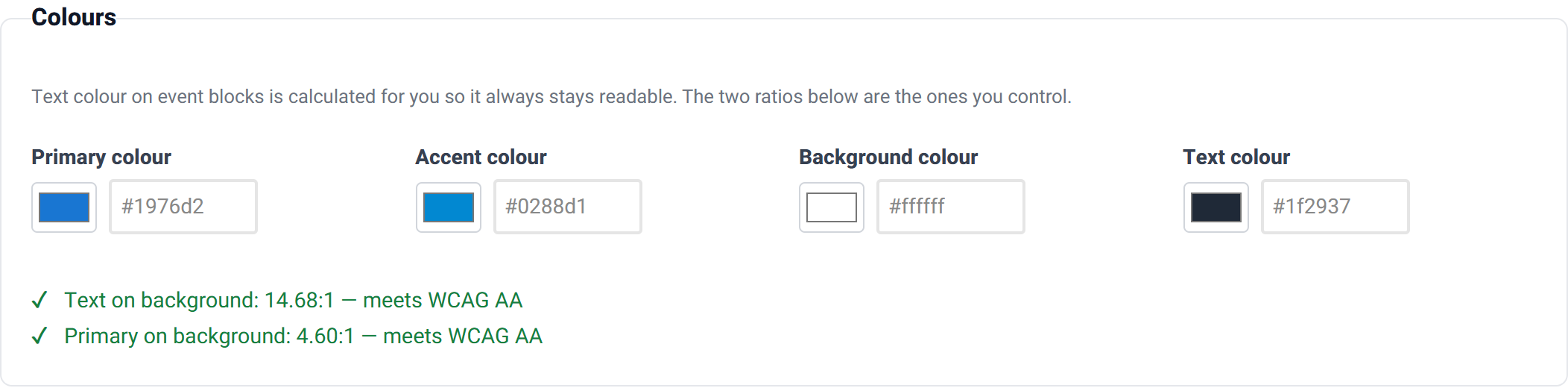
The text colour on each event block is calculated for you, so an event is always readable against whatever colour it ends up with. The two contrast ratios shown in this group are the ones you control directly — watch them as you pick colours and keep both at 4.5 or above.
Typography and Layout
Typography sets the font, the body text size (10–22px, default 14) and the heading size (14–40px, default 20). Layout covers the corner radius, spacing (compact, normal, relaxed), shadow, border style, and — for the week and day views — the height of one hour slot on the time axis.


Content
An optional title above the calendar with its own heading level, and whether event descriptions are shown. Leave the title empty when your page already has a heading.

Calendar options
Shown for the calendar layouts. Which controls appear depends on the layout you chose.
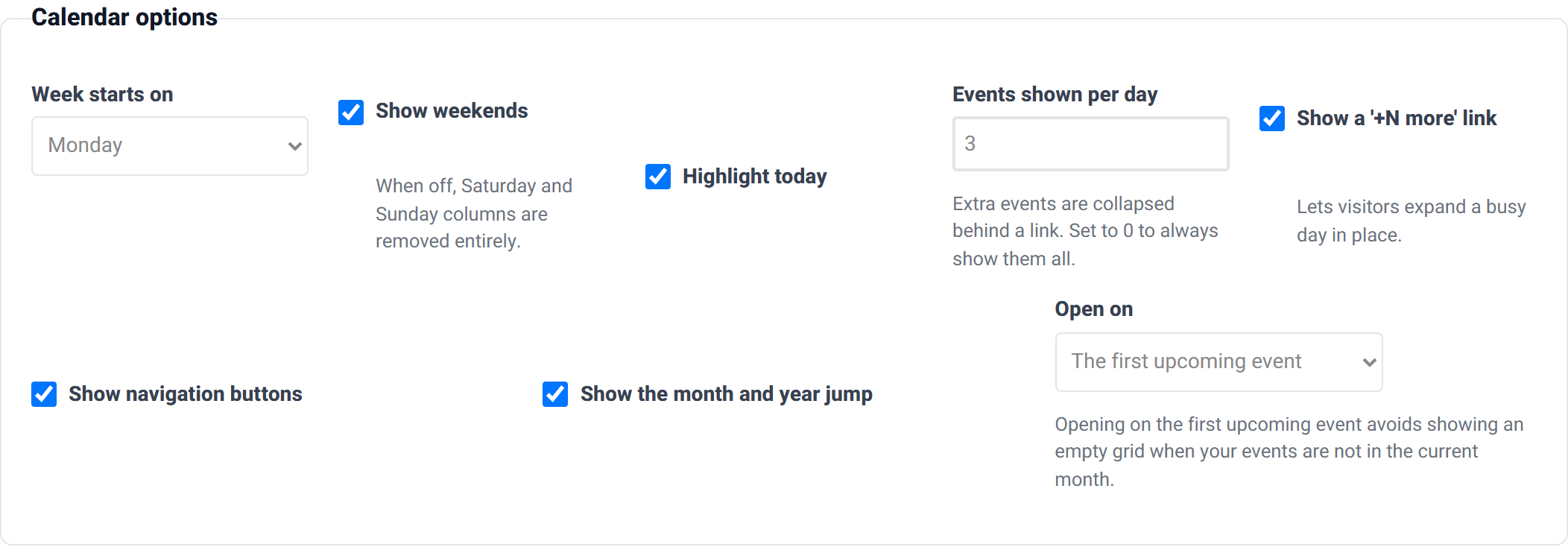
| Setting | Default | Notes |
|---|---|---|
| Show weekends | On | When off, the Saturday and Sunday columns are removed entirely — useful for a working-week timetable. |
| Highlight today | On | Outlines the current day. |
| Week starts on | Monday | Switch to Sunday for US conventions. |
| Events per day | 3 | Extra events collapse behind a link. Set to 0 to always show them all. |
| Show the “more” count | On | Lets visitors expand a busy day in place. |
| Show navigation | On | The previous / today / next buttons. |
| Show quick jump | On | The month and year selectors. |
| Open on | First event | See the note below. |
| Time axis range | Fit the data | Week and day views. Fitting the hours in your data means early and late events are never cut off. |
| Agenda range | 30 days | How far ahead one page of the agenda reaches. |
“Open on” is the setting most worth understanding. The default, first event, opens the calendar on the month containing your first upcoming event. That avoids the common disappointment of a visitor landing on an empty grid because your events are all next season. Choose today for a calendar that is always current, or a fixed date to pin it to a specific month.
Timeline options
Shown instead of Calendar options when you pick a timeline layout.

| Setting | Default | Notes |
|---|---|---|
| Show dates | On | The date beside each card. |
| Marker size | Medium | The dot on the spine. Milestones are drawn larger whatever this is set to. |
| Alternating sides | On | Places cards either side of the line instead of all on one side. Offered by the standard vertical and horizontal timelines. |
| Animate on scroll | On | Cards fade in as they come into view. Automatically disabled for visitors who ask for reduced motion. |
Interaction

| Setting | Default | Notes |
|---|---|---|
| Event dialog | On | Shows the full description, location and link when an event is chosen. |
| Category filters | On | The coloured chips. Only appear when your data has more than one category. |
| Search box | Off | Filters events by text. Worth turning on for a long agenda or a busy year. |
| Add to calendar | On | Adds a button that downloads a standard .ics file, which opens in Outlook, Google Calendar, Apple Calendar and the rest. |
| Open links in a new tab | Off | Applies to events that have a url. |
| Responsive | On | Rearranges the layout on phones and tablets. |
Reading your data
How the wizard should interpret what it finds in your table.

- Date format — auto by default. Set it explicitly if your dates are ambiguous:
03/04/2026is 3 April to a British reader and 4 March to an American one, and only you know which you meant. - Time format — 24-hour or 12-hour clock.
- Locale — the month and weekday names.
Save yourself the question entirely by writing dates in ISO form — 2026-03-15. It is unambiguous in every locale.
Column mapping
This group is unique to this wizard. Rather than renaming the columns in your own table, you tell the wizard which of your column names holds each piece of information.
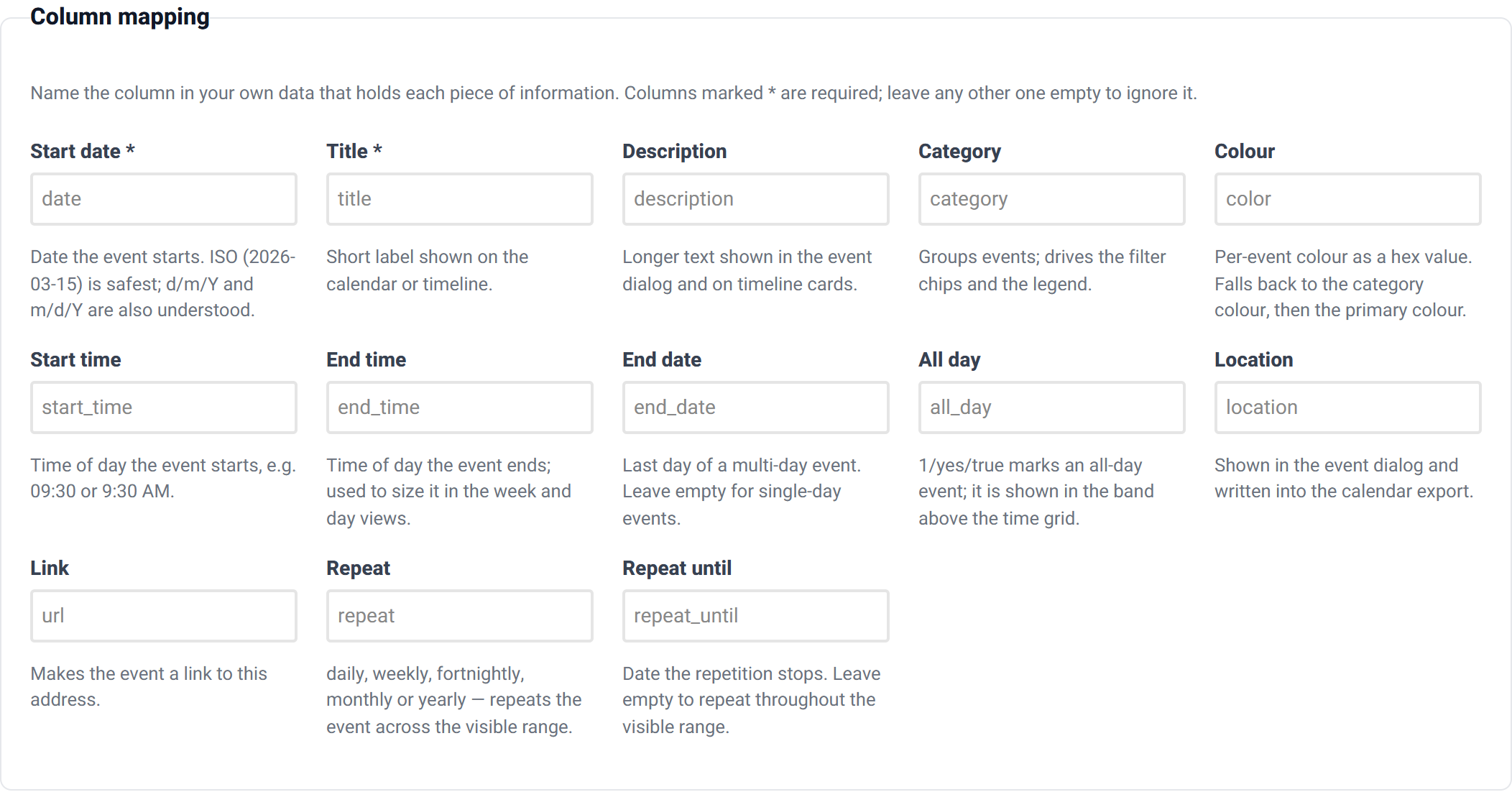
If your spreadsheet calls the date column when and the title column event, put those names here and leave your table alone. Leave any row empty to ignore that piece of information entirely.
You often will not need this at all. Common alternatives are recognised automatically — start, when and day are all understood as the date; name, event and summary as the title. Column mapping is for when your names are unusual enough that the automatic matching cannot help.
Sample data
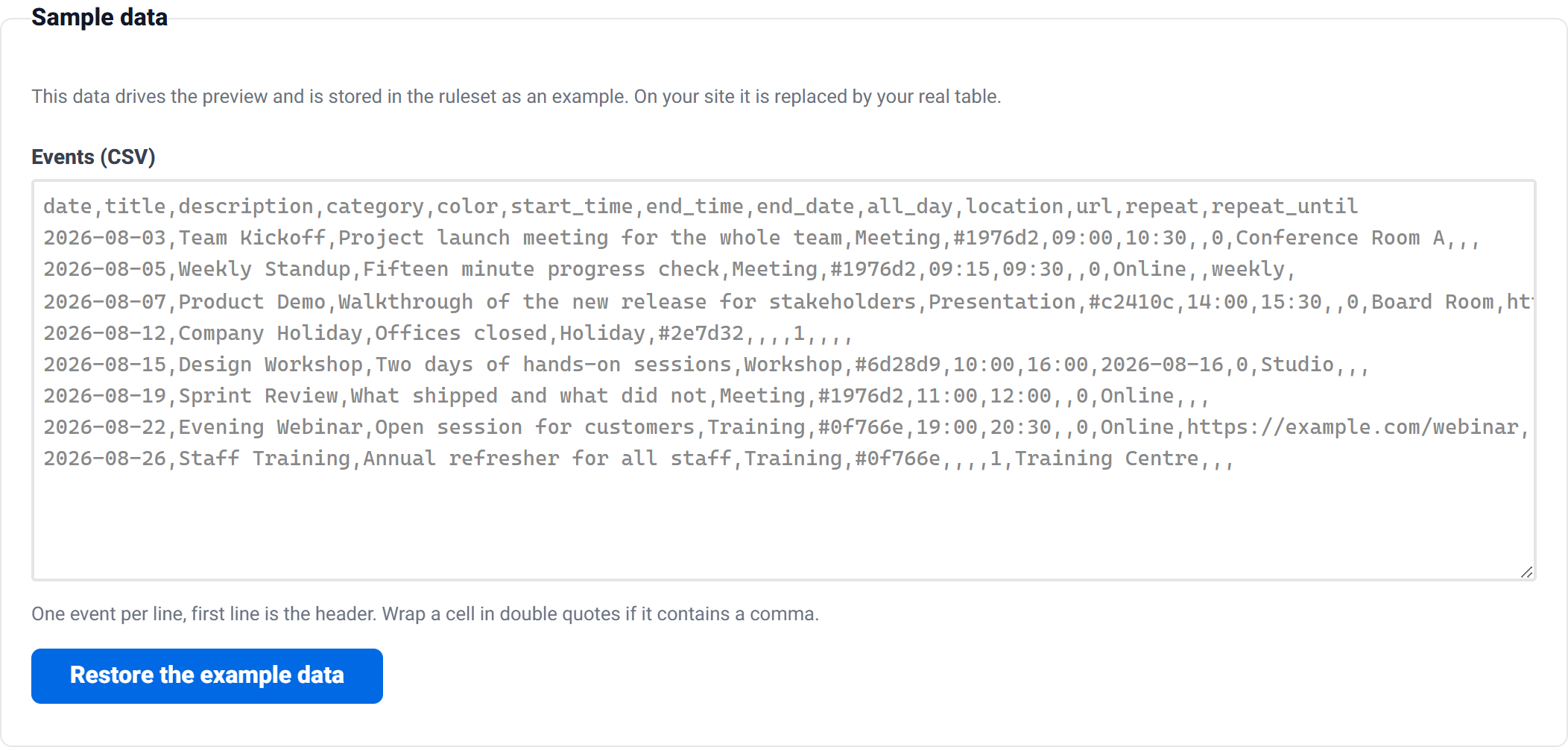
The events that drive the preview, and that are stored in the ruleset as an example. On your site they are replaced by your real table. One event per line, first line is the header; wrap a cell in double quotes if it contains a comma.
The columns
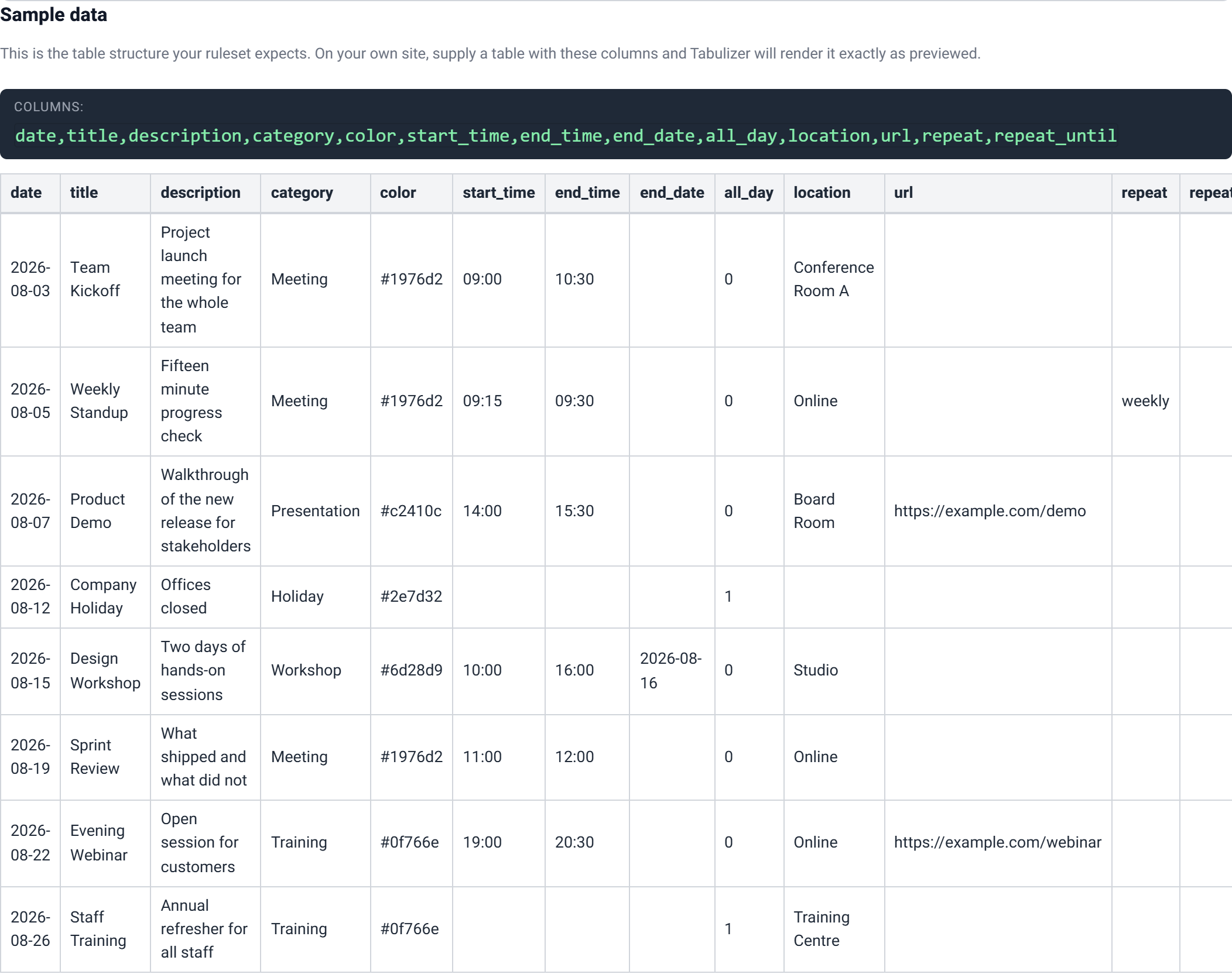
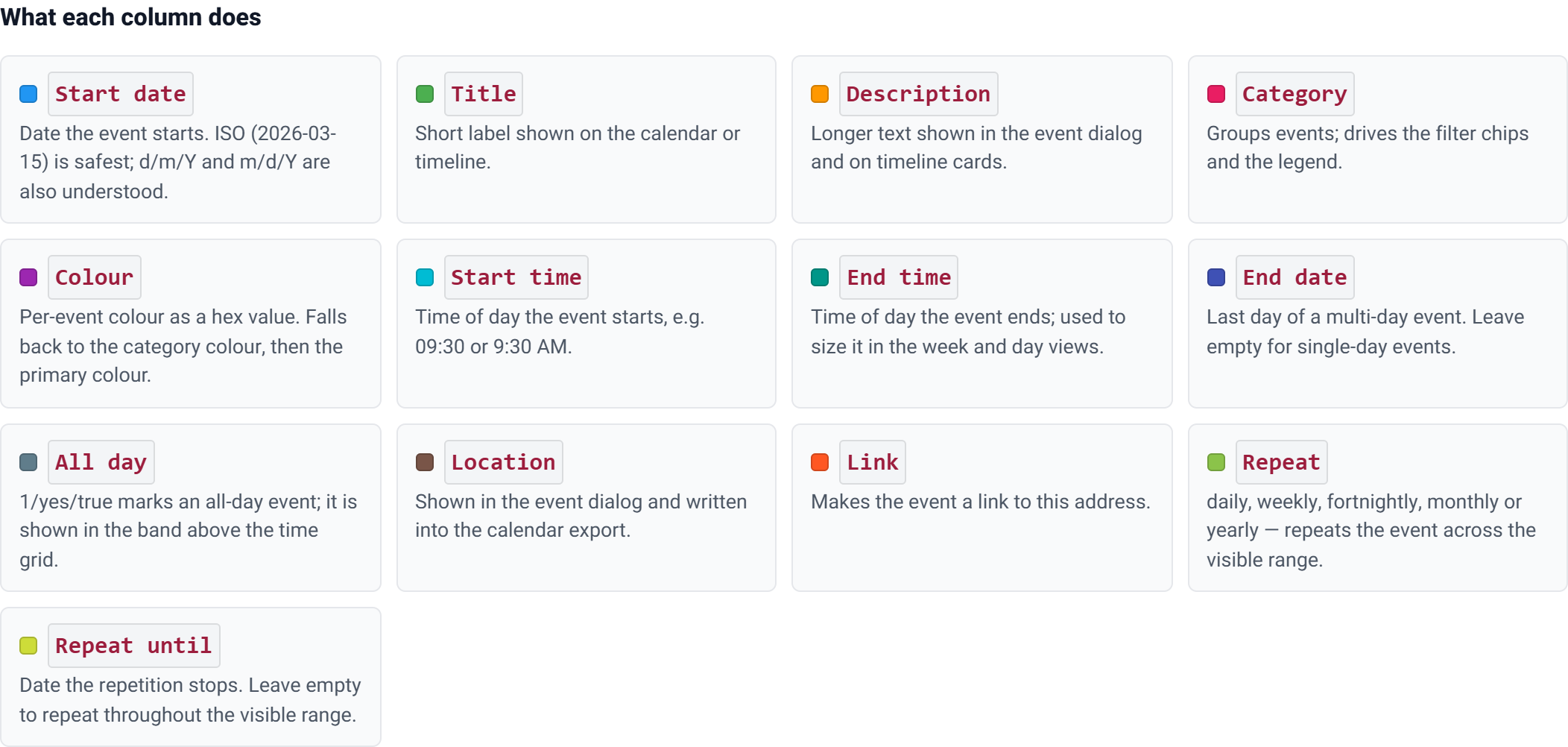
Only date and title are required. Names are matched case-insensitively and common alternatives are accepted.
| Column | Required | What it does |
|---|---|---|
date |
Yes | Date the event starts. ISO (2026-03-15) is safest; d/m/Y and m/d/Y are also understood. |
title |
Yes | Short label shown on the calendar or timeline. |
description |
No | Longer text shown in the event dialog and on timeline cards. |
category |
No | Groups events; drives the filter chips and the legend. |
color |
No | Per-event colour as a hex value. Falls back to the category colour, then the primary colour. |
start_time |
No | Time of day the event starts, e.g. 09:30 or 9:30 AM. |
end_time |
No | Time of day it ends; used to size it in the week and day views. |
end_date |
No | Last day of a multi-day event. Leave empty for single-day events. |
all_day |
No | 1/yes/true marks an all-day event, shown in the band above the time grid. |
location |
No | Shown in the dialog and written into the calendar export. |
url |
No | Makes the event a link. |
milestone |
No | 1/yes/true draws a larger emphasised marker. Timelines. |
repeat |
No | daily, weekly, fortnightly, monthly or yearly. |
repeat_until |
No | Date the repetition stops. Leave empty to repeat throughout the visible range. |
A worked example
date,title,description,category,color,start_time,end_time,end_date,all_day,location,url,repeat,repeat_until
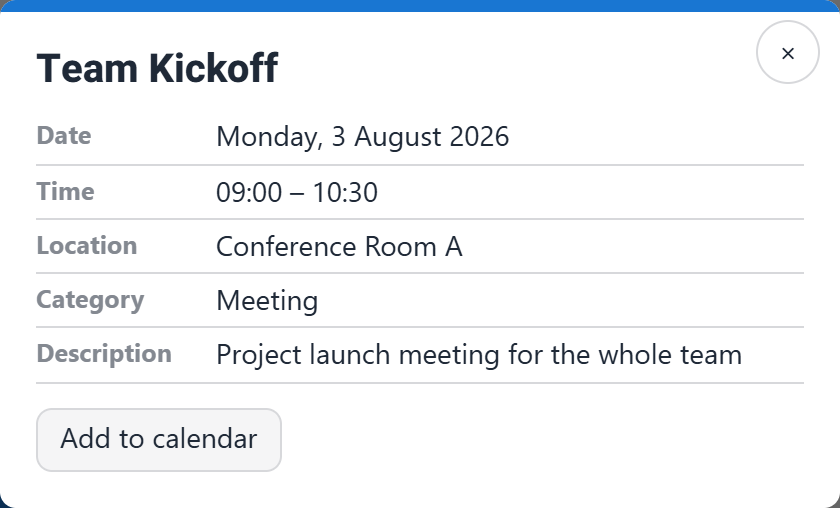
2026-08-03,Team Kickoff,Project launch meeting for the whole team,Meeting,#1976d2,09:00,10:30,,0,Conference Room A,,,
2026-08-05,Weekly Standup,Fifteen minute progress check,Meeting,#1976d2,09:15,09:30,,0,Online,,weekly,
2026-08-07,Product Demo,Walkthrough of the new release,Presentation,#c2410c,14:00,15:30,,0,Board Room,https://example.com/demo,,
2026-08-12,Company Holiday,Office closed,Holiday,#15803d,,,,1,,,,
2026-08-15,Design Workshop,Two day workshop,Workshop,#7c3aed,10:00,17:00,2026-08-16,0,Studio,,,
Five rows, each demonstrating something different:
- Team Kickoff — an ordinary timed event.
- Weekly Standup —
repeat=weeklywith norepeat_until, so it recurs across the whole visible range. - Product Demo — carries a
url, so it becomes a link. - Company Holiday —
all_day=1and no times. - Design Workshop — an
end_datea day later, so it spans two cells with a continuation arrow on the second.
Custom CSS
Optional. Declarations only — imports and scripting are stripped.
Step 3 — Preview and export
The preview is drawn by the same engine that will render the calendar on your site, and it is fully interactive — navigate months, open an event, try the filters.
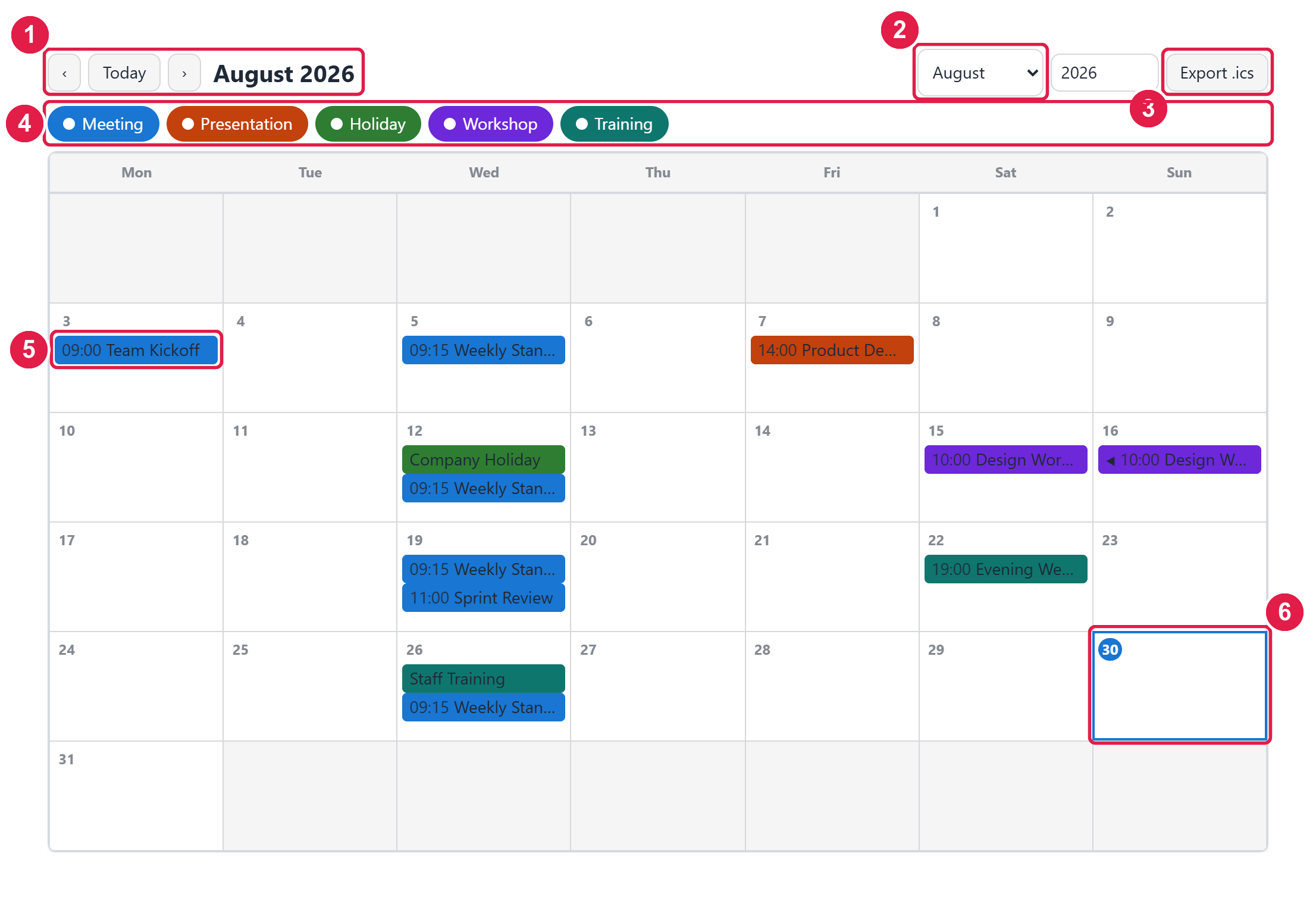
- Navigation — previous, today, next.
- Quick jump — go straight to a month and year.
- Add to calendar — downloads the whole calendar as an
.icsfile. - Category filters — one chip per category, in that category's colour.
- An event — one row of your table. Note the standups repeating every Wednesday from a single row.
- Today — outlined when Highlight today is on.
The event dialog
Choosing an event opens its full detail, including the location, the description and a per-event Add to calendar button.
The other layouts
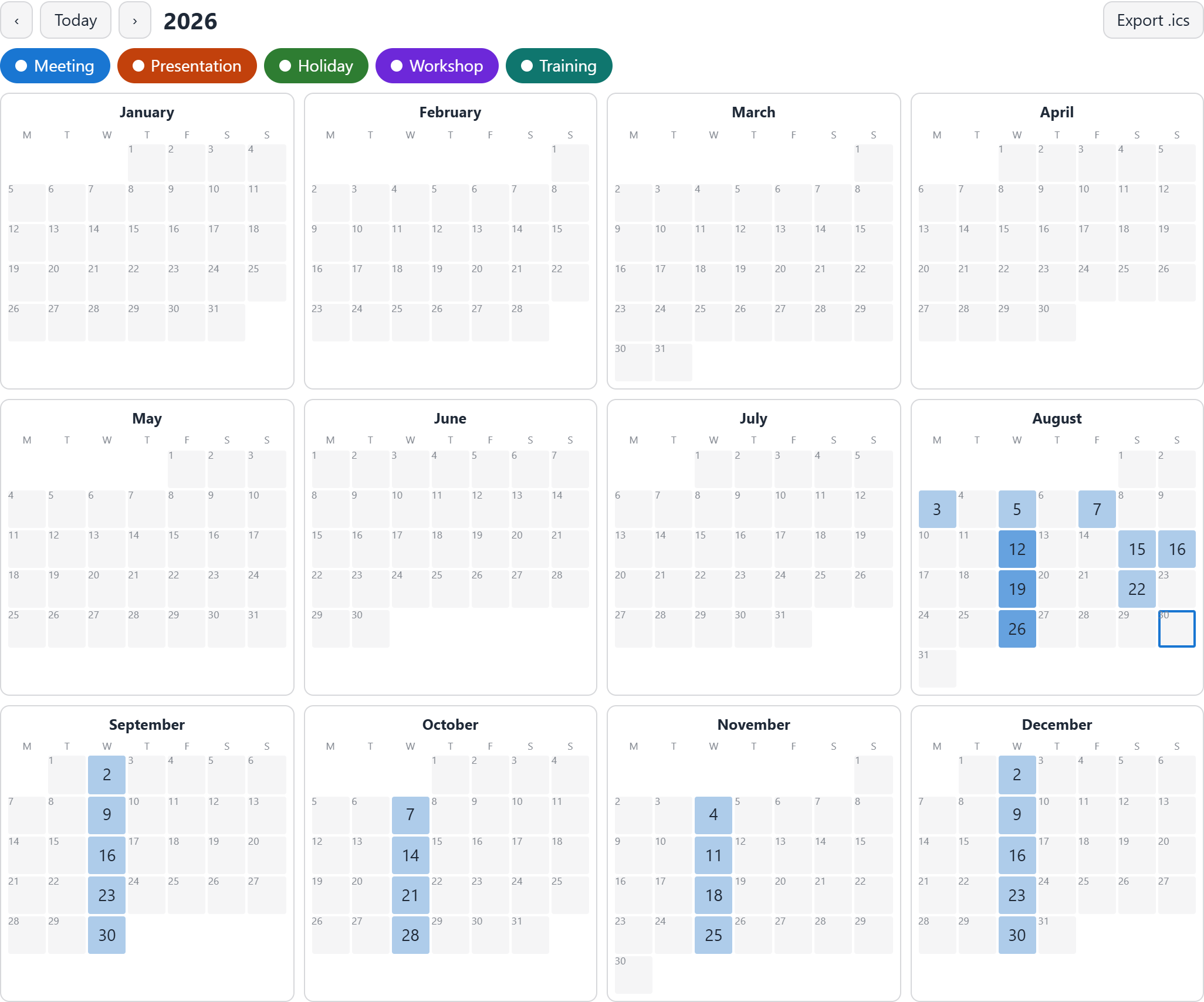
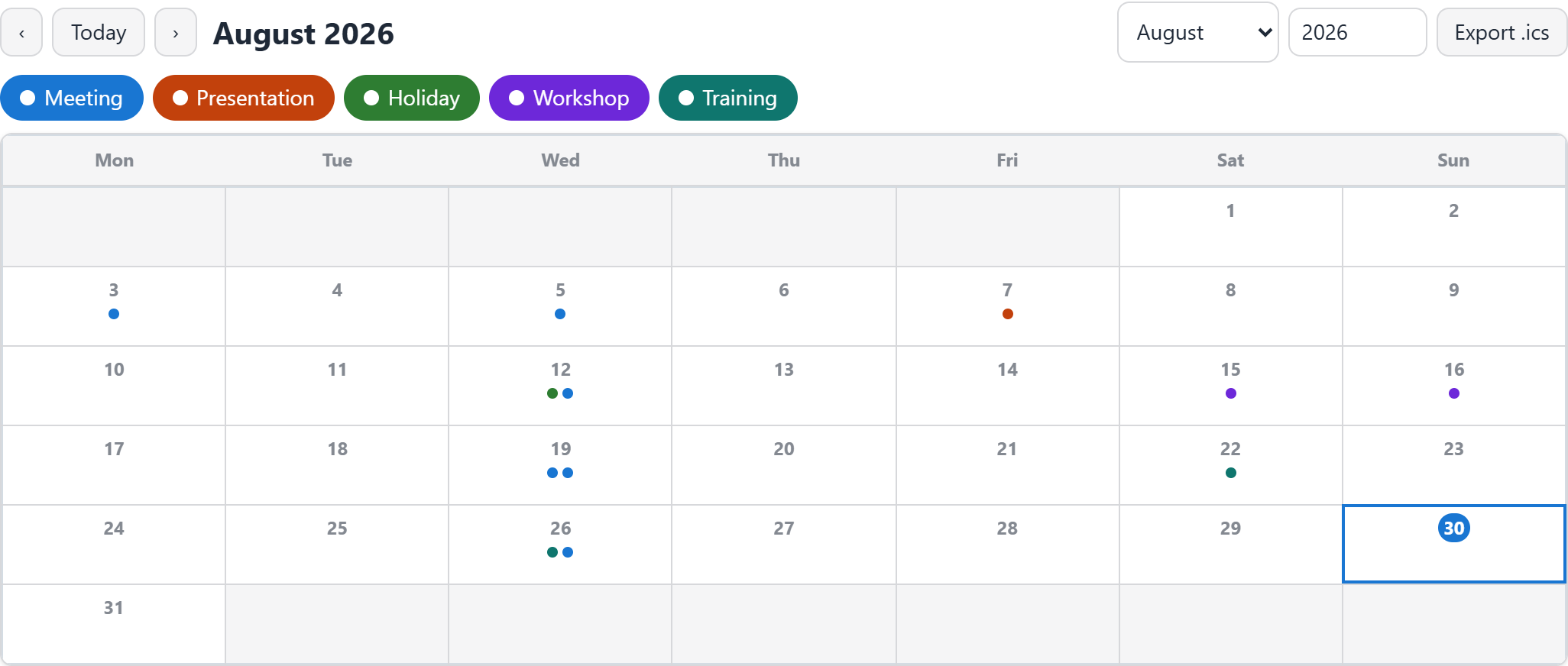
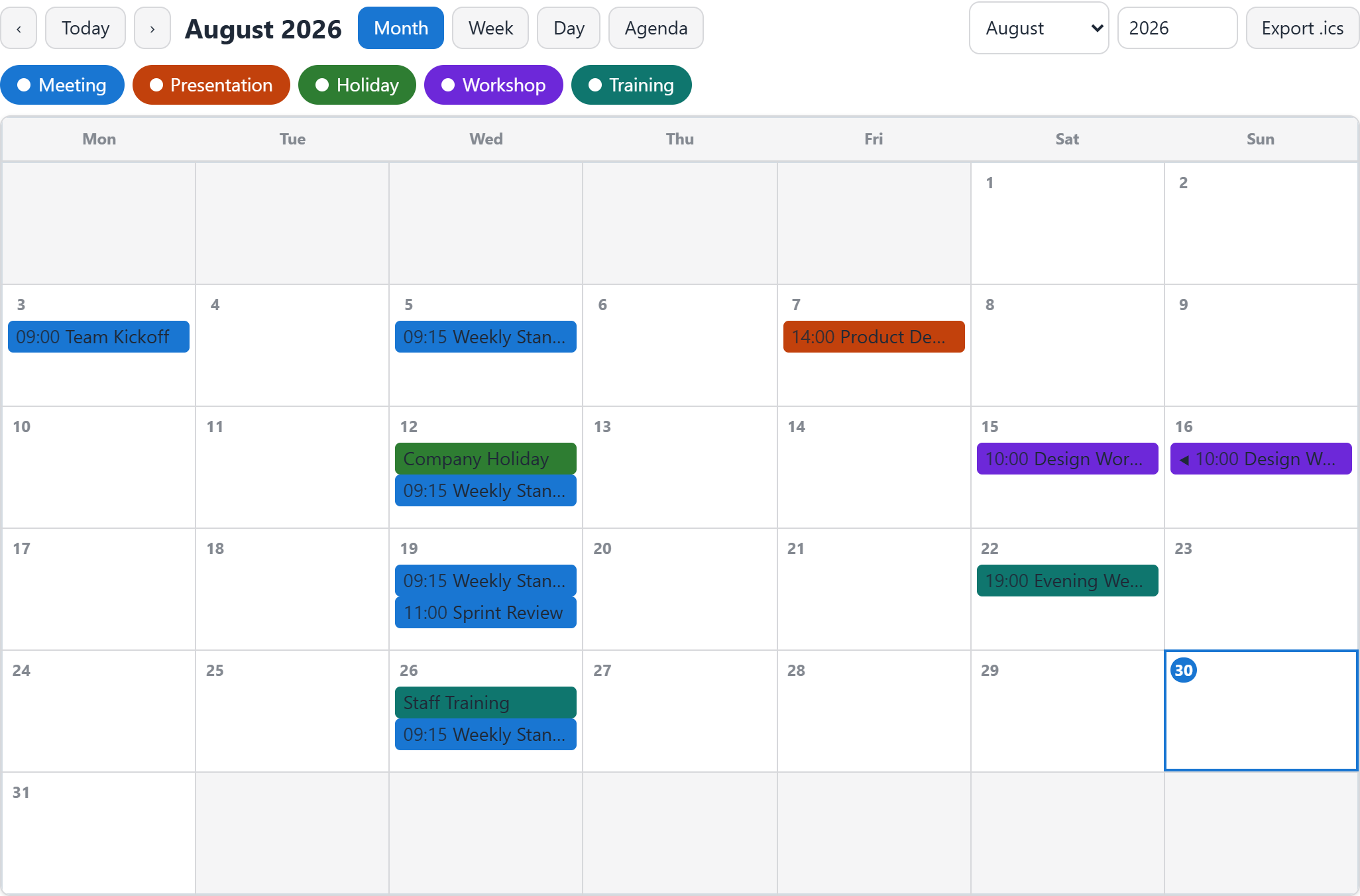
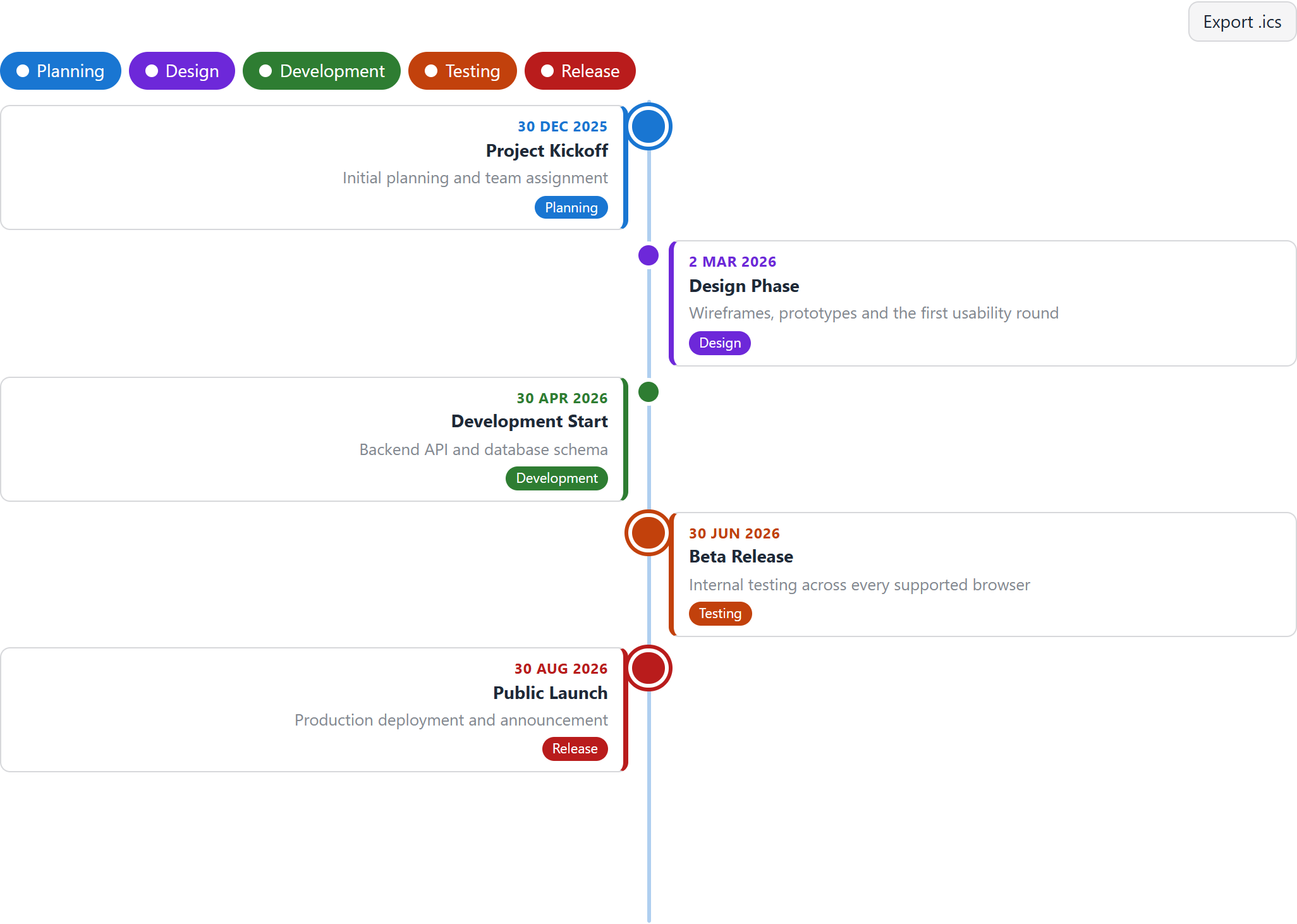
Expected input structure
Save the ruleset
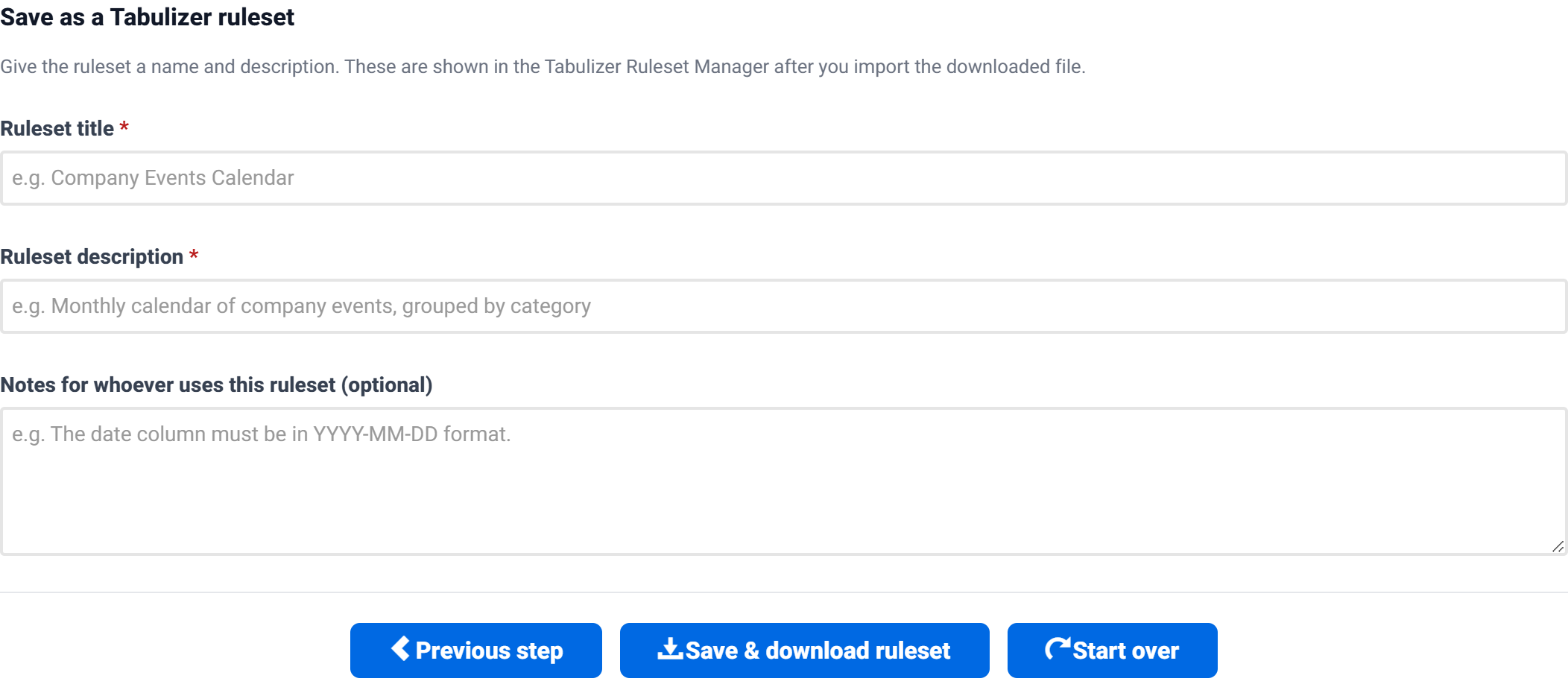
Give the ruleset a name and description — these are what you will see in the Tabulizer Ruleset Manager after importing — then Save and download.
Using the ruleset on your own site
- In your site's administrator, open Tabulizer → Ruleset Manager and import the
.zipyou downloaded. - Create or edit the article that will hold the calendar.
- Insert a table whose first row is the header, using the column names from the Expected input structure section — at minimum
dateandtitle. - Apply the imported ruleset to that table.
To add an event later, add a row. To cancel one, delete the row.
Everything the ruleset needs to render ships with Tabulizer itself, so an imported calendar keeps working regardless of what happens to the online wizard.
Tips and troubleshooting
The calendar opens on an empty month
Set Open on to first event in Calendar options. That opens the calendar on your first upcoming event rather than on the current month.
My dates are being read wrongly
03/04/2026 is genuinely ambiguous. Either write dates in ISO form (2026-03-15), or set Date format explicitly in Reading your data.
The category filters are missing
They only appear when your data has more than one distinct category value. With one category there is nothing to filter.
A busy day shows “+2 more”
That is the Events per day limit, 3 by default. Set it to 0 to always show every event, at the cost of uneven row heights.
Early or late events are cut off in the week view
Set Time axis range to fit the data, which sizes the axis to the earliest and latest times you actually have, rather than to a fixed working day.
A repeating event is not repeating
Check the repeat value is one of daily, weekly, fortnightly, monthly or yearly. Also check repeat_until is not set to a date in the past.
A multi-day event only shows on the first day
It needs an end_date. end_time only sets the time of day it finishes.
My column names do not match
Either rename your columns, or use the Column mapping group to name your columns without touching your table.
The timeline cards are all on one side
Turn on Alternating sides in Timeline options — and note that the “Modern” and “Classic” variants are single-sided by design, so choose the standard Vertical or Horizontal Timeline instead.
Related articles
- Pricing Tables Wizard
- Gallery Wizard
- Chart Wizard
- D3 Visualizations Wizard
- Contact Form Wizard
- Calculator Wizard
- Importing a ruleset into Tabulizer