Table Responsive Patterns
Responsive Patterns for Tables
A table of nine columns cannot simply shrink to fit a phone. Something has to give: the table scrolls sideways, or some columns fold away until they are asked for. Tabulizer offers four patterns, and the right one depends on the table.
Why a table needs a pattern
There is no single way to make a wide table work on a narrow screen, which is why this is a choice rather than a switch. Squeezing the columns makes the text unreadable; letting the table overflow breaks the page layout. Each pattern below is a different answer, and each suits a different kind of table.
The pattern applies on narrow screens only. On a desktop the table is the table your ruleset describes.
Switching it on
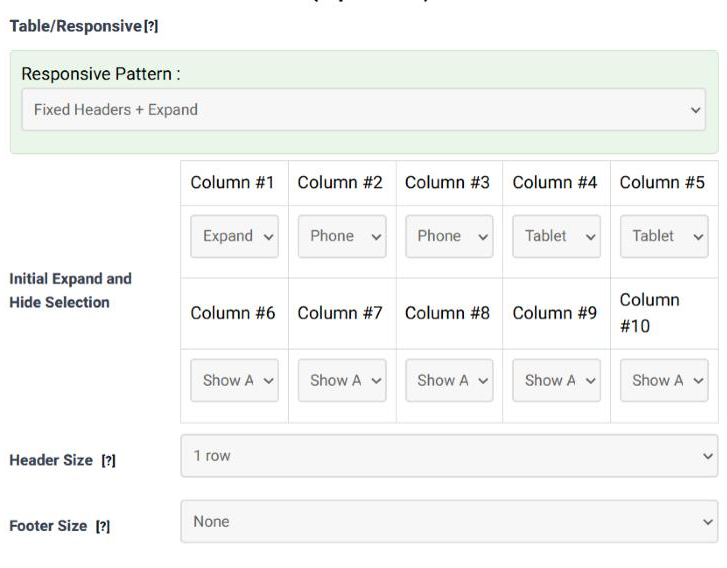
Tick Table Responsive in the feature list in step 2 (Format), then open Table/Responsive in step 4 (Features). There is no Enable tick box: the Responsive Pattern menu is the switch, and None means the table is left as it is.
The four patterns
| Pattern | What the visitor gets | Suits |
|---|---|---|
| Horizontal Scrollbars | The table keeps its shape and the visitor scrolls it sideways inside a frame. Nothing is hidden and nothing is rearranged. | Tables that are read across a row - timetables, fixtures, anything where the columns only make sense next to each other. |
| Fixed Headers + Expand | Columns you mark are hidden on small screens; each row gets a control that opens the hidden values underneath it. | Most data tables. The visitor sees the two or three columns that identify a row and opens the rest when they want them. |
| Fixed Left Header + Scroll | The first column stays put while the others scroll under it, so the visitor always knows which row they are reading. | Tables with a strong first column: a product name, a date, a person. |
| Header Selection | A button that lets the visitor choose which columns to display, from a list you give priorities to. | Wide tables whose readers want different columns - a report where one visitor cares about price and another about stock. |
Every field in the panel
| Field | What it does | Options | Default |
|---|---|---|---|
| Responsive Pattern | The pattern, and the switch for the feature. | None; Horizontal Scrollbars; Fixed Headers + Expand; Fixed Left Header + Scroll; Header Selection | None |
| Header Size | How many rows at the top of the table are headers. The pattern needs to know, because those rows are the labels it shows beside the hidden values. | 1 row … 5 rows | 1 row |
| Footer Size | How many rows at the bottom are footers. | None, 1 row … 5 rows | None |
| Initial Expand and Hide Selection | Fixed Headers + Expand only. One menu per column, deciding when that column is shown - see the table below. | Per column: Show Always; Hide Always; Expand; Phone; Tablet | Varies per column |
| Initial Selection | Header Selection only. One menu per column, giving it a priority - see the table below. | Per column: None; Persist; Essential; Optional; Invisible | Essential |
| Button Position | Header Selection only. Where the button that opens the column chooser sits. | Default; Top-Left; Top-Right; Bottom-Left; Bottom-Right | Top-Left |
Fixed Headers + Expand: the per-column choices
| Choice | What it means for that column |
|---|---|
| Show Always | Never hidden, whatever the screen. Use it for the column that identifies the row. |
| Hide Always | Never shown in the table. The value is still there, in the expanded detail. |
| Expand | This column carries the control that opens the hidden values. Give it to one column, usually the first. |
| Phone | Hidden on a phone, shown on anything larger. |
| Tablet | Hidden on a phone and on a tablet, shown on a desktop. |
A workable set for a seven-column table: column 1 Expand, columns 2 and 3 Show Always, the detail columns Phone, and anything that is rarely needed Tablet.
Header Selection: the priorities
| Priority | What it means for that column |
|---|---|
| Persist | Always in the table and not removable by the visitor. |
| Essential | Shown by default; the visitor can turn it off. |
| Optional | Hidden by default; the visitor can turn it on. |
| Invisible | Not shown and not offered in the chooser. |
| None | No priority set; the column behaves as the pattern's default. |
Scroll and Fixed Header, which is not the same thing
The panel below the responsive one, Table/Scroll & Fixed Header, is a separate feature and applies at every screen size:
| Field | What it does | Options | Default |
|---|---|---|---|
| Enable Fixed Scrolling | Switches the feature on. | Yes / no | Not ticked |
| Vertical Height | A height for the table's body. Beyond it the rows scroll while the header stays in place. Accepts a number (read as pixels) or a CSS length: 400, 400px, 50vh, 20em, 80%. |
Free text | Empty |
| Horizontal Scroll | Lets a table wider than its container scroll sideways. | Yes / no | Not ticked |
Common questions
Which pattern should I choose?
If the row only makes sense read across, Horizontal Scrollbars. If the row has one or two identifying columns and a tail of details, Fixed Headers + Expand. If the first column is the anchor, Fixed Left Header + Scroll. If different readers want different columns, Header Selection.
Nothing happens when I narrow the window.
Check the pattern is not None, and narrow the window properly - the patterns take effect at phone and tablet widths, not at a slightly smaller desktop.
The expanded details show the wrong labels.
The labels come from the header rows, so Header Size is wrong. Set it to the real number.
Can I use a responsive pattern and fixed scrolling together?
They are separate features and can both be on, but they are solving the same problem in different ways and the result is usually confusing. Choose one unless you have a reason.
What about screen readers?
Hidden columns matter to them too. In the Web Accessibility section, Detail Renderer decides how the hidden values are presented - Table (More Accessible) is the better choice. See the accessibility tutorial.
Try it on your own data
Open the Table Wizard, tick Table Responsive in step 2, choose a pattern in step 4 and narrow your browser window on the preview in step 6.
Open the Table Wizard