Pagination
Filtering first, paging second. Filter a 400-row table down to 12 rows and the pages are recounted, so a 10-rows-per-page table now has two pages, not forty.
One search box above or below the table. A visitor types a word and the table keeps only the rows that contain it, anywhere in the row. This is the quickest way to make a long table usable, and it takes one checkbox.
Table filtering adds a single search box that searches the whole table. Every word you type narrows the table to the rows that contain it: the match can be in any column, and it does not have to be a whole word. Rows that do not match are hidden, not deleted, and clearing the box brings them all back.
The search runs in the visitor's browser, so there is no page reload and no round trip to the server. The one exception is a table with Server Side processing, where the search term is sent to the server and the matching rows come back.
In step 2 (Format) of the Table Wizard, tick Table Filtering in the list of table features. This is what makes the panel appear later; without it, step 4 has nothing to configure.
Go to step 4 (Features) and find Table Filter. Tick Enable Table Filtering: Yes and the rest of the options appear.
Tell the filter how many rows at the top of the table are headers, so it never hides them. This is the one setting people forget.
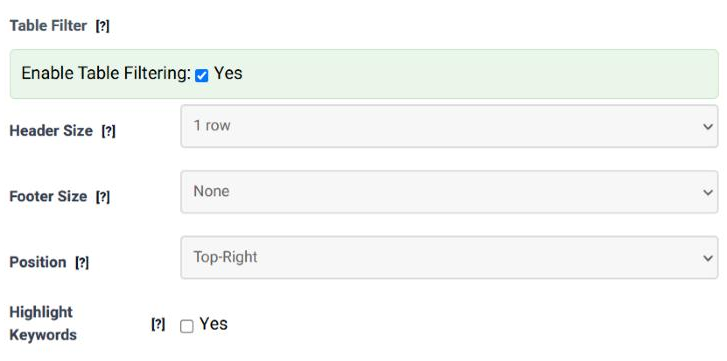
| Field | What it does | Options | Default |
|---|---|---|---|
| Enable Table Filtering | Switches the search box on. Everything below it is ignored while this is unticked. | Yes / no | Not ticked |
| Header Size | How many rows at the top of the table are header rows. They are left out of the search, so they always stay visible however the table is filtered. | 1 row, 2 rows, 3 rows, 4 rows, 5 rows | 1 row |
| Footer Size | How many rows at the bottom of the table are footer rows. They are left out of the search too, which is what keeps a totals line visible while the rows above it are filtered. | None, 1 row, 2 rows, 3 rows, 4 rows, 5 rows | None |
| Position | Where the search box sits in relation to the table. | Top-Left, Top-Right, Bottom-Left, Bottom-Right | Top-Right |
| Highlight Keywords | Marks the search term inside the rows that matched, so the visitor can see why a row is still there. | Yes / no | Not ticked |
| If the visitor types | What happens |
|---|---|
blue |
Every row with "blue" anywhere in it stays, including "Blue" and "bluebell". The search ignores capital letters. |
blue desk |
Rows that contain both words, in any order and in any columns. The words do not have to be next to each other. |
"desk lamp" |
Quotation marks ask for the exact phrase. |
| nothing | The whole table comes back. |
The filter looks at the text the visitor can see. If a rule has already replaced a value, reformatted a date or added a prefix, the search works on the result, not on what the data source holds.
Filtering first, paging second. Filter a 400-row table down to 12 rows and the pages are recounted, so a 10-rows-per-page table now has two pages, not forty.
Independent of each other. The visitor can sort the filtered rows, and the sort survives a change to the search term.
The export buttons take the filtered rows by default, which is usually what a visitor expects after narrowing a table down.
Header Size is too small. If your table has two header rows and Header Size says 1 row, the second one is treated as data and disappears as soon as somebody searches. Set it to the real number.
Not with this feature - it always searches whole rows. Use Column Filtering and add a filter for that one column.
Not from the Table Filter panel. A column filter can be given a preselected value, so if you need the table to open already filtered, use a column filter for it.
A table with any interactive feature is rendered through DataTables, which adds its own wrapper and controls around your table. The table itself keeps the styling your ruleset gives it.
Yes. Tabulizer asks DataTables to remember the state of each table, so the search term, the sort and the page the visitor was on come back when they return to the page.
Open the Table Wizard, load your data in step 1, tick Table Filtering in step 2 and set it up in step 4.
Open the Table Wizard