Replace text values
Replace Values Based on Criteria
Rename a value everywhere it appears, tidy up codes, shorten long labels, or rewrite dates and numbers into a different shape. A replacement rule finds text with a regular expression and replaces it, only in the part of the table you choose.
Where to find it
Open the Table Wizard and go to step 5 (Modifications). Under Data Manipulation › Data Replacement, click Add new Text Replacement. The rule has three fields of its own:
- Find Text: what to look for, written as a regular expression.
- Replace With: the new text. Leave it empty to delete what was found.
- Case Sensitive: when unticked,
bluealso finds "Blue" and "BLUE".
The Table Element and Element Range decide where the replacement happens. Click Select Element & Range to choose columns, rows or cells in the range window, or type the range. Every cell in the selection is searched; cells outside it are left alone.
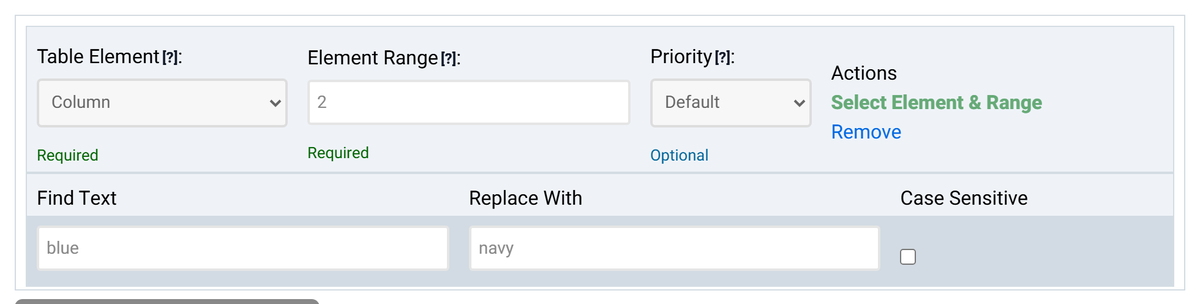
On the product list from Tutorial 1, this rule changes the Colour column only. "blue" and "Blue" both become "navy", while a product with blue in its name would keep it, because column 1 is not part of the range.
| Product | Colour before | Colour after |
|---|---|---|
| Desk lamp | blue | navy |
| Office chair | black | black |
| Notebook | Blue | navy |
| Standing desk | blue | navy |
Find Text is a regular expression
This is the one thing to remember about replacements. Find Text is not plain text but a regular expression (regex): a small pattern language that can describe "any number", "the whole cell" or "red or blue" in a few characters. Ordinary letters, digits and spaces simply match themselves, so blue finds "blue" and most everyday replacements need no special knowledge.
A few characters have a special meaning, though:
. ^ $ * + ? ( ) [ ] { } | \
To find one of them as a normal character, put a backslash in front of it. The dot is the one that surprises people most, because it means "any character":
| Find Text | Replace With | Cell | Result |
|---|---|---|---|
. |
, |
24.50 | ,,,,, (every character replaced) |
\. |
, |
24.50 | 24,50 |
\(discontinued\) |
(empty) | Bookcase (discontinued) | Bookcase |
(, the cell is left as it was. When a replacement seems to do nothing, check the special characters first.Useful patterns
All results below were produced with Tabulizer's own replacement code.
| Goal | Find Text | Replace With | Cell → Result |
|---|---|---|---|
| Replace a word wherever it appears | blue |
navy |
light blue → light navy |
| Only when it is the whole cell | ^blue$ |
navy |
light blue → light blue Blue → navy |
| One of several words | blue|grey |
cool tone |
grey → cool tone |
| Both spellings | colou?r |
shade |
Colour and color → shade and shade |
| Fill empty cells | ^$ |
- |
(empty) → - |
| A placeholder, any case | ^n/a$ |
- |
N/A → - |
| Remove a currency sign and its space | €\s* |
(empty) | € 24.50 → 24.50 |
| Hide digits | [0-9]+ |
# |
Room 12, floor 3 → Room #, floor # |
| Wrap the value in HTML | ^(.*)$ |
<strong>\1</strong> |
Sale → Sale |
| Reorder the parts of a date | ^(\d{4})-(\d{2})-(\d{2})$ |
\3/\2/\1 |
2026-09-02 → 02/09/2026 |
Reusing what was found
Parentheses in Find Text capture part of the match. In Replace With, \1 is the first captured part, \2 the second, and so on, and \0 is everything that was found. That is how the last two examples work. Write the backslash form: $1 is not supported and appears in the cell as it is.
Shortcuts you can use
| Pattern | Matches |
|---|---|
\d / [0-9] |
a digit |
\s |
a space, tab or line break |
\w |
a letter, digit or underscore |
^ / $ |
the start / the end of the cell |
* / + / ? |
the item before it zero or more times / one or more times / optional |
{4} |
the item before it exactly four times |
a|b |
a or b |
Things to know
Does the replacement see HTML?
Yes. It works on the cell's content as it is, tags included. Find Text <b> finds a bold tag, and a pattern such as b can also change the letters inside tags, so keep patterns specific when cells contain HTML.
Does it work with accented and non-Latin letters?
Yes. Case-insensitive matching also covers them: ä finds "Ä".
Which runs first, replacements or formats?
Replacements run before formats and calculations, and after removals and modification functions. So you can clean a value with a replacement, for example remove a currency sign, and then format the number that is left. Use Priority to change that order when you need to.
How do I leave the header row out?
For a column rule, set Element Section to 2-L1: the replacement then applies to rows 2 to the last of the selected columns.
Try a replacement
Open the Table Wizard, add a Text Replacement in step 5 and check the result in step 6.
Open the Table Wizard