Data Addition
The easiest way. Choose an empty or a custom row or column, pick its position and type the values into a form.
A totals line at the bottom, a spacer row, a column for notes, or a header row that your data does not have. Tabulizer can add all of these without touching the source data, and there are three ways to do it.
All six Data Modification tutorials use the same small product list. Rows and columns are numbered from 1, and row 1 is the header. Every result shown was produced by Tabulizer itself, in step 6 (Preview) of the online Table Wizard.
| Row | Col 1: Product | Col 2: Colour | Col 3: Price band | Col 4: Price | Col 5: Last order |
|---|---|---|---|---|---|
| 1 | Product | Colour | Price band | Price | Last order |
| 2 | Desk lamp | blue | affordable | 24.50 | 2026-09-02 |
| 3 | Office chair | black | expensive | 189.00 | 2026-08-28 |
| 4 | Bookcase | white | expensive | 249.90 | 2026-09-10 |
| 5 | Notebook | Blue | affordable | 3.20 | 2026-09-14 |
| 6 | Monitor stand | grey | affordable | 39.00 | 2026-07-30 |
| 7 | Standing desk | blue | expensive | 459.00 | 2026-09-01 |
The easiest way. Choose an empty or a custom row or column, pick its position and type the values into a form.
Two built-in modification functions. You type the position and all the values in one line, and the new row or column goes through the rest of your rules.
For a database query, add the header row in the query itself or, simpler, with the data source's own Header row option.
Open the Table Wizard, go to step 5 (Modifications) and find Add/Remove Elements. Click Add new Data Addition, then choose what to add:
Then choose the Insert Row Position (or Insert Column Position). It is the place the new row takes: 1st makes it the first row, 2nd puts it between the current rows 1 and 2, and Last adds it at the end of the table. 2nd to Last to 5th to Last count back from the end, so they keep working when the number of rows changes.
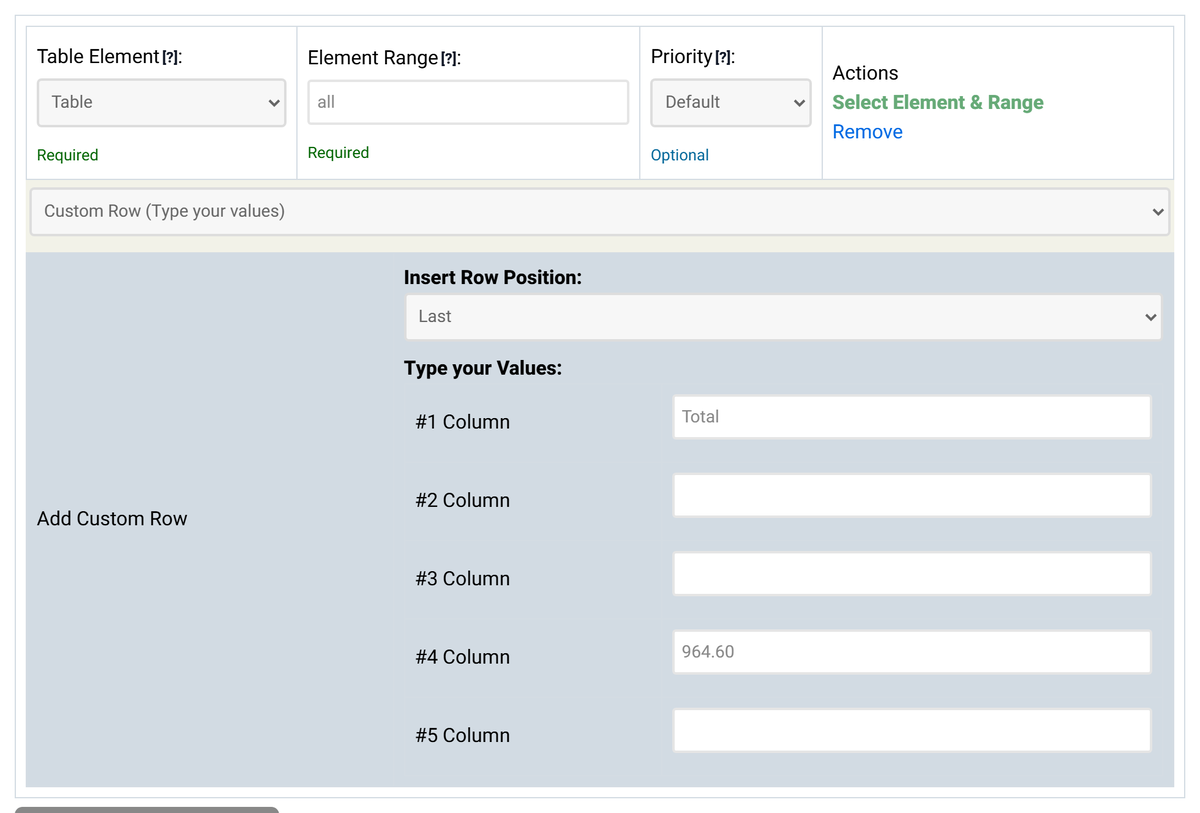
The rule above adds a totals line at the end:
| Product | Colour | Price band | Price | Last order |
|---|---|---|---|---|
| Desk lamp | blue | affordable | 24.50 | 2026-09-02 |
| … | ||||
| Standing desk | blue | expensive | 459.00 | 2026-09-01 |
| Total | 964.60 | |||
For an addition, the element and range do not choose where the row goes; the position does that. They decide whether the rule runs. Leave them at Table and all to always add the row. A condition such as ROWS > 5 adds it only when the table has more than 5 rows, which is useful for a totals line on a table that is sometimes almost empty.
In step 5, click Add new Data Modification, set Function Type to Built-in/Existing one and pick addrow or addcolumn as the Function Name. The wizard shows what the function does and how to write its arguments.
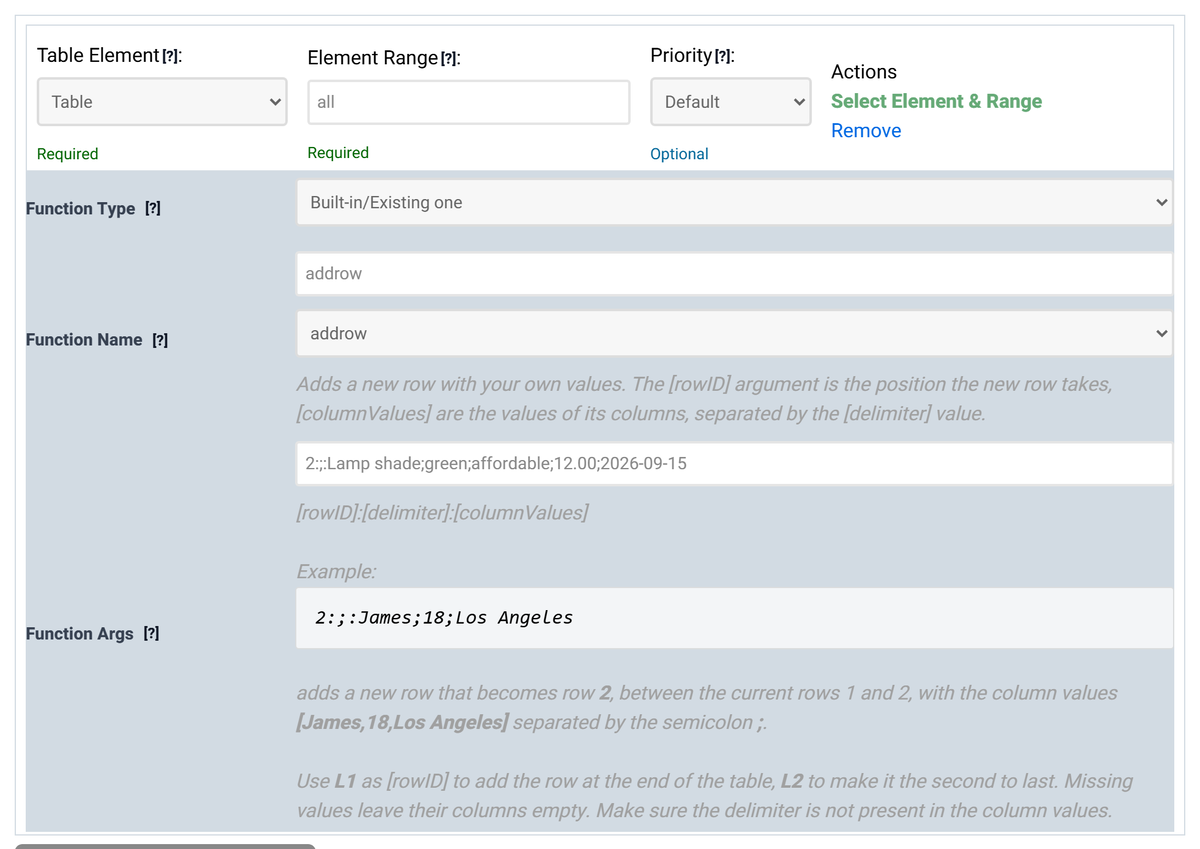
The arguments are one line with three parts separated by colons:
[position]:[delimiter]:[values]
| Part | Meaning |
|---|---|
| position | The place the new row (or column) takes: 1 makes it the first, 2 puts it between the current rows 1 and 2, L1 makes it the last, L2 the second to last. |
| delimiter | The character that separates the values, for example ; or |. Pick one that does not appear in the values. |
| values | For addrow, the cells of the new row from left to right. For addcolumn, the cells of the new column from the top row down. Missing values leave their cells empty. |
| Function | Arguments | Result |
|---|---|---|
| addrow | 2:;:Lamp shade;green;affordable;12.00;2026-09-15 |
A new row 2, right under the header. |
| addrow | L1:|:Total|||964.60 |
A totals row at the end; columns 2, 3 and 5 stay empty. |
| addcolumn | L1:;:In stock;12;0;7;150;4;2 |
A new last column, "In stock", with one value per row. |
| addcolumn | 1:;:# |
A new first column with "#" in the header and empty cells below, ready for numbering. |
Modification functions run before all other data rules. A row added with addrow is therefore treated like the rest of your data: a date format rule on column 5 also formats its date, and a replacement rule also changes its text. A Data Addition runs after them and is left as you typed it. Choose the function when the new row should look like the others, and the addition when it should stay exactly as entered.
A database query returns data rows only; the column names are not part of the result. There are two ways to give such a table a header row.
In the back end, open Tabulizer › Data Sources and edit a data source of type Database Table/Query, External Database or Form Entries. Tick Add header row ("Add a header row when results are not empty"). Then click + Add header column once for each column the query returns, type the labels, and drag them into the right order. The header row is added only when the query returns rows, so an empty result never turns into a table with nothing but a header.
Before this option existed, the usual way was a UNION that puts the labels in front of the data:
(SELECT "Full Name", "Username", "Email")
UNION ALL
(SELECT `name`, `username`, `email` FROM `#__users` WHERE `block` = 0)
This still works. #__ stands for your site's table prefix. Use UNION ALL rather than UNION, because UNION also removes duplicate rows. The database does not promise to return the label row first either, so if the order matters, prefer the Header row option.
Yes. Choose Last as the position of a Data Addition, or use L1 as the position for addrow and addcolumn.
Add one rule for each row. When their order matters, for example two rules that both use position 2, give them different priorities: the rule with the higher priority runs first.
Yes. Only the first two colons of the addrow and addcolumn arguments are separators; everything after the second one is values.
Open the Table Wizard, load your data in step 1 and add a row or a column in step 5.
Open the Table Wizard