Installing Tabulizer When the Upload Limit Is Too Small
Installing Tabulizer When the Upload Limit Is Too Small
Tabulizer installs like any other WordPress plugin. Some servers, however, accept uploads of only 2MB, and tabulizer.zip is about 4.5MB - so the upload fails. There are two ways around it: raise the limit, or copy the plugin to the server yourself.
Recognise the problem
After pressing Install Now under Plugins › Add New Plugin › Upload Plugin, you get one of these:
| Message | Meaning |
|---|---|
| The uploaded file exceeds the upload_max_filesize directive in php.ini. | The file is larger than PHP accepts. |
| The link you followed has expired. | Often the same thing: the upload was larger than post_max_size. |
To see your limit, open Media › Add New Media File: WordPress prints the Maximum upload file size under the upload box.
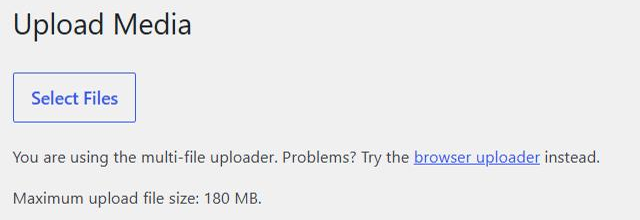
The server in this picture allows 180MB, so there is no problem. A limit smaller than the plugin zip means the upload cannot succeed.
Option 1: raise the PHP upload limit
This is the better solution, as it also helps later when you upload data files. Many hosting control panels offer it under a name such as PHP settings or PHP INI Editor. Set:
| PHP setting | Suggested value | Note |
|---|---|---|
upload_max_filesize |
32M |
The largest single file. |
post_max_size |
40M |
Must be at least as large as the line above. |
Without a control panel setting, put the two lines in php.ini, or in a file named .user.ini in the root folder of your site:
upload_max_filesize = 32M
post_max_size = 40M
Servers running PHP as an Apache module (and LiteSpeed servers) can also take them from .htaccess:
php_value upload_max_filesize 32M
php_value post_max_size 40M
.htaccess lines cause an Internal Server Error. If that happens, remove them and use one of the other ways. Editing wp-config.php or the theme cannot raise these two limits.A .user.ini change can take a few minutes to apply. Check the Maximum upload file size again; if it has not changed, ask your host to raise it. On a multisite network, also check Max upload file size in the network settings.
Option 2: copy the plugin to the server
If you cannot raise the limit, install without the WordPress uploader.
Extract the zip
Extract tabulizer.zip on your computer. You get one folder named tabulizer.
Upload the folder
With FTP or your host's file manager, upload that folder into wp-content/plugins/.
Activate
In your dashboard go to Plugins and press Activate under Tabulizer.
The result must be wp-content/plugins/tabulizer/tabulizer.php. A second folder level, such as plugins/tabulizer/tabulizer/, or a folder with another name, is the usual mistake.
tabulizer.zip into wp-content/plugins/, extract it there and delete the zip.Updating the same way
To update by FTP, deactivate Tabulizer, replace the wp-content/plugins/tabulizer folder with the new one and activate it again. Do not use Delete on the Plugins screen for this.
wp-content/plugins/tabulizer/, your files are stored inside the plugin and replacing the folder would delete them. Export your archives, or copy wp-content/plugins/tabulizer/templates/tabulizer/, before you replace it.Common questions
There is no Upload Plugin button.
Your host or an administrator has switched uploads off, or you are not an administrator. Ask them, or use option 2 if you have file access.
Tabulizer does not appear in the Plugins list.
Check the folder structure: tabulizer.php must be directly inside plugins/tabulizer/.
I raised upload_max_filesize and the limit is unchanged.
Check post_max_size as well: the smaller of the two wins. Your host may also set a limit of its own.
Read more
The ordinary installation: How to Install Tabulizer on WordPress.
Download Tabulizer for WordPress
Members find the plugin on the download page.
Go to the download page