How to Change the Error Reporting Settings
How to Change the Error Reporting Settings
You may sometimes see "deprecated" notices when using Tabulizer for WordPress. They are not actual errors, but notes meant for developers. A few lines in wp-config.php stop them from being shown - and please tell us about them, so we can deal with their source.
What these notices are
A notice such as this one is PHP saying that some code uses a feature which a future PHP version will drop:
Deprecated: strlen(): Passing null to parameter #1 ($string) of type string is deprecated in ...
The page and your tables keep working. The notices typically appear after your host moves the site to a newer PHP version, or while WordPress debugging is switched on.
Edit wp-config.php
Open the file
wp-config.php is in the root folder of your WordPress site. Open it with your host's file manager or over FTP, and keep a copy first.
Look for WP_DEBUG
There is usually a line defining it already. Change that line rather than adding a second one - defining the same name twice produces a warning of its own.
Add the settings
Put the lines below above the comment That's all, stop editing! and save.
define( 'WP_DEBUG', false );
define( 'WP_DEBUG_DISPLAY', false );
define( 'WP_DEBUG_LOG', false );

@ini_set( 'display_errors', '0' );
| Line | What it does |
|---|---|
WP_DEBUG |
Turns WordPress debugging off. |
WP_DEBUG_DISPLAY |
Keeps debug messages off the page. |
WP_DEBUG_LOG |
Stops writing them to a log file. |
display_errors |
Tells PHP itself not to print errors. It matters because, with debugging off, WordPress leaves this to the server. |
wp-config.php stops the whole site. If that happens, restore your copy.Check the result
Reload the page that showed the notices. To confirm what WordPress is using, open Tools › Site Health › Info and expand WordPress Constants: WP_DEBUG, WP_DEBUG_DISPLAY and WP_DEBUG_LOG should all read Disabled.
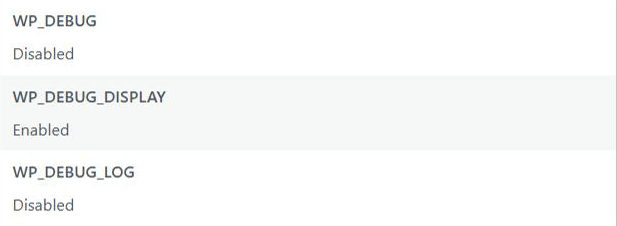
The site in this picture has debugging off but no WP_DEBUG_DISPLAY line, so that one still reads Enabled, which is its default. It has no effect while WP_DEBUG is off; adding the line above makes it read Disabled.
If notices remain, clear the cache of any caching plugin. Some hosts have their own error display setting in the control panel; switch that off as well.
Report the notice to us
Turning the display off hides the notice; it does not remove its cause. Before you switch it off, copy it and send it through the Help Desk with:
| Send | Where to find it |
|---|---|
| The full text of the notice, including the file name and line number | The page that shows it |
| Tabulizer, WordPress and PHP versions | Tabulizer › Status |
| What you were doing when it appeared | The page address, or the dashboard screen |
It is also worth checking that you run the latest Tabulizer release; the notice may already be fixed.
Common questions
Is my site broken?
Not because of a deprecated notice. If something also fails to work, tell us what.
The notice names a file outside the Tabulizer folder.
Then it comes from WordPress, your theme or another plugin. Report it to its developer.
I still need to find a real problem.
Set WP_DEBUG and WP_DEBUG_LOG to true but keep WP_DEBUG_DISPLAY false. Messages go to wp-content/debug.log and visitors see nothing. Turn it off again afterwards and delete the log.
Found a notice from Tabulizer?
Send us its full text through the Help Desk.
Back to WordPress Guides