Installing Tabulizer When the Upload Limit Is Too Small
Installing Tabulizer When the Upload Limit Is Too Small
Tabulizer installs like any other Joomla extension. Some servers, however, accept uploads of only 2MB, and the installation file is about 4.5MB - so the upload fails. There are two ways around it: raise the limit, or install from a folder without uploading through Joomla at all.
Check your limit
In your Joomla administrator go to System › Install › Extensions (on Joomla 3: Extensions › Manage › Install). Under the upload box Joomla prints the Maximum upload size.
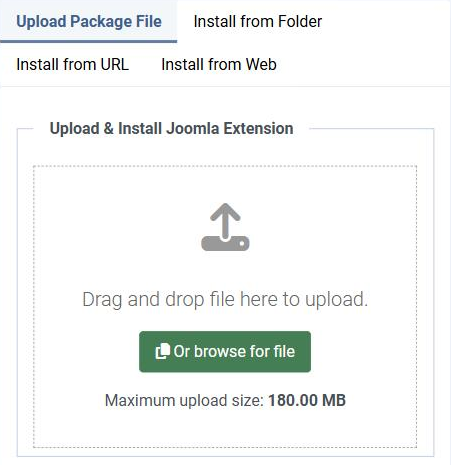
The server in this picture allows 180MB, so there is no problem. If yours shows less than the size of the installation file (com_tabulizer_joomla5.zip and its siblings), the installation cannot succeed this way. A host that is close to the limit may also fail while unpacking the file.
Option 1: raise the PHP upload limit
This is the better solution, as it also helps later when you import data files. Many hosting control panels offer it under a name such as PHP settings or PHP INI Editor. Set:
| PHP setting | Suggested value | Note |
|---|---|---|
upload_max_filesize |
32M |
The largest single file. |
post_max_size |
40M |
Must be at least as large as the line above. |
Without a control panel setting, put the two lines in php.ini, or in a file named .user.ini in the root folder of your site:
upload_max_filesize = 32M
post_max_size = 40M
Servers running PHP as an Apache module (and LiteSpeed servers) can also take them from .htaccess:
php_value upload_max_filesize 32M
php_value post_max_size 40M
.htaccess lines cause an Internal Server Error. If that happens, remove them and use one of the other ways.A .user.ini change can take a few minutes to apply. Reload the Install page and check the Maximum upload size again; if it has not changed, ask your host to raise it.
Option 2: install from a folder
If you cannot raise the limit, copy the files to the server yourself and let Joomla install them from there.
Extract the package
Download the zip for your Joomla version and extract it into a folder on your computer.
Upload the files
With FTP or your host's file manager, create the folder tmp/com_tabulizer in your Joomla site and upload the extracted files into it. The .xml manifest must sit directly in that folder.
Install from Folder
On the Install page open the Install from Folder tab, add /com_tabulizer to the path shown, and press Check & Install.
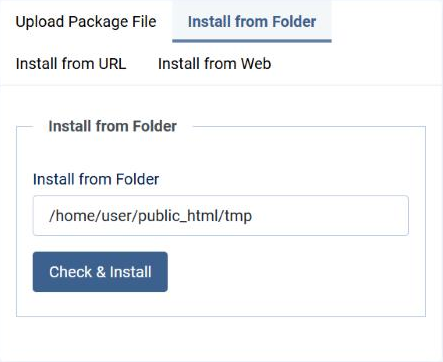
tmp/com_tabulizer and extract it there - one upload instead of hundreds of small files.Start with an empty folder: files left over from an earlier, unsuccessful attempt can upset the installation. When Joomla reports success, you may delete tmp/com_tabulizer.
Check the result
Open Components › Tabulizer › Status. It shows the installed version and your server's PHP Upload Max Size and PHP Post Max Size, and says whether the Tabulizer folders are writable.
Common questions
Does this work for updates too?
Yes. Both options update an existing installation. Do not uninstall first - uninstalling removes your data.
Joomla says it cannot find an installation file.
The path points to the wrong folder. The folder you give must contain the .xml manifest itself, not another folder that contains it.
I raised upload_max_filesize and the limit is unchanged.
Check post_max_size as well: the smaller of the two wins. Your host may also set a limit of its own.
Read more
The ordinary installation: How to Install Tabulizer on Joomla.
Download Tabulizer for Joomla
Members find the file for each Joomla version on the download page.
Go to the download page